


August 2026
How to Create a QR Code: A Complete Guide for URLs, WiFi and More
QR codes can open links, share WiFi access, save contact details and more. This guide explains how they work and how to create a customized, scannable QR code for free.

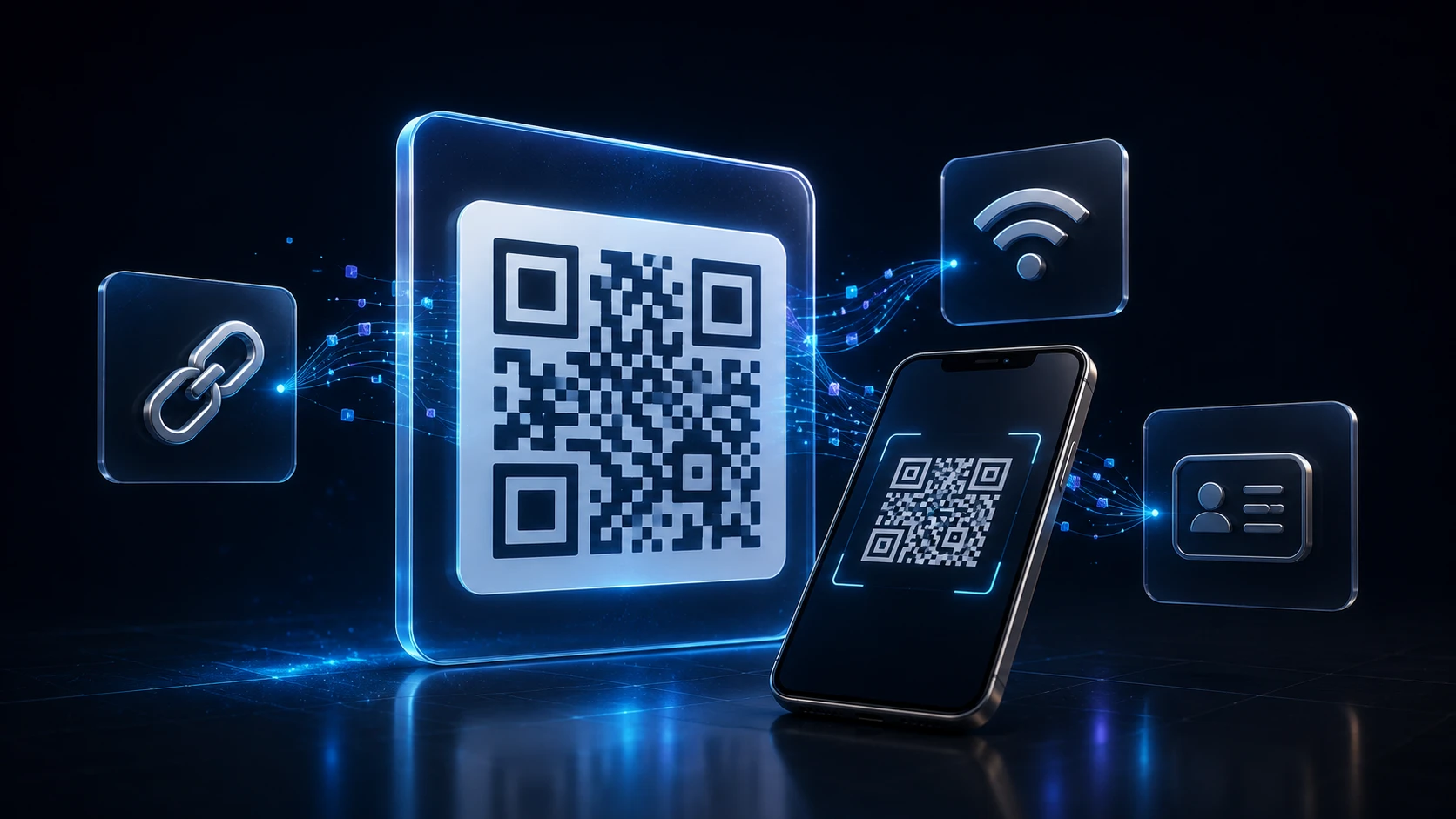
QR codes are an easy way to connect something physical—a business card, poster, product package, menu or event sign—to a digital action. One scan can open a website, connect a phone to WiFi, start an email, display a message or save contact details.
You do not need specialist software to make one. With the ImgTask free QR code generator, you can create a custom QR code in your browser, add colors or a logo, and download it as a PNG or SVG without creating an account.
This guide explains what a QR code is, how it works, which type to choose and how to create one that remains easy to scan.
The Quick Answer: How Do You Create a QR Code?
To create a QR code online:
Open the ImgTask QR Code Generator.
Choose what the code should contain: URL, text, WiFi, email, phone, SMS or vCard.
Enter the required information.
Customize the colors, module style, size and error-correction level if needed.
Add a logo if you want a branded design.
Scan the preview with a phone to test it.
Download the finished QR code as a PNG or SVG.
That is enough for most uses. However, a few design and testing decisions can make the difference between a code that scans immediately and one that frustrates people. We will cover those below.
What Is a QR Code?
A QR code is a two-dimensional barcode made from a grid of light and dark squares, often called modules. While a traditional retail barcode stores information along one horizontal direction, a QR code uses both horizontal and vertical space. This allows it to hold more information in a compact area.
“QR” means “Quick Response.” The technology was developed by DENSO WAVE in Japan and released in 1994. It was first used to improve tracking in automotive manufacturing before spreading to tickets, advertising, payments, contact sharing and many other everyday uses. DENSO WAVE provides a detailed account in its official history of the QR Code.
Today, most modern phone cameras can recognize common QR codes without a separate scanner app. The person points the camera at the code, checks the action or destination shown on the screen, and taps to continue.
How Does a QR Code Work?
A QR code converts text or structured information into a visual pattern that a compatible scanner can decode.
The three large squares near its corners are position-detection patterns. They help a scanner find the code and understand its orientation. The smaller modules hold encoded data along with information that helps the reader interpret the pattern.
The process is roughly:
A generator encodes the entered content into a QR pattern.
A camera detects the code and its orientation.
Scanning software analyzes the modules.
Error-correction data helps recover some information if part of the code is dirty, damaged or obscured.
The phone presents the decoded action, such as opening a URL or joining a WiFi network.
The amount of content matters. A short web address usually produces a simpler pattern than a long block of text or a detailed contact card. Denser QR codes contain smaller modules and may need to be displayed or printed at a larger size.
What Is QR Code Error Correction?
Error correction adds redundant data so a scanner may still read a code when part of it is damaged or covered. Standard QR codes offer four levels:
Level | Approximate recovery capability | Practical use |
|---|---|---|
L | 7% | Clean, simple environments where maximum data capacity matters |
M | 15% | A balanced default for many normal uses |
Q | 25% | Printed material or designs with a small logo |
H | 30% | More demanding conditions or QR codes with a logo |
Higher correction is not automatically better. It makes the pattern denser because more of the code is used for recovery information. DENSO WAVE’s official guide to QR code error correction notes that Level M is commonly used, while Q or H can suit environments where damage or dirt is more likely.
For a branded QR code with a central logo, Q or H is usually the safer starting point. Always test the final result rather than relying on the setting alone.
QR Code vs Barcode: What Is the Difference?
Both are machine-readable ways to store information, but they are designed differently.
Feature | Traditional barcode | QR code |
Data arrangement | Mostly one-dimensional | Two-dimensional grid |
Common content | Product or inventory identifier | URLs, text, contact data, WiFi details and more |
Typical shape | Long rectangle | Square |
Reading direction | Usually requires a suitable horizontal orientation | Can be recognized from different angles |
Error correction | Depends on the barcode type | Built-in error-correction levels |
Everyday phone use | Less convenient for general actions | Widely supported by phone cameras |
A traditional barcode remains ideal for many retail and inventory systems. A QR code is usually more useful when you want a customer, guest or event attendee to perform an action with a phone.
What Information Can a QR Code Contain?
A QR code does not always have to open a website. The correct type depends on what you want to happen after it is scanned.
URL QR Code
A URL QR code opens a webpage. This is the most common choice for:
Product pages
Restaurant menus
Event registration
Portfolios
App download pages
Help documents
Social profiles
Customer feedback forms
Use the complete address, including https://. Open the address yourself before generating the code, and make sure the page works well on a phone.
Plain-Text QR Code
A text QR code displays a message without requiring a website. It can hold a short instruction, reference number, product detail or note.
Because the information is stored directly in the code, it can normally be read without an internet connection. Keep the text concise: more content creates a denser pattern.
WiFi QR Code
A WiFi QR code stores the network name, security type and password. A guest can scan it instead of manually typing a long password.
It is useful in homes, offices, cafés, hotels, rental properties and reception areas. When creating one, enter the SSID exactly as it appears and select the correct security option, such as WPA/WPA2, WEP or an open network.
Remember that anyone who can scan a displayed WiFi code may be able to connect to that network. A separate guest network is safer than sharing access to a private business or household network.
Email QR Code
An email QR code can open a new message addressed to a specified email address. You can also prepare a subject and message body.
This works well for support requests, event enquiries and feedback. Keep any prewritten message short so the QR code does not become unnecessarily dense.
Phone QR Code
A phone QR code prepares a call to a specified number. Include the country code when the code may be used by people from different regions.
This type is suitable for customer support signs, service vehicles, property listings and printed advertisements.
SMS QR Code
An SMS QR code opens the user’s messaging app with a phone number and optional message. It can simplify contest entries, booking enquiries, donations or keyword-based requests.
The person scanning still decides whether to send the message. Generating the code does not send anything automatically.
vCard Contact QR Code
A vCard QR code contains structured contact information such as a name, organization, phone number, email address and website. After scanning, the user can save the contact instead of typing each field.
It is a useful addition to business cards, conference badges, brochures and email signatures. Only include information you are comfortable distributing, because anyone with access to the code can decode it.
How to Create a QR Code with ImgTask
ImgTask generates QR codes locally in your browser. Your entered content and uploaded logo are not sent to ImgTask’s servers for processing. There is no account requirement and no watermark is added to the download.
Step 1: Choose the QR Code Type
Open the free QR code maker and select URL, Text, WiFi, Email, Phone, SMS or vCard.
Choose the type that matches the intended action. Do not place a web address inside a plain-text code if you want the phone to recognize it reliably as a link; use the URL option instead.
Step 2: Enter and Check the Content
Complete the fields for the selected type. Check spelling, phone numbers, email addresses and URLs carefully.
A QR code faithfully stores what you enter. It cannot recognize that a URL contains a typo or that a phone number is outdated. Test the content before spending money on printing.
Step 3: Choose Colors and Module Style
You can change the foreground and background colors and select a different module style. Customization can make a QR code feel consistent with your brand, but readability should come first.
Use a dark foreground on a light background for the most dependable result. Avoid combinations with weak contrast, such as pale gray on white. Also be cautious with color inversions: some scanners handle a light code on a dark background less reliably.
If you choose a transparent background, remember that the final surface becomes the background. A transparent code that works over white may fail when placed over a busy photograph or dark color.
Step 4: Add a Logo
Adding a logo can help people identify the source of a QR code. ImgTask supports common logo formats including PNG, JPG, WebP and SVG.
Use a simple, recognizable mark rather than detailed text. If your logo is unnecessarily large, you can prepare it first with the ImgTask image resizer. Keep the logo modest in relation to the full code, and use Q or H error correction to compensate for some of the covered modules.
A logo does not make an unsafe destination trustworthy, so the surrounding design should also state what the code does—for example, “Scan to view our menu.”
Step 5: Select the Size and Error-Correction Level
Choose a size suitable for the final use. A social graphic and a shop-window poster do not need the same output dimensions.
If the code contains a long URL or substantial contact data, it will be denser. Give it more physical space when printing. Avoid cropping the empty margin around the code, known as the quiet zone, because scanners use that separation to detect the symbol.
Step 6: Test the QR Code
Scan the preview before downloading. Then test the exported file again after placing it in the final design.
For an important print run, test:
More than one phone if possible
Both iPhone and Android
Normal indoor lighting
The expected scanning distance
The actual printed size
The final material and finish
A code that scans perfectly on a bright monitor may perform differently when printed small on glossy, curved or low-contrast material.
Step 7: Download PNG or SVG
ImgTask lets you download the QR code in either PNG or SVG format.
Format | Best for | Main advantage | Consideration |
PNG | Websites, social posts, presentations, documents and email graphics | Widely supported and easy to use | Fixed pixel dimensions can become blurry if enlarged too much |
SVG | Posters, signs, packaging, professional print and vector design software | Scales without losing sharpness | Some publishing platforms do not accept SVG uploads |
Choose PNG when you need a ready-to-use web image. Choose SVG when the code may be enlarged, edited in vector software or sent to a printer. For a broader explanation of how raster and vector formats differ, see ImgTask’s guide to image file types.
Static vs Dynamic QR Codes
This distinction causes a lot of confusion.
Static QR Code
A static QR code stores its content directly. If it contains https://example.com/menu, that address is encoded in the pattern itself.
Advantages include:
No redirect service is required
The code does not depend on a paid QR platform remaining active
Text and some actions can work without internet access
The final pattern does not expire by itself
The limitation is that the encoded information cannot be changed after the code is created. To correct or replace it, you must generate a new QR code.
ImgTask creates static QR codes. This makes it a practical choice when you want a free, direct code without an account or hosted redirect service.
Dynamic QR Code
A dynamic QR code usually stores a managed short link. The service redirects scanners to another destination. The owner may be able to change that destination or view scan analytics without reprinting the pattern.
However, the code then depends on the redirect address and its provider. Some dynamic services require an ongoing subscription, impose scan limits or disable redirects when a plan ends.
Use a static code when the content is stable and direct access matters. Consider a managed dynamic system when the destination must change after printing or when campaign-level scan analytics are essential.
Do QR Codes Expire?
A properly generated static QR code does not contain an expiration date. It can continue to be scanned as long as the pattern remains readable and the encoded content is still useful.
What can stop working is the destination or action:
A webpage may be moved or deleted.
A domain name may expire.
A WiFi password may change.
A phone number or email address may be replaced.
Printed material may become scratched, faded or covered.
Dynamic codes can also stop working if the redirect service or subscription becomes inactive. For long-lived printed materials, use a stable URL on a domain you control and check it periodically.
Best Practices for a QR Code That Scans Reliably
Keep the Content Short
Shorter content normally creates a less complex pattern. Use a clean, permanent URL instead of a long address full of unnecessary tracking parameters when possible.
Do not use a public URL shortener for important long-term material unless you trust that service to remain available. A concise address on your own domain offers more control.
Maintain Strong Contrast
Dark modules on a light, plain background remain the safest choice. Brand colors can work, but appearance should not come at the expense of readability.
Preserve the Quiet Zone
Leave clear space around every side of the code. Do not let text, borders, photographs or decorative shapes touch the outer modules.
Do Not Overload the Design
Rounded modules, custom colors and a logo can look attractive. Using all of them aggressively at once can make the code harder to recognize. Start with a simple design and customize gradually, testing after each meaningful change.
Use a Clear Call to Action
People are more likely to scan when they know what will happen. Add a short label such as:
Scan to view the menu
Scan to join guest WiFi
Scan to save my contact
Scan to register
Scan for product instructions
The label also helps people judge whether the destination shown by their phone makes sense.
Make the Destination Mobile-Friendly
Most QR scans happen on phones. A slow, confusing or desktop-only page wastes the convenience of the code. Test the destination on a small screen and keep the main action easy to find.
Test the Final Version, Not Only the Preview
Every change to size, color, logo placement, background or print material can affect scanning. Test the exact asset that will be published.
For large print orders, produce one physical proof first. A few minutes of testing is much cheaper than reprinting hundreds of signs, labels or cards.
Are QR Codes Safe?
A QR code is a container for information. It is not automatically safe or unsafe. The risk depends mainly on the encoded destination and the person or organization distributing it.
Because people cannot read a URL directly from the square pattern, scammers may use QR codes to hide phishing links. The U.S. Federal Trade Commission advises users to inspect the displayed URL before opening it, watch for misspelled domains, and avoid unexpected QR codes that create urgency. Its QR code safety guidance also warns that fake codes can be placed over legitimate ones in physical locations.
When scanning a code:
Check the previewed address before opening it.
Look for misspellings or a domain that does not match the claimed organization.
Be suspicious of stickers placed over an original printed code.
Do not enter passwords or payment details unless you trust the destination.
Avoid unexpected codes in urgent emails, texts or packages.
Keep your phone and browser updated.
When publishing your own code, display your brand and explain its destination. If practical, print the expected domain near the QR code so users can compare it with the address shown by their phone.
Useful Ways to Use QR Codes
Once you understand the basic types, QR codes can remove small points of friction in many situations.
For Small Businesses
Link product packaging to instructions or care information.
Place a menu link on a table sign.
Add a feedback form to receipts.
Share guest WiFi in a waiting area.
Put a contact vCard on a business card.
For Events
Open a registration or check-in page.
Link to a map or schedule.
Share presentation files.
Display an event contact number.
Direct attendees to a survey after the event.
For Education
Link worksheets to supporting resources.
Add references to classroom displays.
Share a reading list or assignment page.
Connect equipment labels to instructions.
For Personal Use
Share home guest WiFi.
Add contact information to an invitation.
Link a portfolio from a résumé.
Label storage boxes with a digital inventory.
The best QR code solves one clear problem. Avoid using a code where a short, readable piece of text would be simpler.
Frequently Asked Questions
Can I create a QR code for free?
Yes. ImgTask lets you generate and download static QR codes without creating an account, paying a fee or accepting a watermark.
Can I add my logo to a QR code?
Yes. You can place a PNG, JPG, WebP or SVG logo in the center. Keep it reasonably small, select Q or H error correction, and test the finished code on multiple phones.
Can I change a static QR code after downloading it?
No. Its content is built into the pattern. If the URL, password or contact details change, create and distribute a new code.
Can a QR code work without the internet?
The code itself can be decoded without internet access. Plain text, phone, SMS, contact and WiFi information may still be useful offline. Opening a website or completing an online action requires a connection.
Does a WiFi QR code reveal the password?
The network details are encoded in the QR code and can be decoded by a compatible reader. Treat the code like the password itself and only display it where intended users can access it.
Should I download my QR code as PNG or SVG?
Use PNG for websites, social media, presentations and common document tools. Use SVG for professional printing, packaging or any design that may need to scale to a much larger size.
What is the best color for a QR code?
Black on white is the most dependable combination. Other dark foreground and light background colors can work if they have strong contrast. Always test the actual finished design.
Can a QR code contain an image?
A standard QR code is not a practical container for a full image file. Instead, upload the image to a webpage or trusted storage location and create a URL QR code that opens it.
Can QR codes track people?
A static QR code does not perform tracking by itself. However, a website opened through the code may use normal web analytics, and managed dynamic QR services may record scan-related information. Publishers should disclose data collection where required.
How large should a printed QR code be?
There is no single correct size because scanning distance, data density, print quality, lighting and surface all matter. For a simple code scanned at close range, roughly 2.5–3 cm square can be a reasonable starting point, but the final print must be tested in its real setting. Increase the size for dense codes or longer scanning distances.
Create Your QR Code
A good QR code is not simply attractive. It should encode the correct action, remain easy to scan and give people a clear reason to use it.
Start with the right content type, keep the information concise, use strong contrast, preserve the clear margin and test the final design carefully. If you add a logo or custom colors, make those changes gradually and keep readability as the priority.
When you are ready, use the ImgTask QR Code Generator to create a free custom QR code for a URL, WiFi network, email, phone number, SMS message or vCard. You can generate it privately in your browser and download a clean PNG or scalable SVG in a few steps.
The team
Written by
Dinitha Ransidu
authorKeep reading
Related articles
Best Image Format for Websites: JPG vs PNG vs WebP vs AVIF
Dinitha Ransidu
August 3, 2026 11 min read
How to Reduce Image File Size Without Losing Quality
Dinitha Ransidu
August 2, 2026 13 min read
How to Optimize Images for a Website: The Complete Guide
Dinitha Ransidu
August 1, 2026 20 min read