
Resize Image Online
Free photo and picture resizer. Change width and height in pixels, keep aspect ratio, crop first if needed, or increase photo resolution with upscaling.
Free to use
No account required
Stays on your device
Nothing uploaded
What this free image resizer does
This tool is a photo and picture resizer: it changes the pixel width and height of an image you upload. That controls how large the picture appears at normal display scale. It is different from compression, which mainly targets file size in bytes. Stretching both dimensions without preserving aspect ratio can make subjects look warped.
Use it when a website template, social slot, form, or document asks for exact dimensions. After you resize an image, you can compress the image if the file is still too large to upload.
How to resize an image online
- Upload your photo or picture. Drop a JPEG, PNG, WEBP, HEIC, or other supported image into the upload area, or select several files at once.
- Optionally crop first. Enable crop and drag to keep only the part of the picture you need before changing dimensions.
- Set the new width and height. Enter the target size in pixels. Leave one field blank with aspect ratio on to scale proportionally.
- Resize and download. Press Resize Image, wait for processing, then download the result. Compress afterwards if the file is still too large to upload.
Photo resizer vs picture resizer — same tool, different jobs
Whether you call it a photo resizer or a picture resizer, the job is the same: set exact pixels so the file fits the place you will use it. Photos from a phone are often thousands of pixels wide; forms and profile slots usually need a few hundred. Downscaling first makes uploads faster and keeps layouts from breaking.
Reduce image size (dimensions)
Enter a smaller width or height to reduce image size on screen. With aspect ratio on, one dimension is enough — the other scales automatically so the photo does not stretch. If you meant fewer kilobytes rather than fewer pixels, finish with the image compressor.
Increase photo resolution online for free
Enable “Allow upscaling,” then enter larger width and height values. That increases the pixel count so a small picture can fill a bigger canvas. Upscaling cannot invent real camera detail — results often look soft if you scale far beyond the original. Use it for modest enlargements, not for recovering lost sharpness.
Crop, then resize
Optional crop lets you keep a face, product, or subject before the dimensions change. Combine crop with Cover fit when a slot needs an exact box and you care which part of the picture fills it.
Common resize sizes
These are starting points, not rules. Always check the site or form that will receive the file — requirements vary.
| Use case | Typical size | Tip |
|---|---|---|
| Website hero / banner | 1920 × 1080 | Keep aspect ratio; compress after if the file is heavy |
| Social post / feed | 1080 × 1080 or 1080 × 1350 | Crop first if the platform needs a fixed ratio |
| Profile / avatar | 400 × 400 | Square crop, then resize |
| Form / passport-style | Exact px required | Enter both width and height; turn aspect ratio off only if the form demands it |
| Thumbnail | 150–300 px wide | Downscale aggressively; then compress if needed |
Why people resize images online
- Fixed slots. Templates, CMSs, and social platforms reject or crop files that do not match their pixel box.
- Faster pages. Serving a 6000-pixel photo in a 800-pixel column wastes bandwidth. Reducing dimensions first cuts weight before compression.
- Forms and applications. Job portals and school systems often require an exact width and height.
- Print and slides. Matching the canvas of a document or deck avoids stretch when the picture is dropped in.
Formats, limits, and privacy
Accepted uploads: JPEG, PNG, WEBP, GIF, BMP, TIFF, AVIF, HEIC. Max 200 MB per image.
Limitations: Upscaling cannot invent real detail. Cover fit may crop edges. Savings in file size from resizing alone depend on the original; compress afterwards if you still need fewer kilobytes.
Privacy: Your image is processed locally in your browser and is not uploaded to ImgTask's server. Image files never leave your device. No account is needed and results carry no watermark.
More Tools
Every tool is free, private and runs in seconds.
Image Tools
48Convert to JPG
JPGConvert to PNG
PNGConvert to WEBP
WEBPConvert to AVIF
AVIFConvert to TIFF
TIFFConvert to GIF
GIFFavicon / ICO
PDF Tools
12
Compress PDF
Shrink for email & web
Merge PDF
Combine multiple files
Image to PDF
Images → single PDF
PDF to Image
Extract as PNG/JPG
PDF to PowerPoint
Pages → PPTX slides
JPG to PDF
Photos → PDF pages
Word to PDF
DOCX → PDF
Excel to PDF
XLSX → PDF table
HTML to PDF
Web page file → PDF
PDF to JPG
Pages → JPEG
PDF to Word
Extract text to DOCX
PDF to Excel
Tables → XLSX
Frequently Asked Questions
Yes. You can resize images online for free with no account, no watermark, and no software to install. Upload limits apply (200 MB per image).
Resizing changes the pixel width and height of a photo or picture. Reducing file size (bytes) is compression. If you still need fewer kilobytes after resizing, use the Compress Image tool.
Yes — enable Allow upscaling, then enter larger width and height values. Upscaling adds pixels but cannot invent real camera detail. Soft results are common when scaling far above the original size.
Aspect ratio is the relationship between width and height (for example 16:9). Keeping aspect ratio avoids stretching. Turning it off can distort the image if both dimensions are forced.
The maximum upload size is 200 MB per image. Images above about 40 megapixels may fail in the browser.
Resizing runs in your browser. Your image is processed locally and is not uploaded to ImgTask's server.
Downscaling usually looks fine. Upscaling can look soft or blurry because the tool invents pixels that were not in the original.
Yes. Enable Crop before resizing, select an area, then set the target dimensions.
Blog
Guides and tips from the blog
Short, practical articles to get more out of ImgTask and your image or PDF workflow.
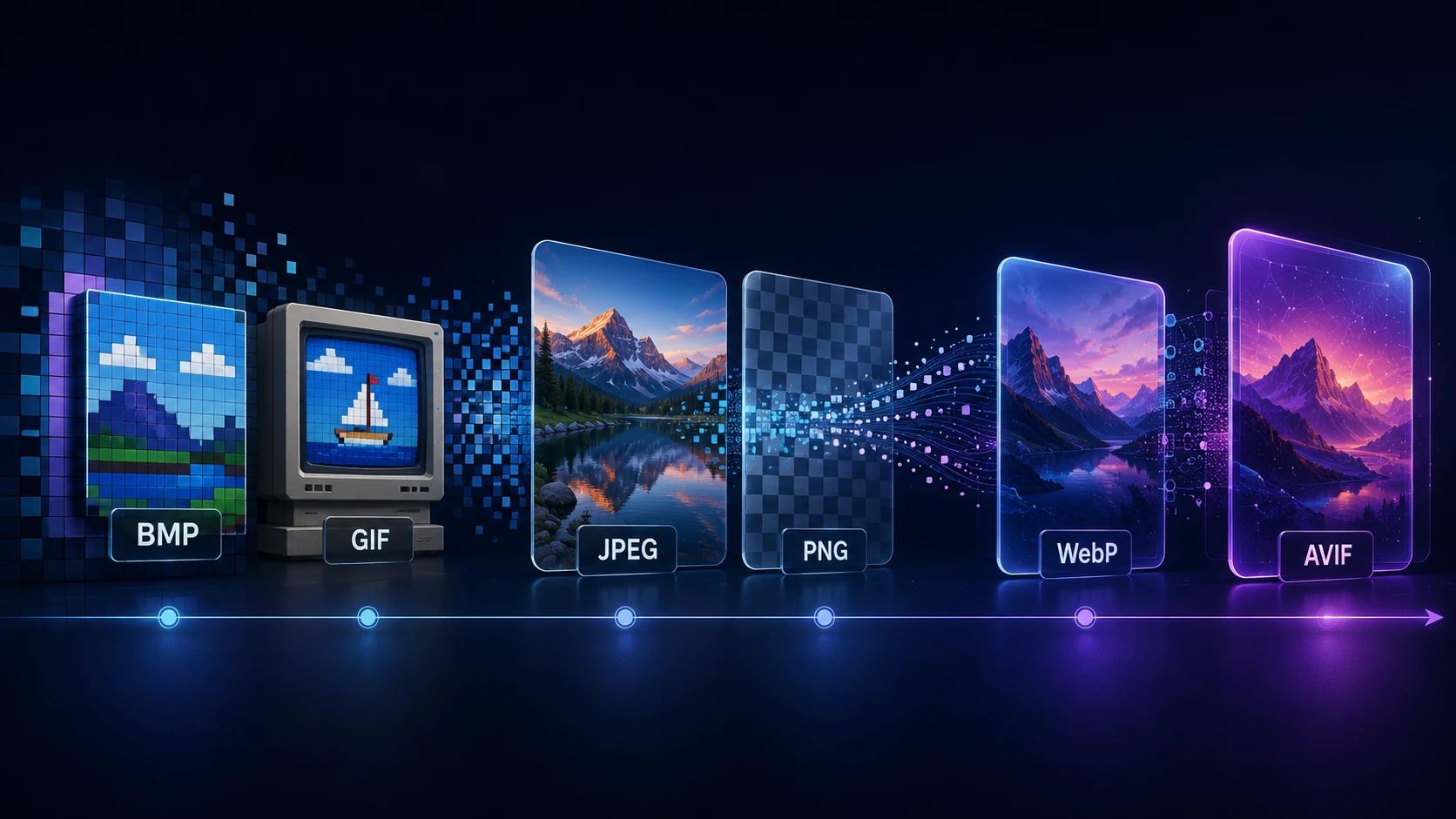
A Brief History of Digital Image Formats: From BMP and GIF to WebP and AVIF
Dinitha Ransidu 12 min read