GIF to WEBP
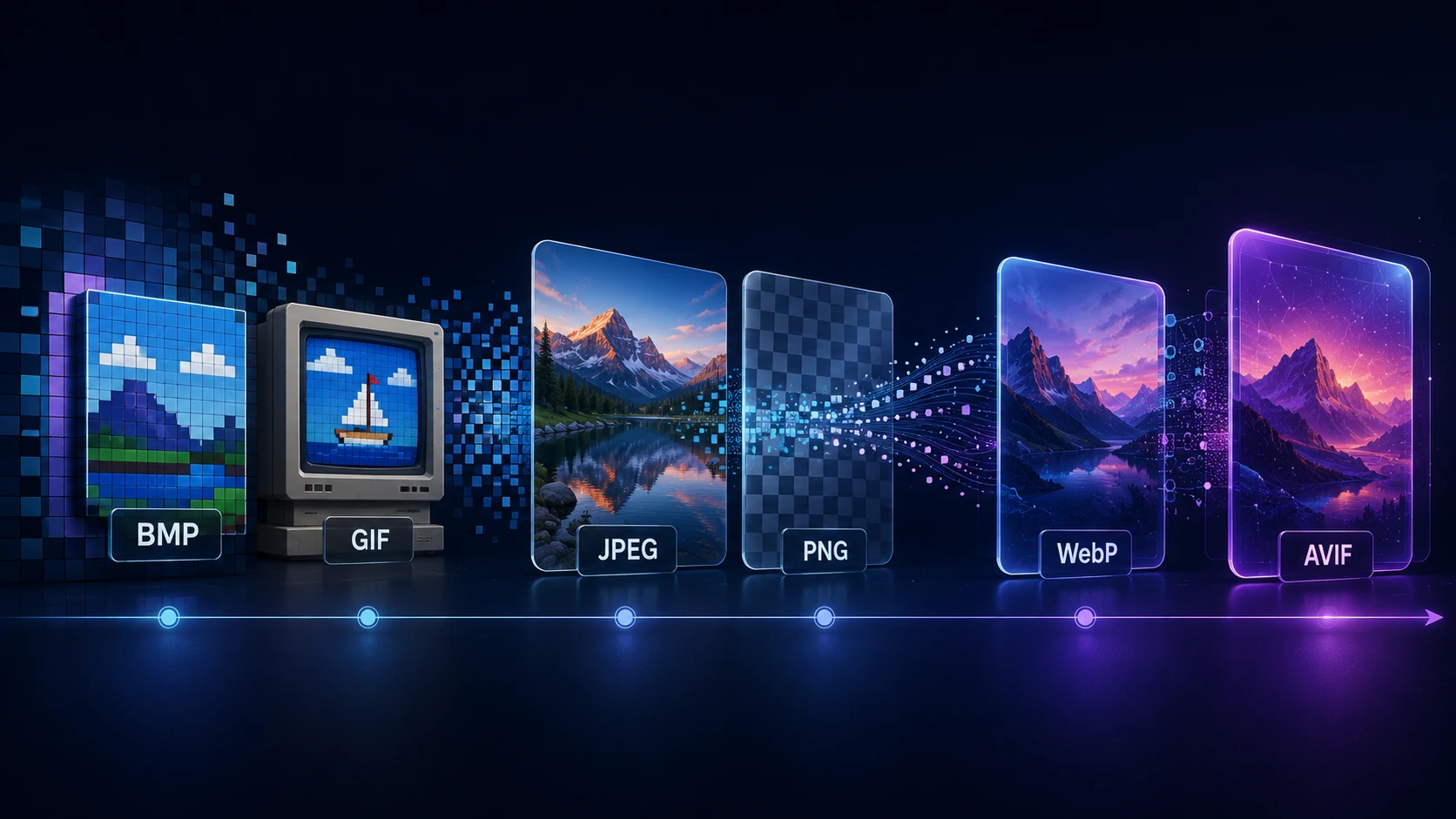
Modernize old GIF graphics with a smaller, still WEBP that keeps its transparency and shows more colors than the GIF could.
GIF to WEBP for lighter web graphics
Older websites are often full of GIFs: logos, buttons, banners and small illustrations. WEBP can hold these same images in a more efficient format, and this GIF to WEBP converter makes that update easy. It preserves transparency and runs entirely in your browser.
Just be aware of its main limit: the output is a still image. If your GIF moves, you'll get a picture of the first frame.
How to convert GIF to WEBP
It takes a moment per file, and result cards show you the size difference.
- 1
Upload GIF graphics
Drag in the logos, banners or buttons you want to update, up to 20 at once.
- 2
Choose a quality
Flat graphics benefit from 85 or higher, which keeps their edges crisp and free of smudges.
- 3
Convert to WEBP
Press the button. The GIF's first frame is encoded as a still WEBP, with transparent pixels preserved.
- 4
Replace the old files
Download the WEBP images and swap them into your pages, updating any links that point to the GIFs.
When this conversion helps
| GIF type | Worth converting? |
|---|---|
| Banner or photo-like still GIF | Yes; usually a big saving |
| Logo with transparency | Yes; WEBP handles it well |
| Tiny icon with a few colors | Maybe; the saving is minimal |
| Animated GIF you need moving | No; this tool keeps only the first frame |
| Animated GIF used as a preview image | Yes; a still is exactly what you need |
What about animated GIFs on a website?
Animated GIFs are among the heaviest things you can put on a page, and a clip of a few seconds can take many megabytes. If performance matters, consider replacing them with a looped, muted video, which is usually far smaller. A still WEBP from this page makes an ideal poster image while the video loads.
That combination gives you a fast first impression, followed by the motion, at a fraction of the original weight.
Tips for clean results
- Use a high quality setting for flat colors. At low quality, WEBP can leave smudges around sharp edges.
- Keep your image dimensions. GIF graphics are typically small, so don't enlarge them when you're replacing them on a page.
- Test on your real background. Check that the transparent edges look right against your page color.
- Compare with PNG. For very small icons, GIF to PNG can give you a lossless file of a similar size.
Free and private
No account, no watermark and nothing uploaded. If you want the smallest possible stills and don't mind a slower encode, try GIF to AVIF.
More Tools
Every tool is free, private and runs in seconds.
Image Tools
48 Compress Image JPEG · PNG · WEBP · GIF · BMP · TIFF · AVIF · HEIC Resize Image Exact px or % Blur Image Gaussian & motion
Convert to JPG
JPGConvert to PNG
PNGConvert to WEBP
WEBPConvert to AVIF
AVIFConvert to TIFF
TIFFConvert to GIF
GIFFavicon / ICO
PDF Tools
12 Compress PDF Shrink for email & web Merge PDF Combine multiple files Image to PDF Images → single PDF PDF to Image Extract as PNG/JPG PDF to PowerPoint Pages → PPTX slides JPG to PDF Photos → PDF pages Word to PDF DOCX → PDF Excel to PDF XLSX → PDF table HTML to PDF Web page file → PDF PDF to JPG Pages → JPEG PDF to Word Extract text to DOCX PDF to Excel Tables → XLSX
Frequently asked questions
No. This tool saves the first frame as a still WEBP. To keep the animation on a website, a short MP4 or WEBM video is usually the lightest alternative, and a dedicated animation converter can create one.
Drop the GIF on this page, choose a quality and press Convert to WEBP. Your browser reads the first frame and saves it as a still WEBP image.
Yes. Transparent pixels in the GIF stay transparent in the WEBP.
It varies. Detailed or photographic GIFs often shrink by half or more. A tiny, simple icon might not change much, and it can even grow slightly.
It won't add colors or detail that the GIF lacks. Any banding or dithering stays, though a WEBP may smooth it slightly.
No. It's converted in your browser, on your own device.
Blog
Guides and tips from the blog
Short, practical articles to get more out of ImgTask and your image or PDF workflow.