Compress Image Online
Reduce image file size in seconds. Compress JPEG, PNG, WEBP, and HEIC photos with a quality slider or a target size in KB. No account required.
Free to use
No account required
Stays on your device
Nothing uploaded
What this image compressor does
This tool takes an image you upload and re-encodes it so the file uses fewer bytes. Compressing an image is different from resizing it: resizing changes the width and height in pixels, while compression reduces image file size and usually leaves the dimensions untouched. A photo can stay 4000 × 3000 pixels and still lose most of its weight, or barely shrink at all if it was already optimized.
Use it when a JPEG is too big for a website upload form, an email attachment limit, a social platform, or a product listing. If you also need different dimensions, run the image resizer first and compress afterwards.
How to compress an image online
- Upload your image. Drop a JPEG, PNG, WEBP, HEIC, or other supported image into the upload area, or pick several images at once.
- Choose a quality level. Move the quality slider (default 80%). Lower quality means a smaller file and more visible artifacts.
- Or set a target file size. Enter a target size in KB and the quality is adjusted automatically to get close to that file size.
- Compress and download. Press Compress Image, wait for processing to finish, compare before and after, then download the smaller file.
Three ways to reduce image size
File size comes from three things: how much detail the encoder keeps, how many pixels the image has, and which format stores those pixels. You can pull any of those levers, and combining them gives the biggest reduction.
1. Lower the encoding quality
The quickest way to reduce image file size is to compress at a lower quality. Dropping a photo from 100% to 80% often removes more than half the bytes with no obvious difference on screen. This is what the quality slider above does.
2. Reduce the pixel dimensions
A 6000-pixel-wide photo displayed in a 1200-pixel column is carrying five times more data than it needs. Cutting the width in half removes roughly three quarters of the pixels. Use the resize image tool to set exact dimensions or a percentage, then compress the result.
3. Switch to a lighter format
Format matters as much as quality. A screenshot saved as PNG can shrink dramatically as WEBP, and a photo stored as PNG is often much smaller as JPEG. Keep PNG only when you need transparency or pixel-exact graphics.
Compressing JPEG, PNG, WEBP, and HEIC
Compress JPEG
JPEG is built for photographs and responds well to compression. Camera and phone JPEGs are usually saved at a very high quality setting, so re-encoding at 75–85% typically cuts the file size in half while the photo still looks the same at normal viewing size.
Compress PNG
Below 95% quality, PNGs are reduced to a smart palette of up to 256 colours with dithering, then repacked with OxiPNG. This usually makes them 60–80% smaller while keeping transparency. At 95–100% the PNG stays pixel-exact and is only optimised losslessly.
Compress WEBP and AVIF
WEBP and AVIF are already efficient modern formats, so expect smaller gains than with an untouched JPEG. They are still worth compressing when you are chasing page speed and every kilobyte in the payload counts.
Compress HEIC photos from an iPhone
HEIC uploads are compressed and saved as JPEG, which makes them viewable everywhere. If you only need the format change without extra compression, use the dedicated HEIC to JPG converter.
Which quality setting should you use?
| Quality | What you get | Good for |
|---|---|---|
| 85–90% | Modest size reduction, detail kept | Portfolios, print-adjacent work, photo archives |
| 75–85% | Large saving, hard to tell apart from the original | Website images, blog posts, product photos |
| 60–75% | Small file, slight softness in fine texture | Email attachments, forms with upload limits |
| 10–60% | Smallest file, visible blocking and banding | Thumbnails, previews, strict size caps |
These are starting points, not rules. After compressing you get a before and after slider, so you can raise or lower the quality and re-apply until the balance looks right.
Why people reduce image file size
- Faster pages. Images are usually the heaviest part of a page, so compressing them is the simplest way to improve load time and Core Web Vitals.
- Email and messaging limits. Most providers cap attachments, and a handful of phone photos passes that cap quickly.
- Upload forms. Job applications, government portals, and school systems often reject anything over a fixed number of kilobytes.
- Marketplace and CMS rules. Storefronts and content platforms enforce their own maximum file size per image.
- Storage and backups. Smaller files mean more photos in the same space and quicker syncing.
Supported formats and limits
Accepted uploads: JPEG, PNG, WEBP, GIF, BMP, TIFF, AVIF, HEIC. Maximum size: 200 MB per image.
Limitations: Compression can reduce visual quality. HEIC inputs are saved as JPEG. Transparent PNGs converted through JPEG-oriented paths lose transparency. Savings depend on the original file.
Privacy: Your image is processed locally in your browser and is not uploaded to ImgTask's server. Image files never leave your device. No account is needed and results carry no watermark.
More Tools
Every tool is free, private and runs in seconds.
Image Tools
48Convert to JPG
JPGConvert to PNG
PNGConvert to WEBP
WEBPConvert to AVIF
AVIFConvert to TIFF
TIFFConvert to GIF
GIFFavicon / ICO
PDF Tools
12
Compress PDF
Shrink for email & web
Merge PDF
Combine multiple files
Image to PDF
Images → single PDF
PDF to Image
Extract as PNG/JPG
PDF to PowerPoint
Pages → PPTX slides
JPG to PDF
Photos → PDF pages
Word to PDF
DOCX → PDF
Excel to PDF
XLSX → PDF table
HTML to PDF
Web page file → PDF
PDF to JPG
Pages → JPEG
PDF to Word
Extract text to DOCX
PDF to Excel
Tables → XLSX
Frequently Asked Questions
Compression reduces image file size so pictures are easier to upload, email, or load on a website. It usually adjusts encoding quality and does not necessarily change the image width and height.
Enter a value in the Target file size (KB) field before compressing. The quality is adjusted automatically to land near that size — for example 100 KB for a form upload or 500 KB for a web page image.
Start around 80% quality and compare the before and after preview. Most photos still look the same at 75–85% while the file gets noticeably smaller.
Compression targets file size. Resizing changes pixel dimensions (width and height). You can use both: resize first, then compress if the file is still large.
You can upload JPEG, PNG, WEBP, GIF, BMP, TIFF, AVIF, and HEIC/HEIF. HEIC photos are compressed and saved as JPEG. Results and size savings vary by format.
The maximum size is 200 MB per image. Very large pixel dimensions may fail in the browser. Processing stays in your browser — files are not sent to a background server queue.
Compression runs in your browser. Your image is processed locally and is not uploaded to ImgTask's server. Image files never leave your device.
You can select multiple images in the uploader. Each image is processed as its own job.
Blog
Guides and tips from the blog
Short, practical articles to get more out of ImgTask and your image or PDF workflow.
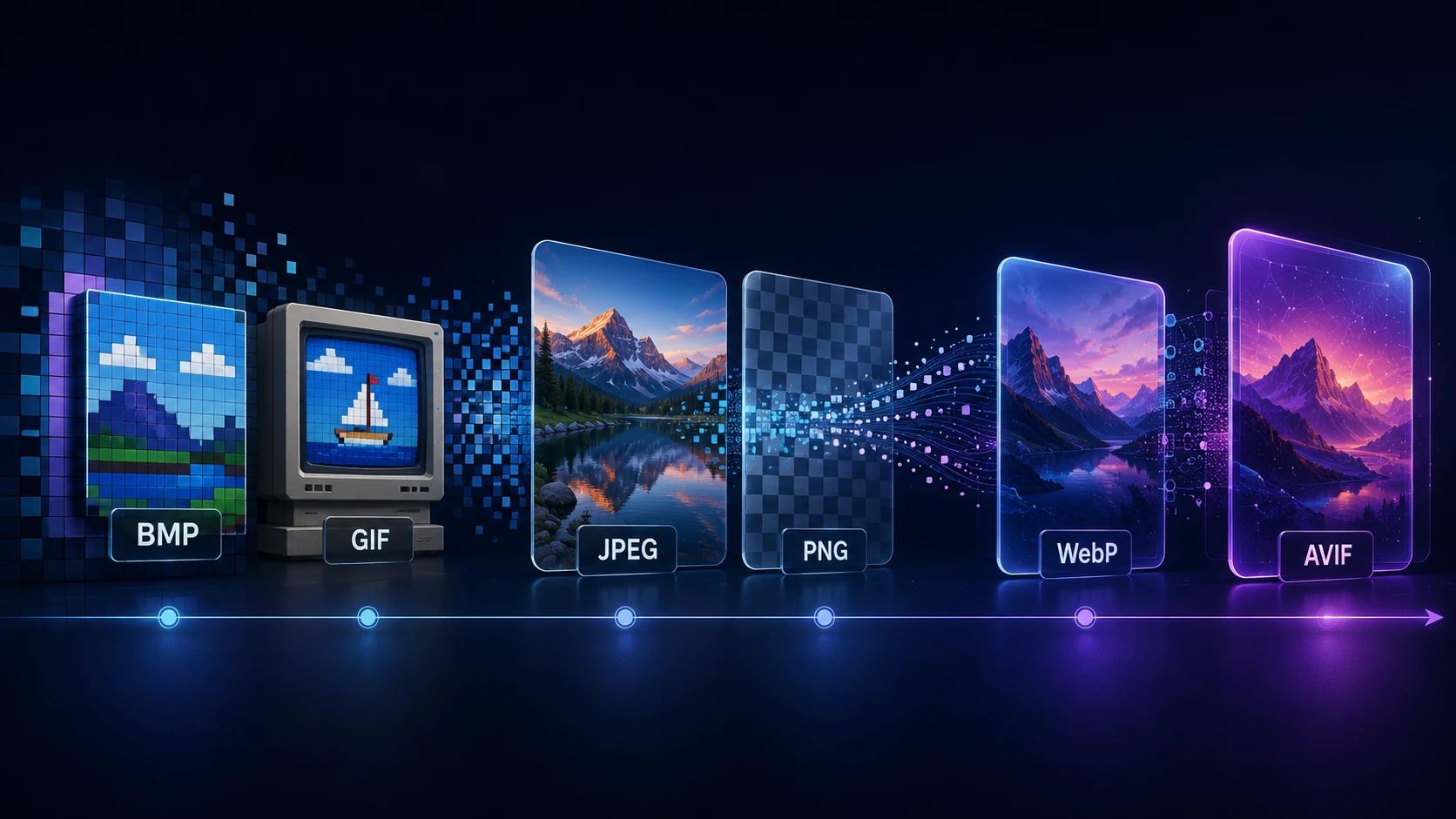
A Brief History of Digital Image Formats: From BMP and GIF to WebP and AVIF
Dinitha Ransidu 12 min read