HEIC to AVIF
Move iPhone photos to AVIF, a similarly efficient format that web browsers can actually display.
HEIC to AVIF for web-ready iPhone photos
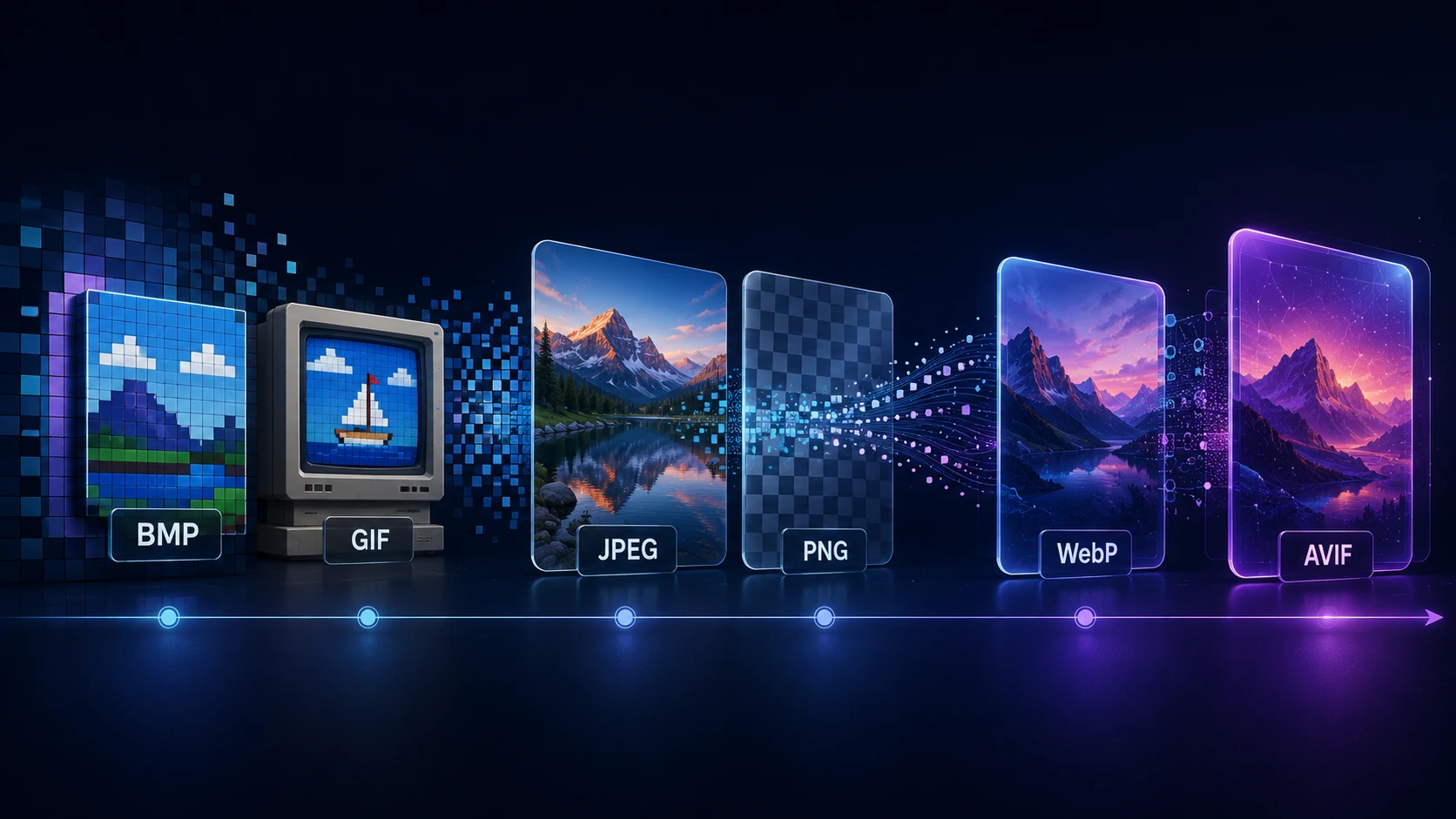
HEIC and AVIF are cousins. Both offer excellent quality at a small size, but only AVIF is displayed by every major browser. This HEIC to AVIF converter lets you keep that efficiency while making your iPhone photos usable on the web.
It's a good choice for photographers and site owners who care about page speed and are happy to wait a few seconds per image for a very small result.
How to convert HEIC to AVIF
Smaller batches are kinder to phones and older laptops, since all the processing happens on your device.
- 1
Drop in your HEIC files
iPhone and iPad photos with .heic or .heif extensions are accepted, up to 20 in a batch.
- 2
Pick a quality
AVIF looks good at surprisingly low numbers. Start around 65 for general web images.
- 3
Allow time for encoding
Press Convert to AVIF. The first photo loads the decoder, and full-size pictures can take several seconds each.
- 4
Download the AVIF files
Save them from the result cards, or take everything at once in a ZIP.
Quality settings for AVIF
| Quality | Looks like | Use for |
|---|---|---|
| 80+ | Essentially the same as the original | Portfolio and full-screen images |
| 60–80 | Very good | Blog photos and product shots |
| 40–60 | Softer in fine detail | Thumbnails and backgrounds |
AVIF's numbers don't match JPG's. A 65 in AVIF can look like an 85 in JPG.
Before you publish
- Reduce the dimensions. A 4032-pixel-wide iPhone photo is far bigger than most layouts need. Use Resize Image to match your largest display width.
- Add a fallback if needed. Older browsers don't read AVIF, so a picture element with a HEIC to WEBP or JPG version covers everyone.
- Keep the HEIC originals. They're your master copies, and they include the date and location data that's removed from the AVIF.
- Don't send AVIF to friends. Many apps can't open it. For sharing, HEIC to JPG is the right tool.
Runs on your device
Your photos aren't uploaded anywhere, and there's no account or watermark. Every step is done by your browser, using a HEIC decoder and an AVIF encoder that load on demand. If you run into a memory error on a phone, try fewer photos at once or switch to a laptop.
More Tools
Every tool is free, private and runs in seconds.
Image Tools
48 Compress Image JPEG · PNG · WEBP · GIF · BMP · TIFF · AVIF · HEIC Resize Image Exact px or % Blur Image Gaussian & motion
Convert to JPG
JPGConvert to PNG
PNGConvert to WEBP
WEBPConvert to AVIF
AVIFConvert to TIFF
TIFFConvert to GIF
GIFFavicon / ICO
PDF Tools
12 Compress PDF Shrink for email & web Merge PDF Combine multiple files Image to PDF Images → single PDF PDF to Image Extract as PNG/JPG PDF to PowerPoint Pages → PPTX slides JPG to PDF Photos → PDF pages Word to PDF DOCX → PDF Excel to PDF XLSX → PDF table HTML to PDF Web page file → PDF PDF to JPG Pages → JPEG PDF to Word Extract text to DOCX PDF to Excel Tables → XLSX
Frequently asked questions
They're close relatives: both store images inside the HEIF container. HEIC uses the HEVC video codec, whereas AVIF uses AV1. The big practical difference is browser support, since Chrome, Edge, Firefox and Safari all display AVIF, while only Safari generally shows HEIC.
They're often similar at the same visual quality. Don't expect big savings from the switch itself. Most of the benefit comes from web compatibility and from resizing the photo to fit your page.
Two heavy tasks are involved: decoding HEIC and encoding AVIF, on your own device. A 12-megapixel photo may take several seconds, or longer on an older phone.
Yes, a little, as AVIF is lossy and this is a second encode. At sensible quality settings you shouldn't notice it. HDR photos are converted to standard color as well.
AVIF generally gives smaller files, while WEBP encodes much faster and has wider software support. If you have lots of photos, WEBP is the easier choice.
Yes. They're processed on your device, and location data isn't included in the output.
Blog
Guides and tips from the blog
Short, practical articles to get more out of ImgTask and your image or PDF workflow.