WEBP to JPG Converter
Turn WEBP images into widely supported JPEG files. Transparent areas become white.
Free to use
No account required
Stays on your device
Nothing uploaded
What this converter does
WEBP is efficient on the web, but printers, older apps, and some forms still expect JPEG. This converter recreates a JPEG version of your WEBP file so it opens more widely. JPEG flattening rules apply if the WEBP used transparency.
Convert WEBP to JPG when a recipient cannot open WEBP or a workflow requires JPEG. Do not convert expecting a quality upgrade — the JPEG cannot restore detail already discarded by lossy WEBP.
Related tools: JPG to WEBP · WEBP to PNG · PNG to JPG
How to convert WEBP to JPEG
- Upload your WEBP file. Drop one or more WEBP files into the upload area (max 200 MB each).
- Set JPEG quality. JPEG is lossy. Use the quality slider (default 90%). Lower values usually make a smaller file; higher values keep more detail. This does not restore quality already lost in the source.
- Convert to JPEG. Press Convert to JPEG. Processing runs in your browser — the file is not uploaded to ImgTask's server.
- Download the result. Download the converted JPEG file when it is ready. Conversion stayed on your device.
WEBP to JPG — what changes
Images saved from websites are often WEBP, and plenty of everyday tools still refuse that format. Converting to JPG makes the picture openable in photo apps, printers, kiosks, and upload forms that only accept JPEG.
JPEG has no alpha channel, so transparent WEBP areas are flattened onto white. Expect the JPEG to sometimes be larger than the WEBP, since WEBP is usually the more efficient format.
When to convert WEBP to JPG
- Images saved from websites that will not open in older software.
- Upload forms that accept only JPG or JPEG.
- Printing and photo services that expect JPEG files.
Formats, limits, and privacy
Upload limit: 200 MB per image, up to 20 files at once. Images above about 100 megapixels may fail in the browser. Conversion re-encodes pixels and strips EXIF, GPS, XMP, ICC, and DPI metadata; orientation is applied visually first. Animated sources use the first frame. Transparent pixels are flattened onto white.
Limitations: JPEG flattening rules apply if the WEBP used transparency — transparent areas become a white background. Quality settings change file size and detail. This is often lossy-to-lossy recompression.
Privacy: Your image is processed locally in your browser and is not uploaded to ImgTask's server. Image files never leave your device. No account is needed and results carry no watermark.
More Tools
Every tool is free, private and runs in seconds.
Image Tools
48
Compress Image
JPEG · PNG · WEBP · GIF · BMP · TIFF · AVIF · HEIC
Resize Image
Exact px or %
Blur Image
Gaussian & motion
Convert to JPG
JPGConvert to PNG
PNGConvert to WEBP
WEBPConvert to AVIF
AVIFConvert to TIFF
TIFFConvert to GIF
GIFFavicon / ICO
PDF Tools
12
Compress PDF
Shrink for email & web
Merge PDF
Combine multiple files
Image to PDF
Images → single PDF
PDF to Image
Extract as PNG/JPG
PDF to PowerPoint
Pages → PPTX slides
JPG to PDF
Photos → PDF pages
Word to PDF
DOCX → PDF
Excel to PDF
XLSX → PDF table
HTML to PDF
Web page file → PDF
PDF to JPG
Pages → JPEG
PDF to Word
Extract text to DOCX
PDF to Excel
Tables → XLSX
Frequently Asked Questions
Upload your WEBP on this page, adjust quality if you want, click Convert to JPEG, then download the result.
Many images saved from websites are WEBP. Older photo apps, some printers, kiosks, and upload forms only accept JPEG.
JPEG does not support transparency. Transparent areas are flattened onto a white background. Keep WEBP or use PNG if you need to preserve alpha.
Often the JPEG is larger, because WEBP is usually more efficient. Lower the quality slider if you need a smaller JPG for email or a form limit.
You can convert images up to 200 MB each, and up to 20 files at once. Very large pixel dimensions may still fail in the browser even when the file is under the upload limit.
Conversion runs in your browser. Your image is processed locally in your browser and is not uploaded to ImgTask's server. Image files never leave your device. If the browser cannot process the file, you will see an error and nothing is uploaded.
No. Conversion re-encodes pixels and strips EXIF, GPS, XMP, ICC, and DPI metadata. EXIF orientation is applied visually first so portrait photos stay upright. Live Photos, depth maps, and similar extras are not stored in the output.
Animation is not preserved. Animated GIFs (and animated WEBP/AVIF when the browser decodes only a still) use the first frame.
Blog
Guides and tips from the blog
Short, practical articles to get more out of ImgTask and your image or PDF workflow.
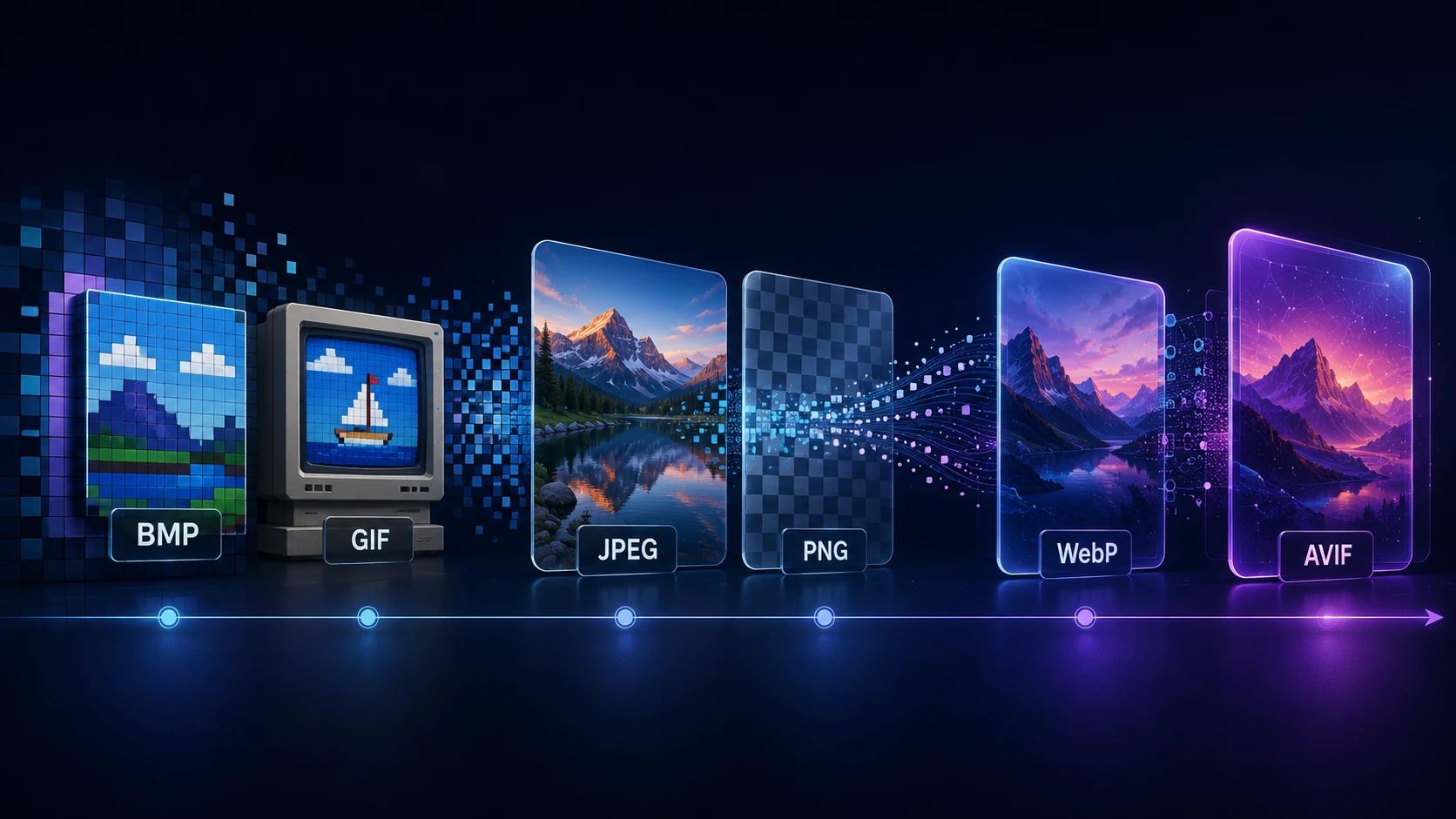
A Brief History of Digital Image Formats: From BMP and GIF to WebP and AVIF
Dinitha Ransidu 12 min read