


August 2026 Updated Aug 22, 2026
Image File Types Explained: JPEG, PNG, GIF, WebP, AVIF, TIFF and BMP
Confused by JPG, PNG, WebP or TIFF? This beginner-friendly guide explains seven common raster image formats, their strengths, limitations and the situations in which each one makes sense.

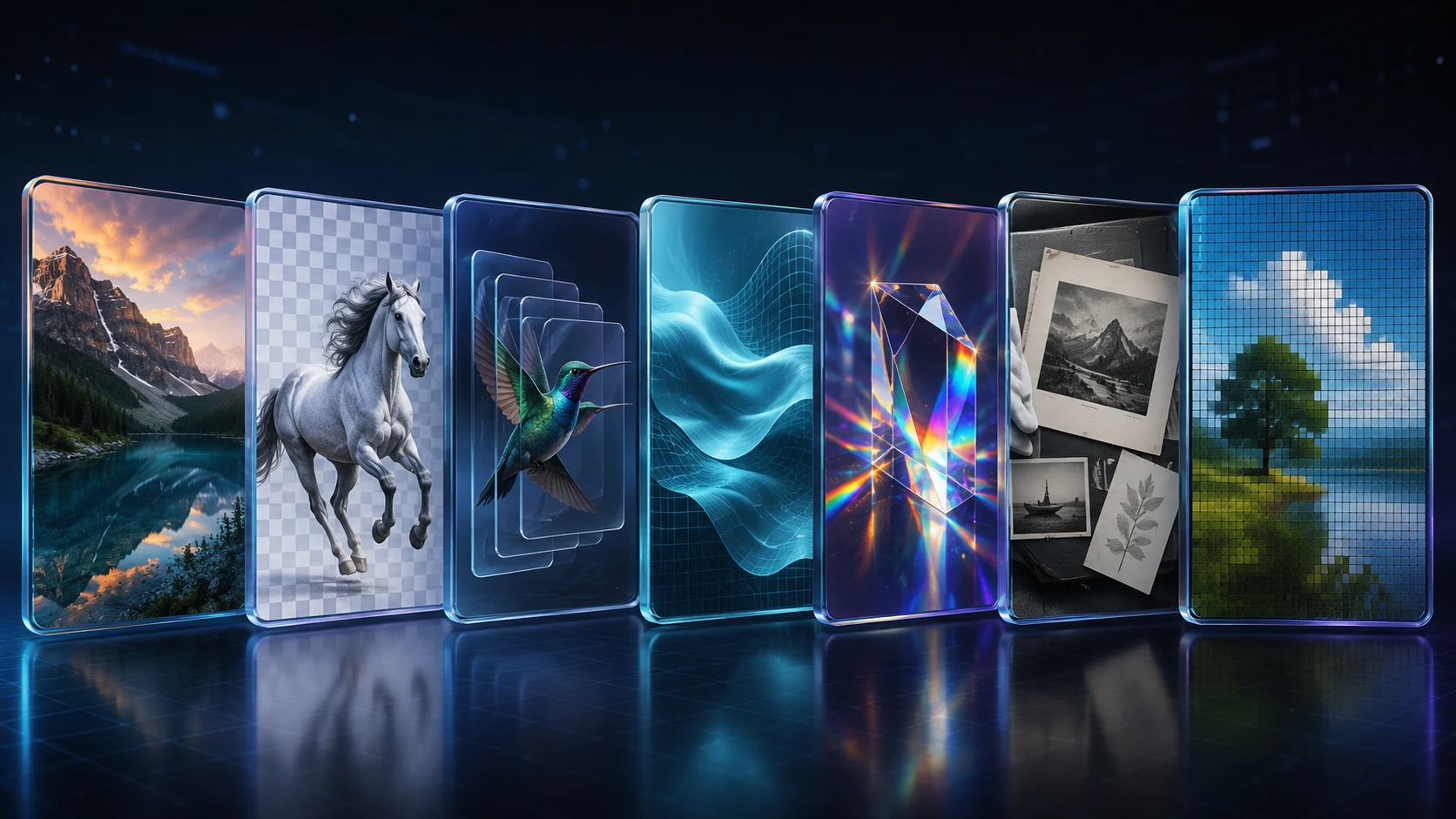
An image can look identical on your screen yet behave differently depending on how it is saved. Its file type affects quality, storage, transparency, animation and software compatibility. A photograph, transparent logo, animation and archival scan all have different requirements.
This image format guide explains seven widely encountered raster image formats: JPEG, PNG, GIF, WebP, AVIF, TIFF and BMP. You will learn what each format does well, where it struggles and how to choose the right one without getting lost in technical language.
Quick Comparison of Common Image File Types
Format | Common extensions | Compression | Transparency | Animation | Best suited to |
|---|---|---|---|---|---|
JPEG |
| Usually lossy | No | No | Photos, email and broad compatibility |
PNG |
| Lossless | Yes | APNG can animate | Logos, screenshots and sharp graphics |
GIF |
| Lossless within a limited palette | Basic | Yes | Simple short animations |
WebP |
| Lossy or lossless | Yes | Yes | Modern website photos and graphics |
AVIF |
| Lossy or lossless | Yes | Supported by the format | Efficient web images, HDR and rich color |
TIFF |
| Uncompressed, lossless or lossy | Possible, workflow-dependent | Not normally | Scanning, print, publishing and archives |
BMP |
| Often uncompressed | Limited and inconsistent | No | Windows and legacy workflows |
No format wins every category. JPEG offers compatibility, PNG preserves sharp details and transparency, WebP and AVIF prioritize efficient delivery, TIFF suits high-quality workflows, and BMP remains in specialized or older systems.
What Is an Image File Type?
An image file type defines how pixel data and related information are arranged. It tells software how to decode colors, dimensions, compression, transparency, metadata and sometimes multiple frames.
All seven are raster image formats, built from a fixed pixel grid. Enlarging one far beyond its original dimensions creates softness or pixelation. Vector formats such as SVG instead store shapes that can be redrawn at many sizes.
Image format, extension and MIME type
These terms are related but not identical:
The format is the actual internal structure, such as JPEG or PNG.
The file extension is the ending of the filename, such as
.jpgor.png.The MIME type identifies the media type in systems such as the web—for example,
image/jpegorimage/png.
Renaming photo.png to photo.jpg does not convert it. The data remains PNG; proper conversion decodes the source and creates a new target file.
Mozilla’s current image file type guide provides a useful technical reference for web formats and MIME types.
1. JPEG or JPG: The Everyday Photo Format
JPEG stands for Joint Photographic Experts Group. .jpg and .jpeg represent the same format; the shorter extension became common when older systems preferred three-character extensions.
JPEG suits continuous-tone images with many colors and gradients, including photographs, product images and email attachments. Its main strengths are compatibility and adjustable file size.
How JPEG compression works
The JPEG files people use every day normally rely on lossy compression. Lossy compression discards some image information to create a smaller file. The W3C’s JPEG overview describes JPEG as a standardized lossy compression method.
At a sensible setting, loss may be hard to notice. Heavy compression creates blocks, blurred texture, edge halos or banding. Repeated resaving may add degradation, so keep a high-quality original.
When to use JPEG
Choose JPEG for:
Photographs with many colors and smooth tonal changes
Images that must open in almost any application or device
Email attachments and ordinary photo sharing
Upload forms, print kiosks and older software that request JPG
Avoid JPEG for transparency, animation, pixel-perfect preservation or very sharp small text. PNG is usually safer for transparent logos and UI screenshots.
2. PNG: Lossless Quality and Transparency
PNG stands for Portable Network Graphics. It was designed as a portable, lossless raster format and uses the .png extension.
Lossless compression means the encoded image can be reconstructed without intentionally discarding its pixel information. The current W3C PNG specification also supports grayscale, indexed color, truecolor, alpha transparency and frame-based animation.
Why PNG is useful
PNG handles hard edges, flat colors and text cleanly. Its alpha channel stores partial transparency, letting soft shadows and curves blend with different backgrounds.
PNG is a strong choice for:
Logos and graphics requiring transparency
Screenshots with small text or interface elements
Diagrams, icons and illustrations with sharp edges
Images that must survive lossless saving
Graphics with a limited number of colors
The main PNG limitation
PNG can become large for detailed photographs. Saving everything as PNG does not automatically create better quality; it may only create more bytes than JPEG, WebP or AVIF.
If a photographic PNG is too large and transparency is unnecessary, use the PNG to JPG converter. Remember that transparent pixels must be flattened onto a solid background when converted to JPEG.
3. GIF: Simple Animation with a Limited Palette
GIF stands for Graphics Interchange Format and uses the .gif extension. Its most recognizable feature is animation: one file can contain a sequence of frames that loops or plays in order.
GIF uses lossless compression for stored pixel indexes, but each frame is limited to a palette of up to 256 colors. Simple graphics can remain clean; full-color photos may show dithering or banding. The GIF89a specification defines its color tables.
When GIF still makes sense
GIF remains useful for:
Short, simple looping animations
Reaction images and lightweight instructional motion
Pixel art or graphics with few colors
Workflows that specifically require
.gif
GIF transparency is basic: it can mark a palette color as transparent but cannot provide the smooth partial opacity of a full alpha channel.
For a static graphic extracted from a GIF, the GIF to PNG converter can provide a lossless PNG output. When converting an animated source to a still-image format, always check which frame is retained.
4. WebP: A Flexible Format for the Modern Web
WebP is a web-focused image format developed by Google and uses the .webp extension. It supports lossy compression, lossless compression, alpha transparency, metadata and animation in one family of files.
WebP can replace JPEG for many photos, PNG for many transparent graphics and GIF for some animations. Google’s WebP documentation confirms lossy and lossless encoding, transparency and animation.
Advantages of WebP
Efficient files for many photographs and graphics
Lossy and lossless encoding options
Smooth alpha transparency
Animated images with richer color than GIF
Support across current major browsers
When WebP may be inconvenient
Some older applications, printers and portals still expect JPEG or PNG. WebP may therefore be unsuitable when the recipient’s software is unknown.
For web publishing, test a real source rather than assuming conversion always improves it. You can use ImgTask’s JPG to WebP converter for photographs. If an older workflow rejects the result, convert WebP to JPG for compatibility.
5. AVIF: High-Efficiency Compression and Rich Color
AVIF stands for AV1 Image File Format and uses the .avif extension. It stores images using technology derived from the AV1 video ecosystem and is designed for efficient modern image delivery.
AVIF can support lossy and lossless encoding, transparency, high bit depths, wide color information and HDR workflows. The Alliance for Open Media’s AVIF overview notes support for transparency and color depth up to 12 bits per channel.
Where AVIF is strong
AVIF can produce attractive quality at compact sizes, particularly for detailed photos and gradients. It suits performance-focused sites where you control the publishing system and fallbacks.
Consider AVIF for:
Website photographs where bandwidth matters
Hero images and content imagery tested at several qualities
HDR or wide-color delivery in a compatible workflow
Transparent images when the complete toolchain preserves alpha
Where AVIF requires care
Encoding can take more processing time, and support varies among editors, CMS platforms and business systems. Decoders may also handle advanced features differently.
Use the JPG to AVIF converter to compare a photograph, but retain JPEG or WebP alternatives where needed. Reject smaller results that introduce smearing, color shifts or compatibility problems.
6. TIFF: A Flexible Format for Scanning, Print and Archives
TIFF stands for Tagged Image File Format. Its common extensions are .tif and .tiff; they refer to the same format.
TIFF is a flexible container for raster data and tags. It can store different color models, bit depths, metadata and compression methods. A TIFF may be uncompressed, losslessly compressed with LZW, or use lossy JPEG encoding. The Library of Congress describes TIFF 6.0 as a tag-based wrapper for different raster encodings.
When TIFF is the right choice
TIFF is common in:
High-resolution document and artwork scanning
Professional printing and prepress
Photography and publishing workflows
Scientific, medical and geographic imaging systems
Archival or intermediate master files
Multi-page scanned documents
TIFF files can be large, and variations use different settings. Software may not support every variation, making TIFF better for controlled professional workflows than websites.
The TIFF to JPG converter can create a compatible copy. Keep the TIFF master when its bit depth, metadata, pages or editing quality matter.
7. BMP: A Simple Windows Bitmap Format
BMP, commonly called Windows Bitmap, uses .bmp. It stores pixels with headers describing dimensions, color depth and layout.
Many BMP files are uncompressed and inefficient to transfer. Microsoft’s bitmap guidance therefore calls them poorly suited to internet delivery.
When BMP is still used
BMP may appear in:
Older Windows applications
Legacy industrial or embedded software
Simple programmatic image output
Forms that specifically request a 24-bit bitmap
Workflows where uncompressed pixel access is more important than size
BMP rarely suits modern websites or email. Transparency and compression vary by version and software, so a 32-bit BMP may not behave like a PNG with alpha.
If a BMP is too large or not accepted by a service, use the BMP to JPG converter for a photograph or BMP to PNG for sharp graphics.
How to Choose the Right Image Format
Start with the image’s purpose, not with a favorite extension.
Your requirement | Good starting choice | Why |
Share a photograph almost anywhere | JPEG | Excellent compatibility and controllable size |
Preserve transparency or sharp screenshot text | PNG | Lossless detail and full alpha transparency |
Publish a simple looping animation | GIF | Familiar and widely recognized |
Optimize general website imagery | WebP | Flexible lossy/lossless web delivery |
Pursue very efficient modern web delivery | AVIF | Strong compression and advanced color features |
Keep a scan or professional master | TIFF | Flexible, metadata-rich production format |
Satisfy a legacy Windows requirement | BMP | Simple format expected by some older systems |
If your decision is specifically about websites, read Best Image Format for Websites: JPG vs PNG vs WebP vs AVIF. It focuses more deeply on performance, transparency, fallbacks and web delivery.
What Changes When You Convert an Image?
Conversion creates a new representation; it cannot restore missing information, and the target may not preserve every source feature.
Lossy data cannot be restored
JPEG-to-PNG conversion cannot recover discarded detail. The PNG may become much larger while looking the same.
Transparency may disappear
JPEG lacks alpha. Converting transparent PNG, WebP or AVIF files to JPEG makes transparent areas opaque, so preview the intended background.
Animation may become a still image
JPEG cannot contain GIF or WebP animation. A converter may select one frame, so retain the animated original until checking the result.
Metadata and color can change
Converters may remove EXIF, ICC profiles, GPS data, pages or uncommon color modes. That can help privacy but harm archival or production workflows.
For file-size reduction, conversion is only one option. You may get a better result by resizing excessive pixel dimensions and then using the ImgTask image compressor. See How to Reduce Image File Size Without Losing Quality for a complete workflow.
Common Image Format Mistakes
Believing PNG is always higher quality
PNG is lossless, but that does not repair a low-quality source. A well-encoded JPEG may be a better, much smaller delivery file for a photograph.
Using GIF for every animation
GIF’s limited palette is inefficient for colorful motion. Animated WebP or video may deliver richer results.
Choosing AVIF only because it is modern
A modern format helps only when quality and workflow support are suitable. Test output and fallbacks.
Uploading TIFF or BMP directly to a website
These formats are often heavy and unsuitable for browsers. Create a JPEG, WebP, AVIF or PNG delivery copy while retaining the master.
Trusting the filename extension
Extensions can be wrong. If a file will not open, inspect its actual format instead of repeatedly renaming it.
Frequently Asked Questions
What are the most common types of image formats?
JPEG and PNG are familiar still formats. GIF is known for animation, WebP and AVIF serve the modern web, TIFF suits professional production, and BMP appears in legacy workflows.
Is JPG different from JPEG?
No. .jpg and .jpeg are extensions for the same image format. One is not inherently smaller or higher quality than the other.
Which image format has the best quality?
There is no universal winner. PNG preserves graphics losslessly, TIFF retains production data, and JPEG, WebP or AVIF can excel for photos. It depends on source, settings and use.
Which image file type is smallest?
It depends on content and settings. AVIF or WebP can suit photos, while palette PNG or GIF may suit simple graphics. Compare actual outputs.
Which formats support transparent backgrounds?
PNG, WebP and AVIF support full alpha transparency. GIF supports basic palette transparency. JPEG does not support transparency, and TIFF or BMP transparency depends heavily on the file variation and software.
What is the best image format for editing?
PNG works for many lossless graphics, while TIFF suits high-quality scanning and publishing. Use a native project file when layers must remain editable.
Can I change an image format by renaming the extension?
No. Renaming only changes the filename. Use a converter to decode the original data and encode a valid file in the new format.
Final Recommendation
Choose JPEG for broadly compatible photographs, PNG for transparency and sharp graphics, GIF for simple legacy animation, WebP for flexible modern web delivery, AVIF for high-efficiency web images, TIFF for professional masters and BMP only when a specific workflow requires it.
Do not convert every image to one format. Consider the content, quality, transparency, animation, compatibility, file size and future editing needs together. When conversion is appropriate, use ImgTask’s image conversion tools and inspect the downloaded result before replacing your original.
The team
Written by
Dinitha Ransidu
authorKeep reading
Related articles
A Brief History of Digital Image Formats: From BMP and GIF to WebP and AVIF
Dinitha Ransidu
August 15, 2026 12 min read
HEIC Explained: What It Is, Why iPhones Use It and How to Open It
Dinitha Ransidu
August 7, 2026 9 min read

How to Create a QR Code: A Complete Guide for URLs, WiFi and More
Dinitha Ransidu
August 27, 2026 17 min read