JPG to AVIF
Squeeze photos harder than WEBP can. AVIF often halves a JPG's size with no visible difference on screen.
JPG to AVIF: the biggest savings for web photos
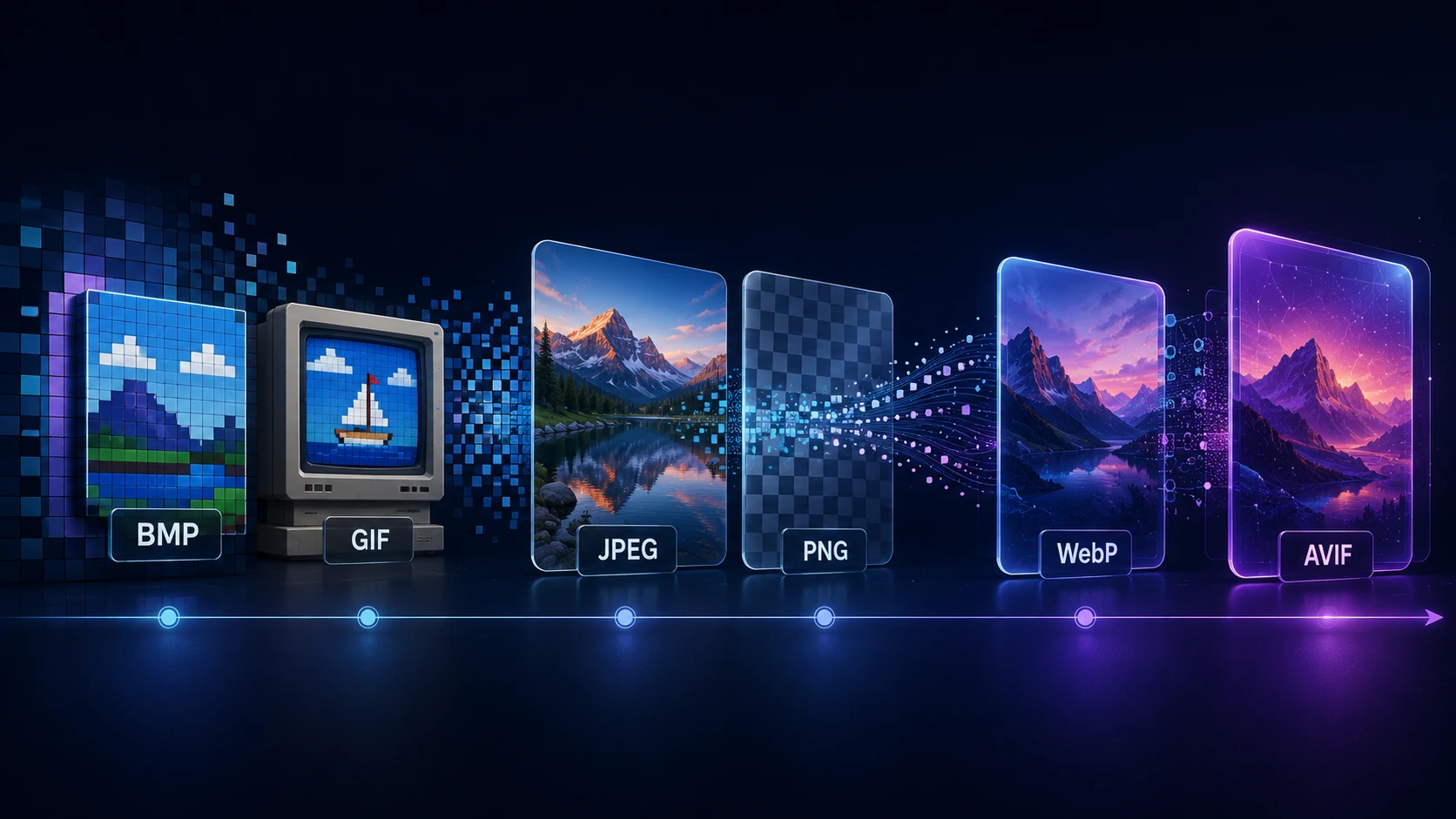
If you're trying to speed up a website, images are usually the first place to look, and AVIF is one of the most efficient formats available. This JPG to AVIF converter re-encodes your photos with an AV1-based encoder, which can often cut the file in half compared with JPG at a similar visual quality.
On a photo-heavy page, that can trim megabytes. Visitors on slow mobile networks see the images sooner, and the page uses less of their data.
How to convert JPG to AVIF
You don't need any plugin or command-line tool. Encoding happens on your device.
- 1
Queue your JPGs
Add up to 20 photos by dragging them in or clicking the upload area.
- 2
Pick an AVIF quality
AVIF holds up well at lower numbers. Begin around 60 to 70 for website photos, and judge the result by eye.
- 3
Be patient while it encodes
AVIF takes longer to encode than JPG or WEBP. Large photos may need several seconds each, more on phones.
- 4
Compare and download
Result cards show how many bytes you saved. Download what you like, singly or zipped.
Quality settings work differently in AVIF
A quality of 90 in AVIF is much higher than most people need. Because the codec is so efficient, numbers that would look rough in JPG still look clean here. Use this as a starting guide:
| AVIF quality | Result | Use for |
|---|---|---|
| 75–90 | Excellent, but with smaller savings | Portfolios and hero images |
| 55–75 | Very good, with big savings | Most website photos |
| 35–55 | Soft in fine detail | Thumbnails and background images |
Using AVIF on a real site
- Keep your JPG master. AVIF is for delivery. Store the original for future edits and other uses.
- Resize before converting. Match the largest size you actually show, using Resize Image, so you aren't compressing pixels nobody will see.
- Provide a fallback if needed. A picture element can offer AVIF first and JPG or WEBP second.
- Check your CMS. Recent WordPress versions accept AVIF uploads if the server supports it. On other platforms, test one image first.
Prefer something quicker, with wider tool support? JPG to WEBP is a solid alternative. To reverse this conversion, use AVIF to JPG.
Private by default
Your photos are encoded in your own browser and never uploaded. There's no sign-up or watermark. Each photo can be up to 250 MB, though very large images take time to encode, and they're easier on a desktop than on a phone.
More Tools
Every tool is free, private and runs in seconds.
Image Tools
48 Compress Image JPEG · PNG · WEBP · GIF · BMP · TIFF · AVIF · HEIC Resize Image Exact px or % Blur Image Gaussian & motion
Convert to JPG
JPGConvert to PNG
PNGConvert to WEBP
WEBPConvert to AVIF
AVIFConvert to TIFF
TIFFConvert to GIF
GIFFavicon / ICO
PDF Tools
12 Compress PDF Shrink for email & web Merge PDF Combine multiple files Image to PDF Images → single PDF PDF to Image Extract as PNG/JPG PDF to PowerPoint Pages → PPTX slides JPG to PDF Photos → PDF pages Word to PDF DOCX → PDF Excel to PDF XLSX → PDF table HTML to PDF Web page file → PDF PDF to JPG Pages → JPEG PDF to Word Extract text to DOCX PDF to Excel Tables → XLSX
Frequently asked questions
Often around 50%, and sometimes more for smooth images. The exact saving depends on the photo and the quality you choose, so try a few settings.
Yes. Chrome, Edge, Firefox and Safari 16 and later all display it. If you need to support older browsers, use the HTML picture element with a JPG or WEBP fallback.
Its compression, derived from the AV1 video codec, searches much harder for savings. That effort makes files smaller, but it costs time during encoding. Viewing the finished image isn't slow.
At sensible settings it should look the same at normal viewing size. Fine texture can look smoother at very low quality, so check faces and fabric at 100% zoom.
AVIF usually makes smaller files. WEBP encodes faster and is supported by more software. For a website with a fallback in place, AVIF gives the biggest savings; WEBP is the simpler option.
It's better not to. Many apps and older phones can't open AVIF. It's a publishing format for websites, so share the JPG instead.
No. The AVIF encoder runs in your browser, which is also why encoding speed depends on your own device.
Blog
Guides and tips from the blog
Short, practical articles to get more out of ImgTask and your image or PDF workflow.