HEIC to GIF
Save an iPhone photo as a still GIF for software that accepts nothing else. Live Photos won't become animations.
HEIC to GIF when a system requires it
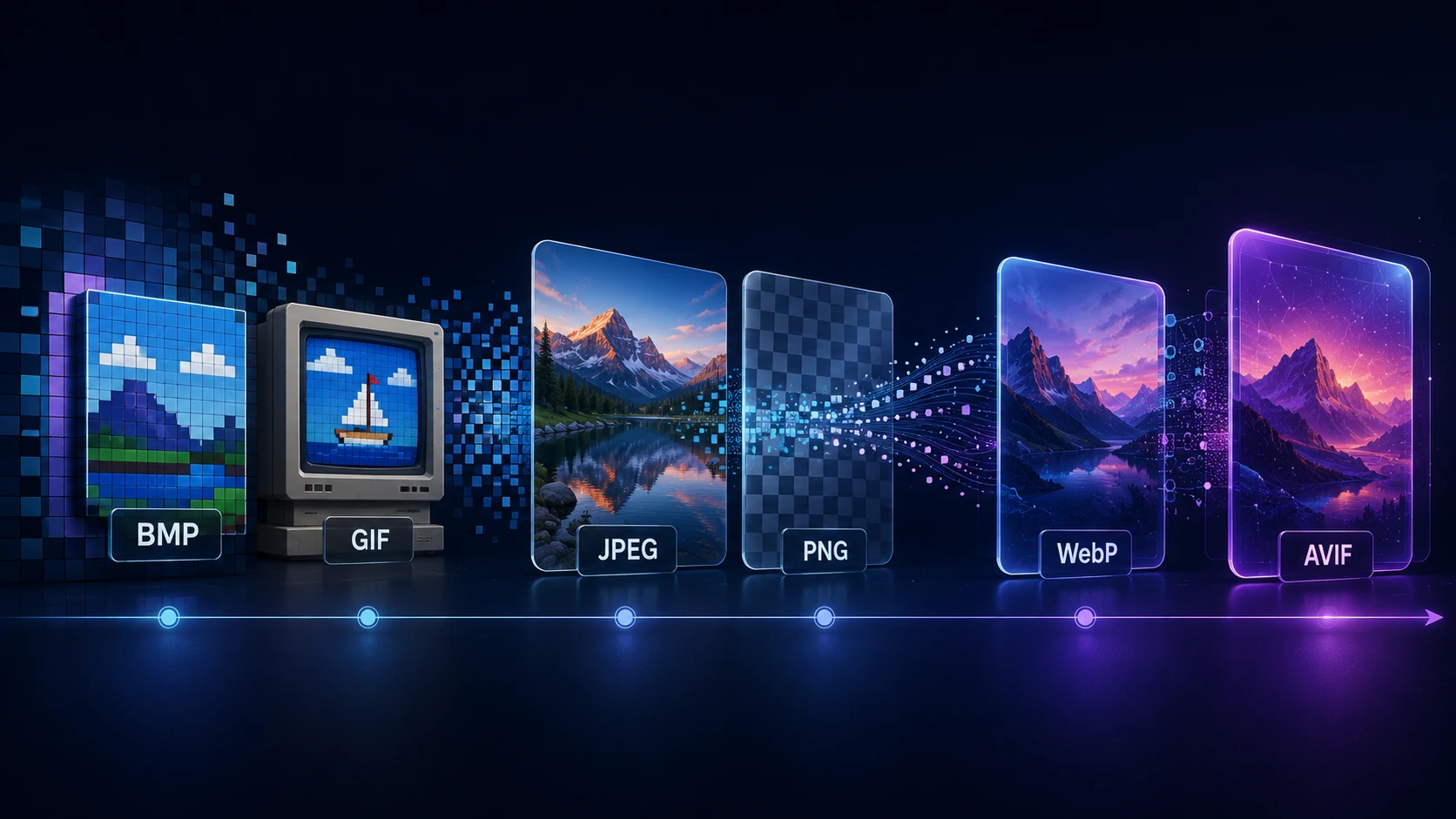
Few people need to convert HEIC to GIF, and if you've landed here, it's probably because a forum, an old content system or an email tool accepts GIF and not much else. This converter handles that specific job in your browser, without installing anything.
It creates a single still image. It doesn't animate a Live Photo, because the moving part of a Live Photo is a separate video file that isn't stored in the HEIC.
How to convert HEIC to GIF
The first conversion downloads a small HEIC decoder, except in Safari, which reads HEIC files natively without one.
- 1
Choose a HEIC photo
Select the picture from your iPhone, iCloud download or computer, or drag it here.
- 2
Shrink it if you can
GIF suits small images, so a resized copy will look better and download faster than a full-size one.
- 3
Press Convert to GIF
The photo is decoded, reduced to 256 colors and written as one still frame, ready to save.
How to get the best-looking GIF
- Keep it small. Resize to a few hundred pixels with Resize Image, either before converting (via JPG) or after. Color banding is far less obvious at small sizes.
- Choose simple subjects. Bold shapes and limited colors work better than sunsets and portraits.
- Crop tightly. Removing busy backgrounds leaves more of the 256 colors for your main subject.
- Expect a large file at full size. A GIF stores detail inefficiently, so a full-resolution photo can get very big.
Compare your options
Free and private
No sign-up and no watermark. Your photo stays on your device, as the decoder and GIF encoder both run in the browser. Up to 20 photos can be processed in one batch, each up to 250 MB.
More Tools
Every tool is free, private and runs in seconds.
Image Tools
48 Compress Image JPEG · PNG · WEBP · GIF · BMP · TIFF · AVIF · HEIC Resize Image Exact px or % Blur Image Gaussian & motion
Convert to JPG
JPGConvert to PNG
PNGConvert to WEBP
WEBPConvert to AVIF
AVIFConvert to TIFF
TIFFConvert to GIF
GIFFavicon / ICO
PDF Tools
12 Compress PDF Shrink for email & web Merge PDF Combine multiple files Image to PDF Images → single PDF PDF to Image Extract as PNG/JPG PDF to PowerPoint Pages → PPTX slides JPG to PDF Photos → PDF pages Word to PDF DOCX → PDF Excel to PDF XLSX → PDF table HTML to PDF Web page file → PDF PDF to JPG Pages → JPEG PDF to Word Extract text to DOCX PDF to Excel Tables → XLSX
Frequently asked questions
No. Only the still image in the HEIC file is used, so the result doesn't move. On an iPhone, the Photos app can set a Live Photo to Loop or Bounce, and a Shortcut can export that as a GIF.
Drop the HEIC on this page and press Convert to GIF. Your browser decodes the photo, cuts it down to a 256-color palette and offers a still GIF to download.
A photo has millions of colors, and GIF has room for just 256. Skies and skin tones show bands of color as a result. There's no way around this with the GIF format.
GIF is poor at compressing photos. A 12-megapixel GIF can be many times the size of the HEIC. Resizing the photo to a few hundred pixels makes a huge difference.
Yes. Open this page in Safari, tap the upload box and choose a photo from your library. Safari reads HEIC natively, so conversion starts straight away, and the GIF saves to your Files app.
Almost certainly. JPG looks better and is smaller, and it opens everywhere. Choose GIF only when a system specifically requires it.
No. Conversion takes place in your browser.
Blog
Guides and tips from the blog
Short, practical articles to get more out of ImgTask and your image or PDF workflow.