
Blur Image Online
Blur image online free. Soften a photo or busy background with gaussian or motion blur, then compare clear vs blurred before you download.
Free to use
No account required
Stays on your device
Nothing uploaded
Blur image online — what this tool does
Use this page to blur image files in the browser. Upload a photo, choose gaussian or motion blur, set the radius, and download a softened version. Processing runs in your browser, so nothing needs installing. The result includes a before/after preview so you can judge the effect against the clear original.
Blur image online free
Blur image online free means no account, no watermark, and no software install. Your image is processed locally in your browser and is not uploaded to ImgTask's server. Image files never leave your device. Size limits still apply (200 MB per image).
Blur image to clear image — what people mean
Searches for "blur image to clear image" or "blur image to clear image online" usually want the opposite of this tool: restoring a blurry photo into a sharp one. ImgTask does not unblur or AI-sharpen. What it does offer is the clear-to-blurred direction with a side-by-side preview, so you can start from a clear image, apply blur online, and compare the clear original with the blurred result before downloading.
Blur image background
Want to soften a busy background? Full-image blur will reduce background detail along with everything else in the frame. There is no selective mask, so the subject is blurred too. For product shots or screenshots where the whole scene should look softer, that is often enough. For true portrait-style background-only blur, you would need a tool with subject masking — this one does not provide that.
When to blur an image
- Obscuring details. Soften faces, numbers, or text before sharing a screenshot or photo.
- Softening a busy background. Reduce clutter across the whole frame when selective background blur is not required.
- Motion effects. Add a directional streak for creative or presentation use.
- Preparing public posts. Make fine detail less readable while keeping the overall composition.
Need a smaller or differently sized file afterward? Continue with Compress Image or Resize Image.
How to blur an image online
- Upload your image. Drop one or more photos into the upload area (max 200 MB each). JPEG, PNG, WEBP, HEIC, and other supported formats are accepted.
- Choose blur type and radius. Pick gaussian for an even soft look, or motion for a directional streak. Set the radius from 1 (subtle) to 20 (heavy).
- Blur the image online. Press Blur Image. Processing runs in your browser — free, no account required.
- Compare clear vs blurred, then download. Use the before/after preview to compare the clear original with the blurred result, adjust if needed, then download the file.
Gaussian vs motion blur
| Topic | Gaussian | Motion |
|---|---|---|
| Look | Even soft focus across the frame | Directional streak suggesting movement |
| Best for | Softening detail or a busy background | Creative motion effects |
| Radius | 1 subtle → 20 heavy | 1 subtle → 20 heavy |
| Scope | Full image | Full image |
Formats and limitations
Accepted uploads: JPEG, PNG, WEBP, GIF, BMP, TIFF, AVIF, HEIC. Max 200 MB.
Limitations: Blur applies to the full image — not a masked background only. Heavy radii remove more detail. This tool cannot turn a blurry photo into a clear one. HEIC inputs are processed and typically returned as JPEG.
Privacy: Your image is processed locally in your browser and is not uploaded to ImgTask's server. Image files never leave your device. No account is needed and results carry no watermark.
More Tools
Every tool is free, private and runs in seconds.
Image Tools
48Convert to JPG
JPGConvert to PNG
PNGConvert to WEBP
WEBPConvert to AVIF
AVIFConvert to TIFF
TIFFConvert to GIF
GIFFavicon / ICO
PDF Tools
12
Compress PDF
Shrink for email & web
Merge PDF
Combine multiple files
Image to PDF
Images → single PDF
PDF to Image
Extract as PNG/JPG
PDF to PowerPoint
Pages → PPTX slides
JPG to PDF
Photos → PDF pages
Word to PDF
DOCX → PDF
Excel to PDF
XLSX → PDF table
HTML to PDF
Web page file → PDF
PDF to JPG
Pages → JPEG
PDF to Word
Extract text to DOCX
PDF to Excel
Tables → XLSX
Frequently Asked Questions
Upload a photo, choose gaussian or motion blur, set the radius, click Blur Image, then download the result. No account required.
Yes. Blur image online free with no signup, no watermark, and no software to install. The upload limit is 200 MB per image.
No. This tool blurs a clear image — it softens detail. It cannot restore a blurry photo into a sharp, clear one.
Not selectively. Blur applies to the entire image. There is no region mask or portrait cutout for background-only blur.
Gaussian blur softens the whole image evenly. It is the usual choice for reducing detail, softening a busy background, or making text and faces harder to read.
Motion blur adds a directional streak that can suggest movement. Strength still depends on the blur radius you choose.
Yes. Uploads are limited to 200 MB per image.
Blur runs in your browser. Your image is processed locally and is not uploaded to ImgTask's server.
Blog
Guides and tips from the blog
Short, practical articles to get more out of ImgTask and your image or PDF workflow.
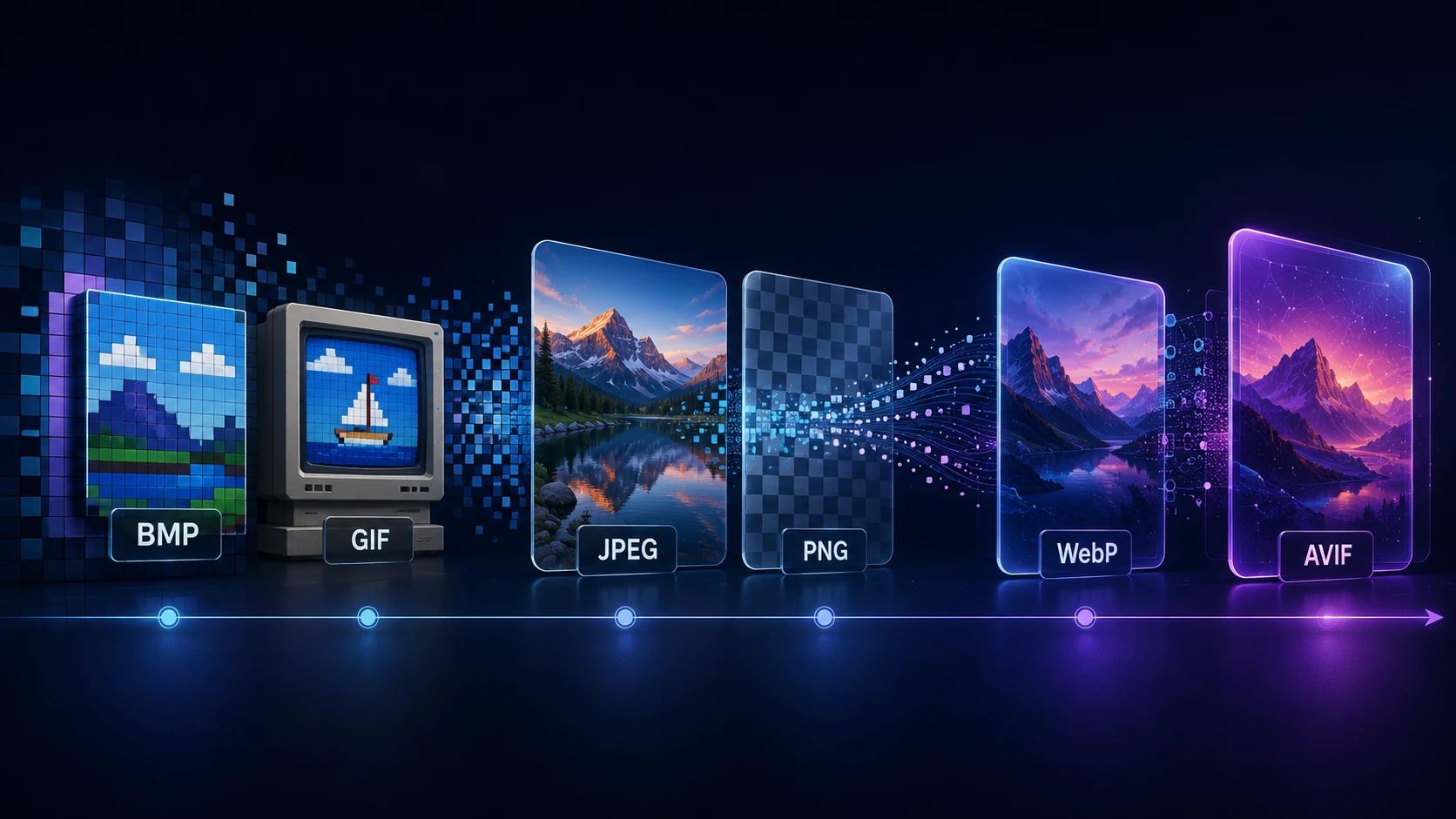
A Brief History of Digital Image Formats: From BMP and GIF to WebP and AVIF
Dinitha Ransidu 12 min read