Compress PDF Online
Reduce PDF file size for free. Choose a quality preset to make your PDF smaller for email, uploads, or storage. No account required.
Free to use
No account required
Secure processing
Discarded after download
What this PDF compressor does
This tool takes a PDF you upload and rebuilds it so the file uses fewer bytes, mainly by re-encoding embedded images at a lower resolution. Text content stays readable because it is stored as vectors — most of the size savings come from photos, scans, and graphics inside the document.
Use it whenever a PDF is too large for email, a form upload, or cloud storage. If you need to combine several files before compressing, use Merge PDF. To turn pages into pictures instead, try PDF to Image.
How to compress a PDF online
- Upload your PDF. Drop a PDF into the upload area or browse for it. Files up to 100 MB and 100 pages are accepted.
- Pick a quality preset. Choose Screen for the smallest file, eBook for a balanced default, or Print/Prepress to keep image resolution high.
- Compress the PDF. Press Compress PDF. Smaller files process immediately; larger documents run in the background queue.
- Download the smaller file. Wait on the status page, then download the reduced PDF once it is ready.
Which preset makes a PDF smaller?
Each preset sets the resolution used for images inside the PDF. Lower DPI means a smaller file and softer pictures; text is unaffected either way. Start with eBook and drop to Screen if you need to reduce PDF size further.
| Preset | Image resolution | Best for |
|---|---|---|
| Screen | 72 DPI | Smallest file — email, quick sharing, on-screen reading |
| eBook | 150 DPI | Balanced default for reading and uploads |
| 300 DPI | Documents you intend to print | |
| Prepress | 300 DPI+ | Highest quality, professional printing |
Why reduce PDF file size?
- Email attachments. Most providers cap attachments, and a scanned contract or slide deck passes that cap quickly. A smaller PDF sends without bouncing.
- Portal and form uploads. Job applications, visa portals, and school systems often reject anything over a fixed number of megabytes.
- Faster sharing. A compressed PDF uploads and downloads quicker, which matters on slow or mobile connections.
- Storage and archiving. Making PDFs smaller means more documents fit in the same cloud or disk space.
Formats, limits, and privacy
Accepted upload: PDF only. Maximum size: 100 MB. Maximum pages: 100.
Limitations: Compression can soften images inside the PDF. Already-optimized files may shrink only a little. Jobs are queued, so results are not instant for every file.
Privacy: Processing runs on our servers only for your request. Files are discarded promptly after you download — we don't keep them as cloud storage. No account is needed and the result carries no watermark.
More Tools
Every tool is free, private and runs in seconds.
Image Tools
49
Compress Image
JPEG · PNG · WEBP · GIF · BMP · TIFF · AVIF · HEIC
Resize Image
Exact px or %
Blur Image
Gaussian & motion
Convert to JPG
JPGConvert to PNG
PNGConvert to WEBP
WEBPConvert to AVIF
AVIFConvert to TIFF
TIFFConvert to GIF
GIFFavicon / ICO
PDF Tools
11
Merge PDF
Combine multiple files
Image to PDF
Images → single PDF
PDF to Image
Extract as PNG/JPG
PDF to PowerPoint
Pages → PPTX slides
JPG to PDF
Photos → PDF pages
Word to PDF
DOCX → PDF
Excel to PDF
XLSX → PDF table
HTML to PDF
Web page file → PDF
PDF to JPG
Pages → JPEG
PDF to Word
Extract text to DOCX
PDF to Excel
Tables → XLSX
Frequently Asked Questions
Upload your PDF, choose a quality preset, and press Compress PDF. The tool is free to use with no account, no watermark, and no software to install.
It depends on the file. PDFs with many embedded images or scanned pages often shrink a lot, while text-only documents change less. There is no fixed reduction percentage.
Choose the Screen or eBook preset, which lowers image resolution the most. Screen usually gets a document under common email attachment limits.
Screen produces the smallest file for on-screen viewing. eBook is a practical default for reading and sharing. Print and Prepress keep higher image resolution for printing.
Lower presets reduce the resolution of images inside the PDF. Text usually stays crisp because it is vector-based, but photos and graphics can look softer at Screen quality.
You can upload PDFs up to 100 MB and up to 100 pages. Larger documents may be processed in the background queue.
Compression runs on our servers only for your request. Files are discarded promptly after you download — we don't keep them as cloud storage.
No. Upload a PDF, choose a preset, and download the compressed file without signing up.
Blog
Guides and tips from the blog
Short, practical articles to get more out of ImgTask and your image or PDF workflow.
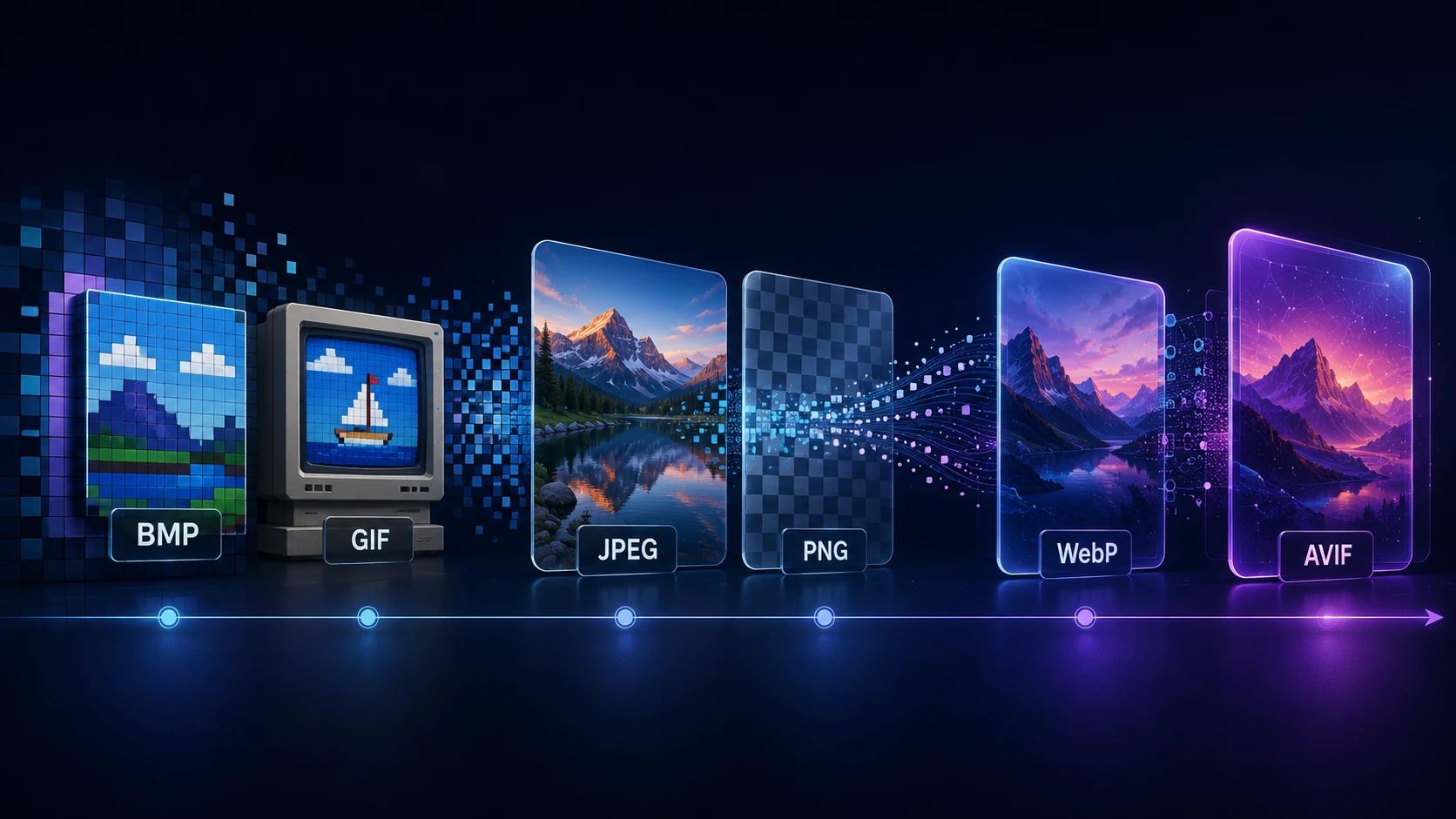
A Brief History of Digital Image Formats: From BMP and GIF to WebP and AVIF
Dinitha Ransidu 12 min read