AVIF to WEBP
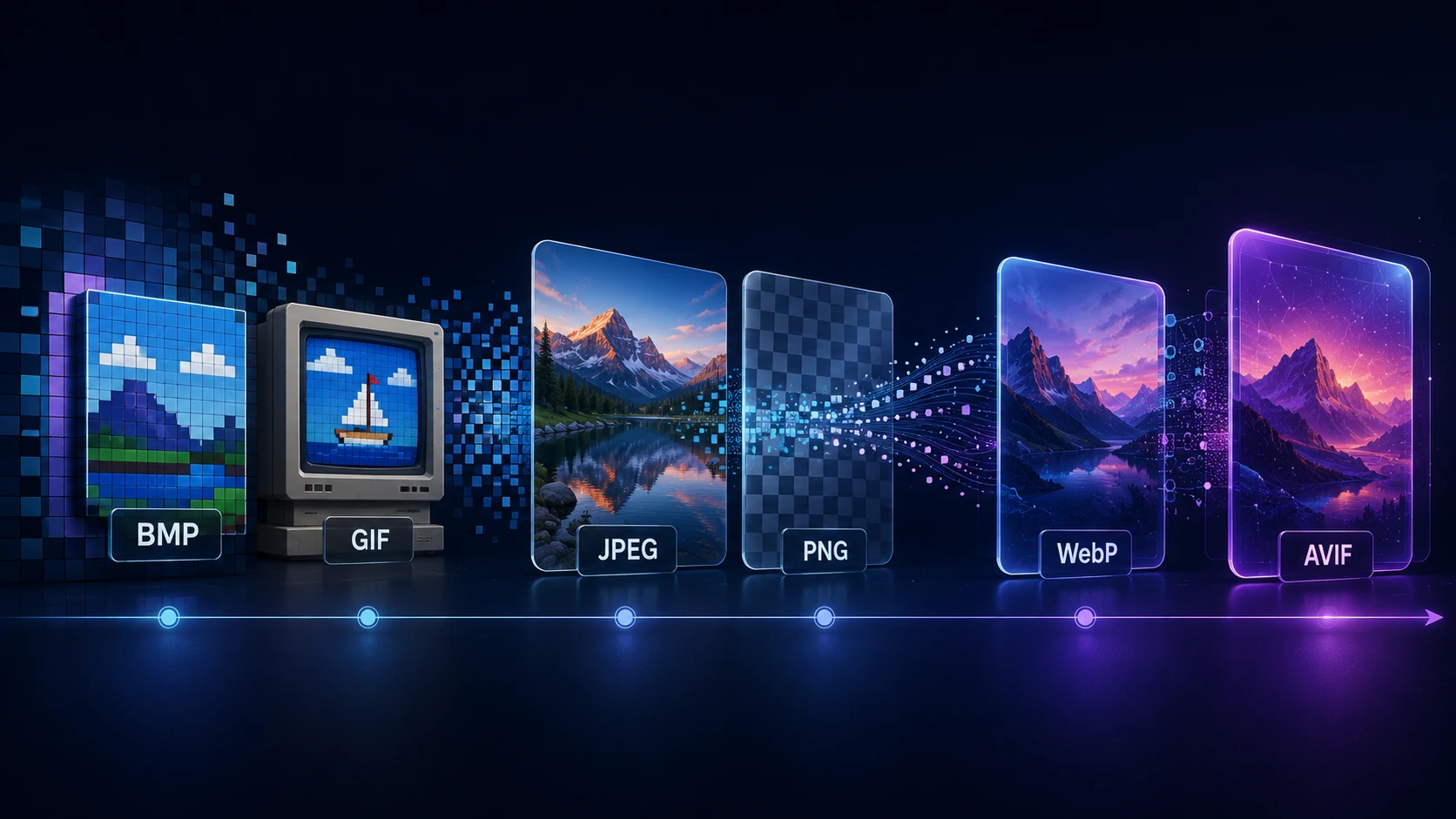
Trade a little file size for much wider compatibility. WEBP keeps transparency and works in more software than AVIF.
AVIF to WEBP when compatibility matters
AVIF makes wonderfully small images, but not everything can handle it. Some CMS plugins, image CDNs, editing tools and older browsers still stumble over the format. This AVIF to WEBP converter gives you a file that's almost as compact and works in far more places.
It's also a handy way of creating a fallback version for your website, so visitors whose browsers can't read AVIF still see your images in a lightweight format.
How to convert AVIF to WEBP
It's quicker than encoding AVIF, because WEBP is much faster for your browser to write.
- 1
Add AVIF files
Drag your .avif images onto the page, or browse for them. One batch can hold 20.
- 2
Select WEBP quality
AVIF sources are already compressed, so aim for 80 to 90 to avoid piling on visible loss.
- 3
Run the converter
Press Convert to WEBP. Decoding uses your browser's AVIF support, and encoding is quick.
- 4
Save your WEBP images
Your new files appear on result cards, ready to download individually or zipped together.
AVIF, WEBP or something else?
| You need | Best format |
|---|---|
| The smallest possible file on a modern site | AVIF; keep what you have |
| Wider web compatibility, still small | WEBP; use this page |
| To open the image in almost any program | AVIF to JPG |
| To edit it or keep transparency losslessly | AVIF to PNG |
| To print it | AVIF to TIFF |
Using both formats on a website
You don't have to choose just one. The HTML picture element lets you list AVIF first and WEBP second, and each visitor's browser picks the first format it understands. Add a JPG as a last resort if you need to support very old browsers.
If you control the original images, generate each version from the source instead of from another lossy file. Use JPG to WEBP or PNG to WEBP for that. This page is best when the AVIF is what you have.
Tips for keeping quality high
- Stay at 80 or above. Lossy formats stack, so a low setting here adds to the AVIF's own compression.
- Check gradients and skin. These show artifacts first. Use the result cards to compare a few settings.
- Remember HDR. HDR AVIF files are converted to standard color. Very bright images can look a little flatter.
Free and private
You get unlimited conversions, with no account or watermark, and your images stay on your own device.
More Tools
Every tool is free, private and runs in seconds.
Image Tools
48 Compress Image JPEG · PNG · WEBP · GIF · BMP · TIFF · AVIF · HEIC Resize Image Exact px or % Blur Image Gaussian & motion
Convert to JPG
JPGConvert to PNG
PNGConvert to WEBP
WEBPConvert to AVIF
AVIFConvert to TIFF
TIFFConvert to GIF
GIFFavicon / ICO
PDF Tools
12 Compress PDF Shrink for email & web Merge PDF Combine multiple files Image to PDF Images → single PDF PDF to Image Extract as PNG/JPG PDF to PowerPoint Pages → PPTX slides JPG to PDF Photos → PDF pages Word to PDF DOCX → PDF Excel to PDF XLSX → PDF table HTML to PDF Web page file → PDF PDF to JPG Pages → JPEG PDF to Word Extract text to DOCX PDF to Excel Tables → XLSX
Frequently asked questions
For compatibility. WEBP has been around longer, so more CMS plugins, image editors, email tools and older browsers can handle it. It's also useful as a fallback for visitors whose browsers can't show AVIF.
Usually, yes, by perhaps 20 to 40% at similar quality. That's the trade-off for wider support.
Yes. Both formats have an alpha channel, and it's carried across to the WEBP.
A little, since both formats are lossy and this is a second encode. Keep the quality at 80 or above, and the change shouldn't be visible at normal viewing size.
The converter relies on your browser to decode AVIF. Update to a current version of Chrome, Edge, Firefox or Safari 16 and later.
Support varies between email clients, so a JPG or PNG is still safer there.
No. Everything runs in your browser, on your device.
Blog
Guides and tips from the blog
Short, practical articles to get more out of ImgTask and your image or PDF workflow.