Image to PDF Converter
Image to PDF converter online. Convert image to PDF from one photo or merge up to 20 images into a single PDF — A4 or Letter, no account required.
Free to use
No account required
Secure processing
Discarded after download
Image to PDF converter — what you get
This image to PDF maker places each uploaded photo on its own page and packages those pages into one downloadable document. Convert image to PDF from phone photos, scans, screenshots, or receipt bundles without installing desktop software.
Photo to PDF, picture to PDF, and img to PDF
Photo to PDF, picture to PDF, img to PDF, and pic to PDF all work here — JPEG, PNG, WEBP, HEIC, and other supported formats. To convert images to PDF, drop one file or several. JPEG-only jobs can stay in the browser with JPG to PDF.
Image to PDF converter free online
Image to PDF free means no account, no watermark, and nothing to install. Upload from a phone or computer, convert on our servers, and download the PDF. Limits still apply: up to 20 images and 50 MB per file.
Image to PDF merge
Need image to PDF merge for several photos? Select multiple files in the dropzone. Each image becomes a page in the same PDF, in upload order. That is different from Merge PDF, which joins existing PDF documents rather than images.
Image to PDF 200KB for forms and email
Many upload forms and email limits ask for a small PDF — often around 200KB. This converter does not set a target PDF size by itself. For an image to PDF near 200KB, compress each photo first with the image compressor (use the target KB field, for example 150–180 KB), then convert. If the finished PDF is still too large, run it through Compress PDF.
When to use an image to PDF converter
- Forms and portals. Many applications accept PDF uploads but reject raw phone photos.
- Homework and scans. Turn photographed pages into one ordered PDF for submission.
- Receipts and records. Bundle several photos into a single attachment.
- Screenshots and portfolios. Share a set of images as one document instead of many files.
Need the reverse? Extract pages as pictures with PDF to Image.
How to convert images to PDF online
- Upload one image or many. Drop JPEG, PNG, WEBP, HEIC, or other supported images into the upload area (up to 20 files, max 50 MB each).
- Set page size and orientation. Choose A4 or Letter, portrait or landscape, and an optional margin so each image fits the page cleanly.
- Convert images to PDF. Press Convert to PDF. One image usually processes immediately; multiple images may run in the background queue.
- Download the PDF. Download the finished PDF when it is ready.
Image to PDF options at a glance
| Option | Choices | Note |
|---|---|---|
| Images per PDF | 1–20 | Each image becomes one page |
| Page size | A4 or Letter | Default is A4 |
| Orientation | Portrait or landscape | Match wide screenshots to landscape |
| File size target | Not set here | Compress images or the PDF for ~200KB goals |
Formats, limits, and privacy
Accepted uploads: JPEG, PNG, WEBP, GIF, BMP, TIFF, AVIF, HEIC. Maximum size: 50 MB per image. Up to 20 images per job.
Limitations: Images are fitted to the selected page size; extreme aspect ratios may leave empty margins. This tool does not OCR text inside photos, and it does not set a target PDF size such as 200KB by itself.
Privacy: Conversion runs on our servers only for your request. Files are discarded promptly after you download — we don't keep them as cloud storage. No account is needed and results carry no watermark.
More Tools
Every tool is free, private and runs in seconds.
Image Tools
49
Compress Image
JPEG · PNG · WEBP · GIF · BMP · TIFF · AVIF · HEIC
Resize Image
Exact px or %
Blur Image
Gaussian & motion
Convert to JPG
JPGConvert to PNG
PNGConvert to WEBP
WEBPConvert to AVIF
AVIFConvert to TIFF
TIFFConvert to GIF
GIFFavicon / ICO
PDF Tools
11
Compress PDF
Shrink for email & web
Merge PDF
Combine multiple files
PDF to Image
Extract as PNG/JPG
PDF to PowerPoint
Pages → PPTX slides
JPG to PDF
Photos → PDF pages
Word to PDF
DOCX → PDF
Excel to PDF
XLSX → PDF table
HTML to PDF
Web page file → PDF
PDF to JPG
Pages → JPEG
PDF to Word
Extract text to DOCX
PDF to Excel
Tables → XLSX
Frequently Asked Questions
Upload one or more images, choose page size and orientation if needed, click Convert to PDF, then download the result. No account required.
Yes. Image to PDF free with no signup, no watermark, and no software to install. You can convert up to 20 images per job (max 50 MB each).
Yes. Photo to PDF, picture to PDF, img to PDF, and pic to PDF are the same job: drop the file here.
You can add up to 20 images per conversion. They are placed in the PDF in the order you upload them.
A4 is the default. You can choose A4 or Letter, plus portrait or landscape orientation and a margin in the options panel.
Images are converted to PDF on our servers only for your request. Files are discarded promptly after you download.
Each image is fitted onto a page with the margin you set. Very wide or tall images may letterbox to fit the page size and orientation.
No. The PDF stores images on pages. It does not extract or recreate text from screenshots or scanned documents.
Blog
Guides and tips from the blog
Short, practical articles to get more out of ImgTask and your image or PDF workflow.
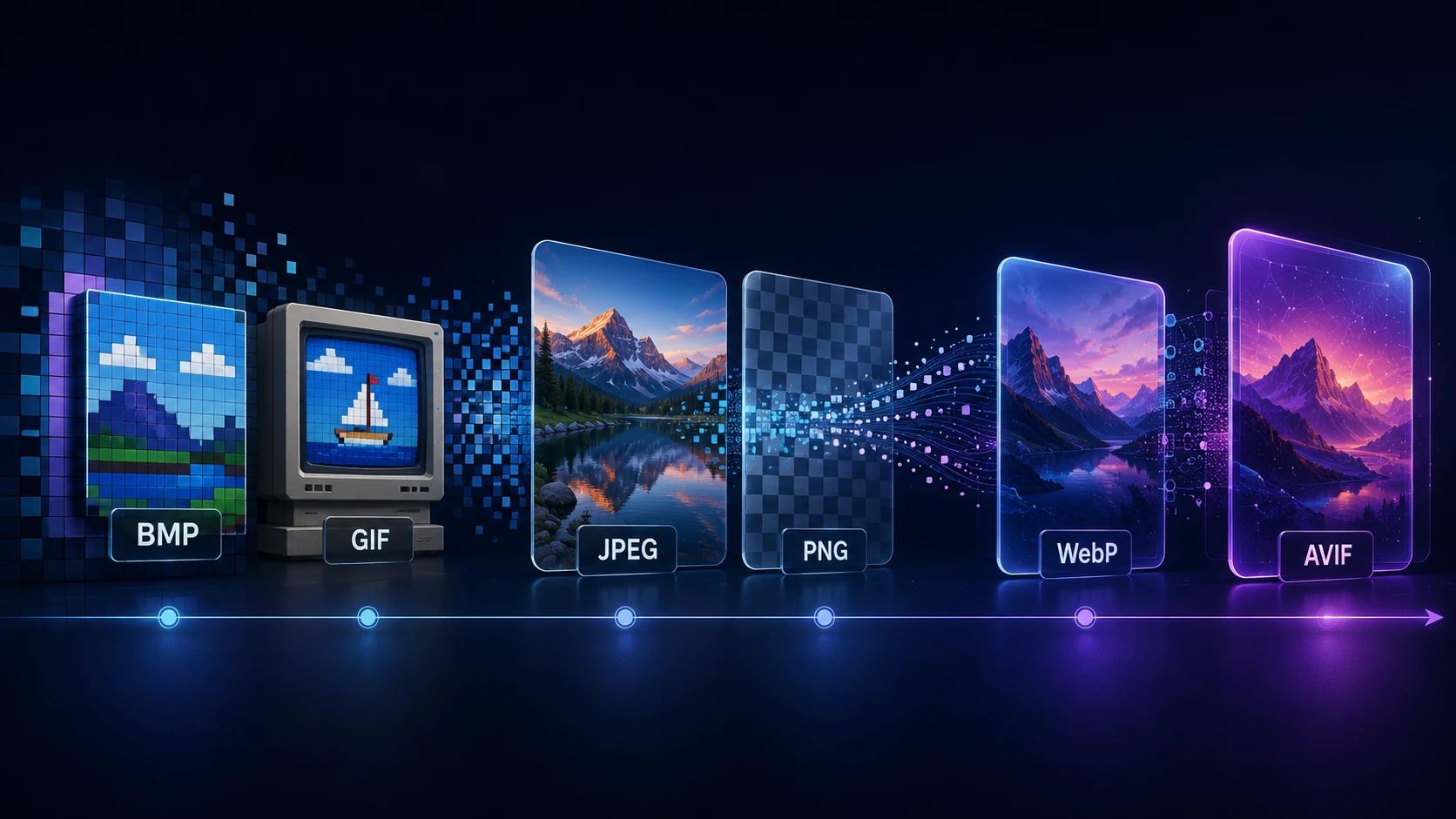
A Brief History of Digital Image Formats: From BMP and GIF to WebP and AVIF
Dinitha Ransidu 12 min read