PNG to TIFF
Move lossless PNG artwork into TIFF for printers, publishers and archives, with no change to the pixels.
PNG to TIFF for print and archive handoffs
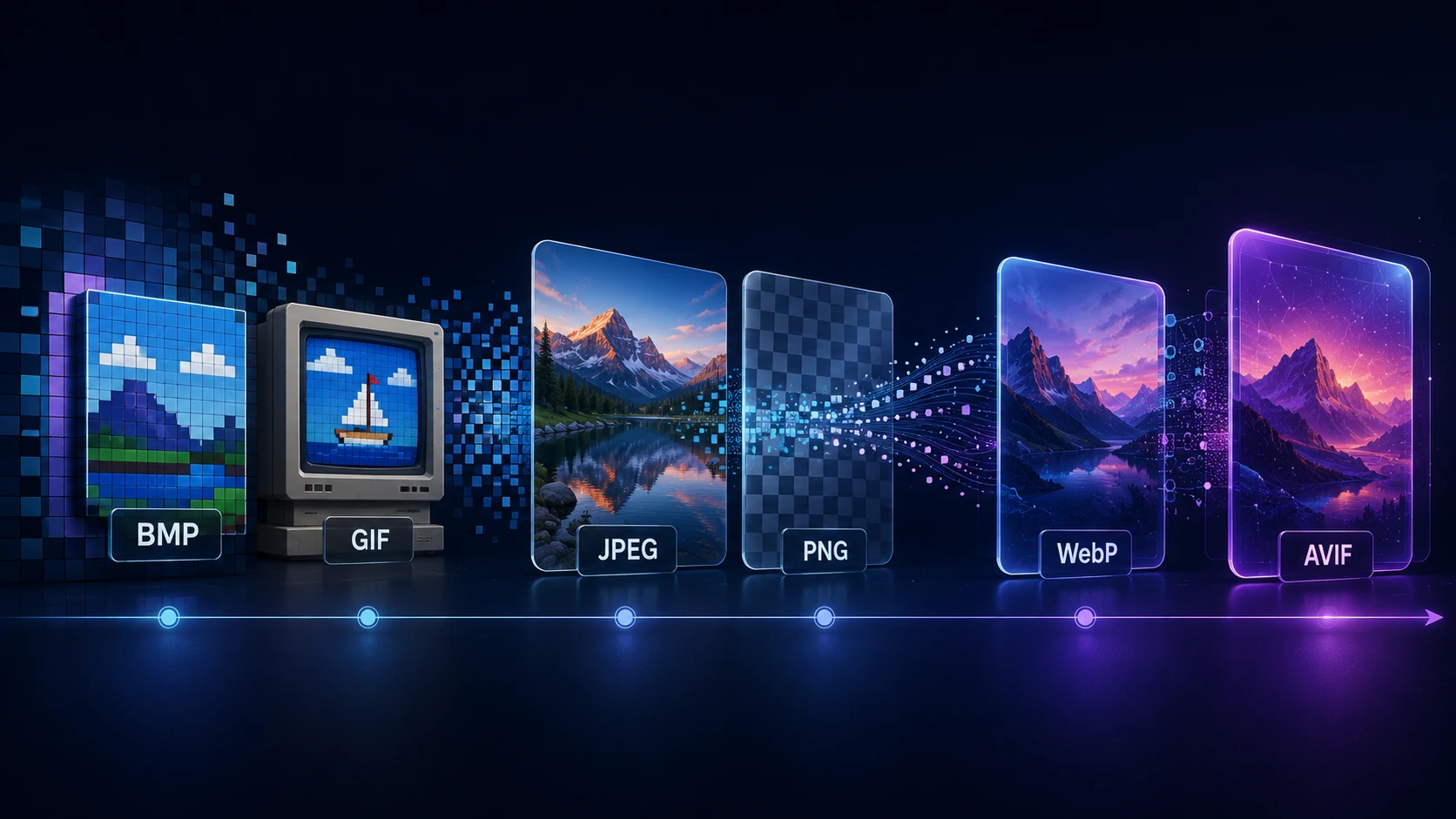
PNG is the lossless format of the web, while TIFF is the lossless format of print and archives. When a publisher, scanning bureau or print shop asks for TIFF, this PNG to TIFF converter creates the files in your browser without touching the pixel data of your artwork.
It's a straightforward change of container. Your design looks identical, and it can be placed in InDesign, QuarkXPress or any other layout tool that expects TIFF.
How to convert PNG to TIFF
There's no quality setting, since nothing is thrown away.
- 1
Load your artwork
Choose the PNG files that a printer or publisher wants as TIFF. You can queue twenty at once.
- 2
Check for transparency
Transparent areas will turn white in the TIFF, so add your own background first if white isn't what you want.
- 3
Convert and collect
Press Convert to TIFF, then download each file, or take the whole set as a ZIP.
Before you send it to print
Handle transparent areas
Any transparency in your PNG becomes white. If the artwork should sit on a color, add that background first in your editor. A logo on a white page looks fine with no extra work.
Check the resolution
The TIFF has the same pixel count as your PNG. For printing at 300 DPI, a 10 cm wide image needs about 1180 pixels. Web graphics are often far too small for print, and converting can't add detail.
Ask about color
The output is standard RGB. Ask your printer whether that's acceptable or whether they need CMYK with a specific profile, which you can apply in Photoshop or Affinity Photo.
TIFF output details
| Property | This converter |
|---|---|
| Bit depth | 8 bits per channel |
| Color mode | RGB |
| Compression | Deflate (lossless) |
| Transparency | Flattened onto white |
| Layers and pages | One flat page |
Related conversions
If you receive TIFF files and want to use them on screen, TIFF to PNG converts back. For photos headed to a printer, JPG to TIFF does the same job from JPG sources.
Private and free
Client artwork stays on your device, because nothing is uploaded. You don't need an account, and there's no watermark or limit on how many batches you run.
More Tools
Every tool is free, private and runs in seconds.
Image Tools
48 Compress Image JPEG · PNG · WEBP · GIF · BMP · TIFF · AVIF · HEIC Resize Image Exact px or % Blur Image Gaussian & motion
Convert to JPG
JPGConvert to PNG
PNGConvert to WEBP
WEBPConvert to AVIF
AVIFConvert to TIFF
TIFFConvert to GIF
GIFFavicon / ICO
PDF Tools
12 Compress PDF Shrink for email & web Merge PDF Combine multiple files Image to PDF Images → single PDF PDF to Image Extract as PNG/JPG PDF to PowerPoint Pages → PPTX slides JPG to PDF Photos → PDF pages Word to PDF DOCX → PDF Excel to PDF XLSX → PDF table HTML to PDF Web page file → PDF PDF to JPG Pages → JPEG PDF to Word Extract text to DOCX PDF to Excel Tables → XLSX
Frequently asked questions
Drop the PNG here and press Convert to TIFF. Your browser writes a lossless RGB TIFF with the same pixel dimensions, and you can download it right away.
No. Both formats are lossless here, so the colors of opaque pixels stay exactly the same.
It's flattened onto white, because this converter writes 8-bit RGB TIFFs with no alpha channel. Soft shadows blend into the white background. For keeping transparency in print work, stay with the PNG.
No. The browser works in 8 bits per channel, so the TIFF will be 8-bit. For high-bit-depth workflows, convert in a desktop editor such as Photoshop or Affinity Photo.
It's usually similar in size or a bit larger, since both use lossless compression. The difference is far smaller than when you convert a JPG.
No, the output is RGB. Many print shops convert RGB files themselves. If yours insists on CMYK, do that step in design software.
Photoshop, InDesign, GIMP, Affinity Photo and macOS Preview all can.
No. All processing happens on your device.
Blog
Guides and tips from the blog
Short, practical articles to get more out of ImgTask and your image or PDF workflow.