AVIF to GIF
Make a GIF from an AVIF image when a system won't accept anything newer. The output is one still frame.
AVIF to GIF for older systems
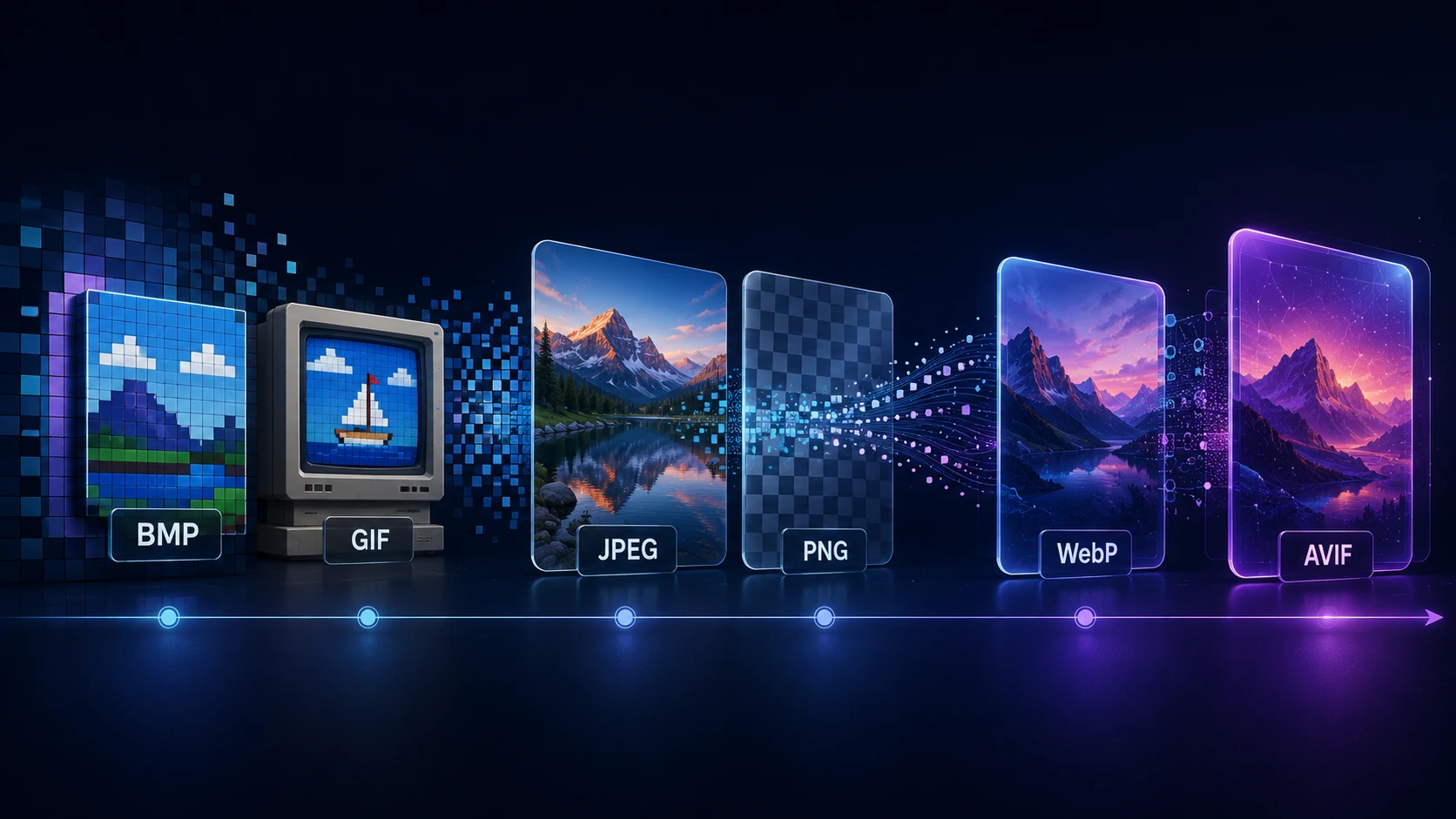
AVIF is one of the newest image formats and GIF is one of the oldest, so this is an unusual conversion. People generally need it for one reason: a forum, signature editor or legacy tool that accepts GIF but rejects AVIF. This AVIF to GIF converter handles that job right in your browser.
The result is a single, still picture with up to 256 colors. That works nicely for logos and simple graphics, and less well for photos.
How to convert AVIF to GIF
Your browser needs AVIF support, which all current major browsers have.
- 1
Drop in the AVIF
Select the .avif you need as a GIF. Batches of twenty files or fewer are fine.
- 2
Press the button
Convert to GIF cuts the colors to a palette of 256 and fills any transparency with white.
- 3
Check, then download
Give the result a quick look, particularly smooth gradients, before saving it.
How different images turn out
| AVIF content | GIF result |
|---|---|
| Flat logo or icon | Clean, close to the original |
| Illustration with few colors | Good |
| Screenshot | Acceptable; small text may look rough |
| Photo | Visible banding, large file |
Should you use JPG or PNG instead?
Check what the system accepts. If its upload form mentions JPG or PNG, either will look better than a GIF, and the file will probably be smaller:
- Photos: AVIF to JPG keeps millions of colors at a modest size.
- Graphics and transparency: AVIF to PNG is lossless and keeps the alpha channel.
- Web use: AVIF to WEBP stays small and displays in every current browser.
Stick with GIF only when it's specifically required.
Tips for a better-looking GIF
- Scale the image down first, because banding is less obvious at small sizes. Resize Image can help.
- If the image has transparency, consider which background it will sit on, since those areas become white.
- Crop out complex backgrounds, so more of the 256 colors go to the subject.
Private and free
Your file stays on your device, and there's no account or watermark. Each image can be up to 250 MB, although large pictures make heavy GIFs.
More Tools
Every tool is free, private and runs in seconds.
Image Tools
48 Compress Image JPEG · PNG · WEBP · GIF · BMP · TIFF · AVIF · HEIC Resize Image Exact px or % Blur Image Gaussian & motion
Convert to JPG
JPGConvert to PNG
PNGConvert to WEBP
WEBPConvert to AVIF
AVIFConvert to TIFF
TIFFConvert to GIF
GIFFavicon / ICO
PDF Tools
12 Compress PDF Shrink for email & web Merge PDF Combine multiple files Image to PDF Images → single PDF PDF to Image Extract as PNG/JPG PDF to PowerPoint Pages → PPTX slides JPG to PDF Photos → PDF pages Word to PDF DOCX → PDF Excel to PDF XLSX → PDF table HTML to PDF Web page file → PDF PDF to JPG Pages → JPEG PDF to Word Extract text to DOCX PDF to Excel Tables → XLSX
Frequently asked questions
No. The converter creates a single still image, even when the AVIF has several frames. It isn't an animation tool.
Drop the AVIF here and press Convert to GIF. It's decoded in your browser, reduced to 256 colors, and saved as a still GIF.
AVIF supports millions of colors, while GIF has a limit of 256. Photographs and soft gradients show visible bands. Flat graphics look far closer to the original.
AVIF is among the most efficient formats there is, and GIF is one of the oldest. The GIF can easily be 10 or 20 times larger for a photo.
You can, but there's little reason to. Every browser that displays GIF also displays JPG and PNG, which look better for less data. Save GIF for systems that won't take anything else, such as older forum software.
No. Every browser, phone and computer can open a GIF without extra software.
No. Transparent parts are filled with white. Use AVIF to PNG if you need them to stay see-through.
No. The whole conversion runs in your browser.
Blog
Guides and tips from the blog
Short, practical articles to get more out of ImgTask and your image or PDF workflow.