HEIC to JPG Converter
Turn iPhone HEIC photos into JPEG files that open on Windows, Android, and most upload forms.
Free to use
No account required
Stays on your device
Nothing uploaded
What this converter does
Many iPhones save photos as HEIC. JPEG is easier to open across email clients, browsers, and web forms. The browser converts the HEIC file locally and creates a JPG file that can be opened by applications with broader JPEG support.
Use HEIC to JPG when sending photos to people or services that do not open HEIC files.
Related tools: HEIC to PNG · HEIC to WEBP · Compress Image
How to convert HEIC to JPEG
- Upload your HEIC file. Drop one or more .heic or .heif photos into the upload area (max 200 MB each). A preview is generated in the browser so you can confirm the photo.
- Set JPEG quality. JPEG is lossy. Use the quality slider (default 90%). Lower values usually make a smaller file; higher values keep more detail. This does not restore quality already lost in the source.
- Convert to JPEG. Press Convert to JPEG. Processing runs in your browser — the file is not uploaded to ImgTask's server.
- Download the result. Download the converted JPEG file when it is ready. Conversion stayed on your device.
HEIC to JPG — why iPhone photos need it
Since iOS 11, iPhones often save pictures as HEIC because the format stores photos more compactly than JPEG. The catch is compatibility: plenty of Windows apps, Android phones, email clients, and upload forms will not open a .heic file.
The browser converts the HEIC file locally and creates a JPG file that can be opened by applications with broader JPEG support. Nothing is uploaded to ImgTask's server for this conversion.
HEIC to JPG on iPhone and Windows
On iPhone, you can upload from Safari — tap the upload area and pick the photo from your library. To stop new photos saving as HEIC, open Settings, then Camera, then Formats, and choose Most Compatible. Photos already in your library still need converting.
On Windows, File Explorer often needs a Store codec before it will even show a thumbnail. This tool skips that: the browser generates a preview of your HEIC so you can confirm the right photo, then writes a JPEG locally.
What carries over, and what does not
Standard EXIF, GPS, and similar metadata are stripped during re-encoding. Orientation is applied to the pixels first so the download stays upright. Apple-specific extras cannot survive the trip — Live Photo motion, depth maps, and HDR gain maps have no equivalent in a plain JPEG.
Formats, limits, and privacy
Upload limit: 200 MB per image, up to 20 files at once. Images above about 100 megapixels may fail in the browser. Conversion re-encodes pixels and strips EXIF, GPS, XMP, ICC, and DPI metadata; orientation is applied visually first. Transparent pixels are flattened onto white.
Limitations: Conversion is lossy relative to the HEIC source depending on quality. Live Photos, depth data, and other Apple-specific extras are not stored in JPEG. Metadata is stripped after orientation is applied.
Privacy: Your image is processed locally in your browser and is not uploaded to ImgTask's server. Image files never leave your device. No account is needed and results carry no watermark.
More Tools
Every tool is free, private and runs in seconds.
Image Tools
48
Compress Image
JPEG · PNG · WEBP · GIF · BMP · TIFF · AVIF · HEIC
Resize Image
Exact px or %
Blur Image
Gaussian & motion
Convert to JPG
JPGConvert to PNG
PNGConvert to WEBP
WEBPConvert to AVIF
AVIFConvert to TIFF
TIFFConvert to GIF
GIFFavicon / ICO
PDF Tools
12
Compress PDF
Shrink for email & web
Merge PDF
Combine multiple files
Image to PDF
Images → single PDF
PDF to Image
Extract as PNG/JPG
PDF to PowerPoint
Pages → PPTX slides
JPG to PDF
Photos → PDF pages
Word to PDF
DOCX → PDF
Excel to PDF
XLSX → PDF table
HTML to PDF
Web page file → PDF
PDF to JPG
Pages → JPEG
PDF to Word
Extract text to DOCX
PDF to Excel
Tables → XLSX
Frequently Asked Questions
Upload the .heic photo on this page, adjust quality if you want, click Convert to JPEG, then download the JPG.
You do not need a Microsoft Store codec for this page. The browser decodes the HEIC locally, then creates a JPG that Windows Photos can open.
iOS uses HEIC by default because it stores photos more efficiently than JPEG. The trade-off is compatibility.
Yes. On the iPhone, open Settings, then Camera, then Formats, and choose Most Compatible to shoot JPEG instead of HEIC. Existing HEIC photos still need converting.
JPEG is lossy, so there is some re-encoding loss versus the HEIC original. At the default 90% quality the difference is hard to see on normal photos.
No. Conversion re-encodes the pixels and strips EXIF, GPS, and other metadata. Orientation is applied visually first so portrait photos stay upright. Live Photo motion and depth data cannot be stored in a JPEG.
HEIC is Apple's naming for images in the HEIF container. Both .heic and .heif uploads are accepted here.
You can convert images up to 200 MB each, and up to 20 files at once. Very large pixel dimensions may still fail in the browser even when the file is under the upload limit.
Conversion runs in your browser. Your image is processed locally in your browser and is not uploaded to ImgTask's server. Image files never leave your device. If the browser cannot process the file, you will see an error and nothing is uploaded.
No. Conversion re-encodes pixels and strips EXIF, GPS, XMP, ICC, and DPI metadata. EXIF orientation is applied visually first so portrait photos stay upright. Live Photos, depth maps, and similar extras are not stored in the output.
JPEG does not support alpha transparency. Transparent pixels are flattened onto a white background.
Blog
Guides and tips from the blog
Short, practical articles to get more out of ImgTask and your image or PDF workflow.
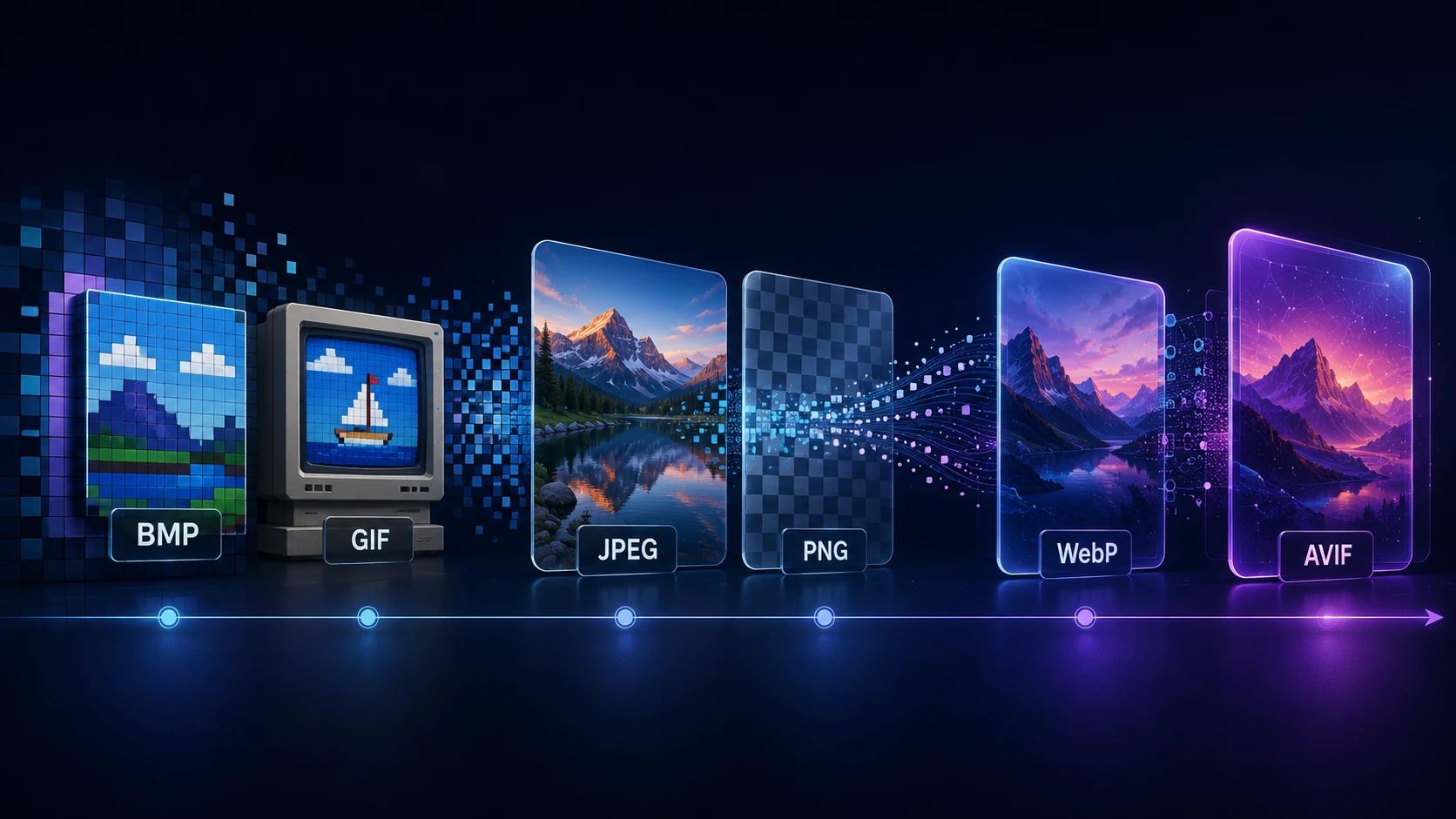
A Brief History of Digital Image Formats: From BMP and GIF to WebP and AVIF
Dinitha Ransidu 12 min read