Comprimi immagine
Riduci la dimensione del file immagine in pochi secondi. Comprimi foto JPEG, PNG, WEBP e HEIC con un cursore qualità o una dimensione target in KB. Nessun account richiesto.
Compress image files without uploading them
This page lets you compress image files right in your browser. Pick a photo, decide how small it needs to be, and download the result. Nothing goes to a server, which is also why it starts instantly: there's no upload bar to sit through, even with a 15 MB photo from a new phone.
Compression isn't the same as resizing. It re-encodes the picture so it takes fewer bytes, while the width and height in pixels stay exactly as they were. If a form also says "maximum 1000 × 1000 pixels", you'll need the image resizer as well.
How to compress an image
Each photo takes a second or two. You can drop up to 20 images at a time.
- 1
Carica la tua immagine
Trascina un JPEG, PNG, WEBP, HEIC o altra immagine supportata nell'area di caricamento, oppure seleziona più immagini contemporaneamente.
- 2
Scegli un livello di qualità
Sposta il cursore qualità (predefinito 80%). Qualità più bassa significa file più piccolo e artefatti più visibili.
- 3
Oppure imposta una dimensione target
Inserisci una dimensione target in KB e la qualità viene regolata automaticamente per avvicinarsi a quella dimensione.
- 4
Comprimi e scarica
Premi Comprimi immagine, attendi la fine dell'elaborazione, confronta prima e dopo, poi scarica il file più leggero.
Compress image to 20KB, 50KB, 100KB or 200KB
Online application forms often set a hard limit. Many Indian recruitment portals, including SSC, IBPS and several state commissions, ask for a photo between 20 KB and 50 KB and a signature between 10 KB and 20 KB. University admissions, visa and passport sites are usually more generous, often 100 KB to 200 KB. Limits change from one notification to the next, so check the one you're applying under.
Type the number into Target file size and the tool keeps lowering the quality until the file fits. Two things decide whether it can get there:
- Pixel count. A target size only lowers quality; it never touches the dimensions. A 4000 × 3000 phone photo won't reach 20 KB at any quality that still looks like a person. Shrink it to roughly 400 × 500 pixels first and 20 KB becomes easy.
- Format. JPEG and WEBP hit small targets well. PNG is reduced by trimming its color palette, which suits logos and screenshots but rarely gets a photo under 50 KB.
| Target | Typical use | Pixel size that usually fits |
|---|---|---|
| 20 KB | Exam signatures, small ID photos | About 300 × 400 px or less |
| 50 KB | Exam and job application photos | About 600 × 800 px or less |
| 100 KB | Admission forms, profile pictures | About 1000 × 1000 px or less |
| 200 KB | Visa portals, listings, email | About 1600 × 1200 px or less |
Treat these as rough guides for ordinary JPEG photos. A busy scene full of fine texture, like grass, gravel or patterned fabric, needs more bytes than a plain portrait against a white wall.
Which quality setting should you pick?
The slider runs from 10 to 90 and starts at 80. Above 75 most people can't tell the difference on screen, and the file is often half the size of the camera original.
| Quality | What you'll notice | Good for |
|---|---|---|
| 80–90 | Practically identical to the original, moderate saving | Portfolios, product shots, anything people may zoom into |
| 65–80 | Big saving, slight softness in fine texture when zoomed | Websites, blog posts, WhatsApp, email |
| 40–65 | Visible softness and some blockiness near sharp edges | Forms with strict limits, thumbnails |
| 10–40 | Clearly degraded, with banding in skies and gradients | A last resort when a limit can't be met any other way |
After processing you get a before-and-after slider. Drag it across faces and text, because that's where compression shows first. If it looks rough, nudge the quality up and apply again without re-uploading.
How each format gets compressed
JPEG
JPEG photos are re-encoded with MozJPEG, an encoder built to save extra bytes at the same visual quality. Phones store photos at a very high setting, so the first pass typically removes 40–70% of the file without any visible change.
PNG
PNG has no quality dial of its own. Instead the tool reduces the image to a palette of roughly 40 to 245 colors (fewer as you lower the slider), smooths the steps with dithering and repacks the file with OxiPNG. Screenshots, logos and diagrams often shrink by 60–80% and keep their transparency. Photos saved as PNG shrink far less, so converting PNG to JPG is usually the better choice for them.
WEBP and AVIF
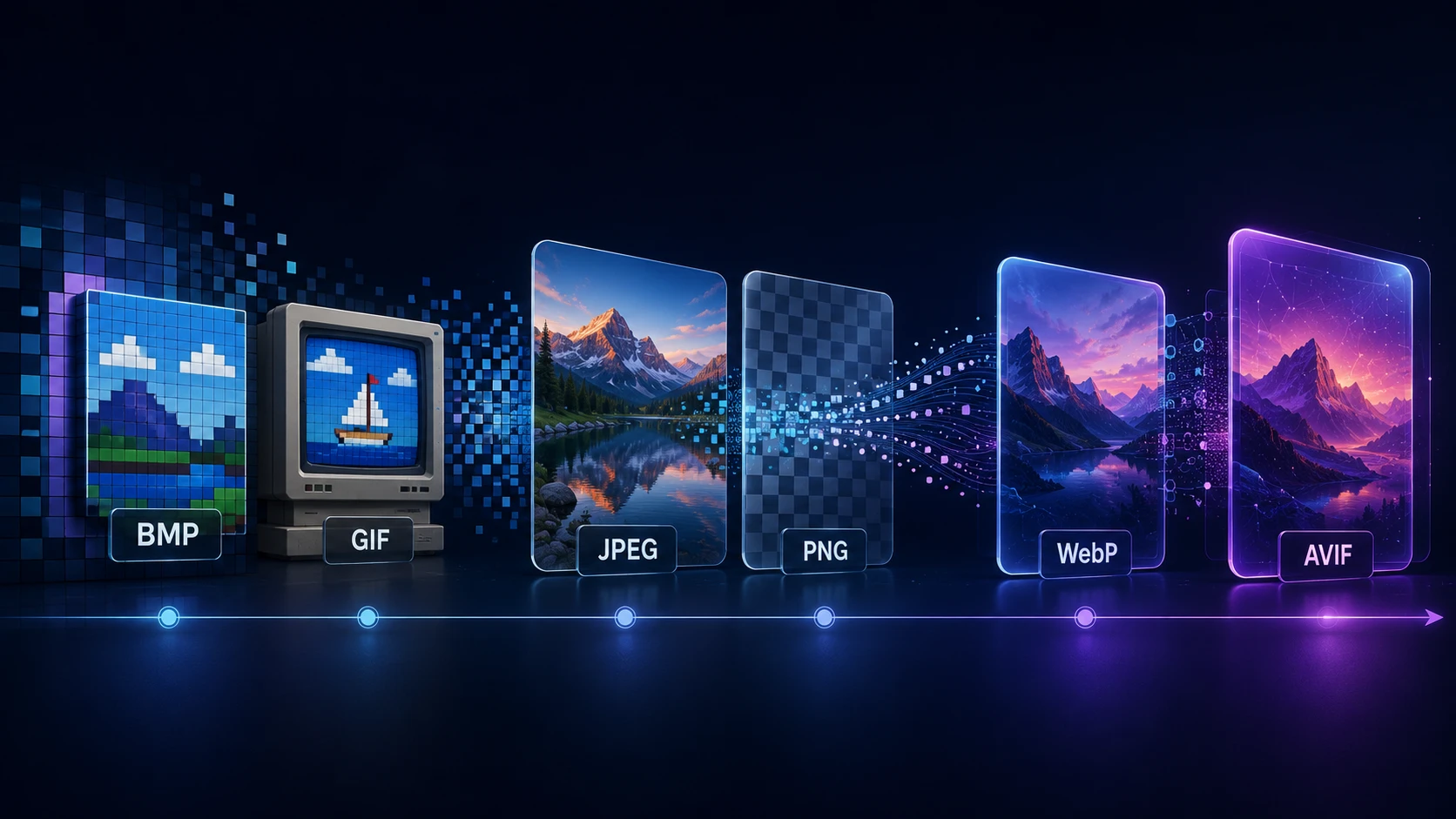
Both formats are already efficient, so expect smaller gains, often 10–30%. They're still worth a pass when you're trimming a web page and every kilobyte counts.
HEIC from iPhone
HEIC photos are decoded in the browser and saved as JPEG, since many upload forms and Windows PCs still can't open HEIC. If you only want the format change without extra compression, use HEIC to JPG.
GIF, BMP and TIFF
These keep their own format, which limits what can be saved. BMP has no compression to tune, and a GIF comes out as a single still frame, so animation is lost. To make these files genuinely small, convert them first with BMP to JPG or TIFF to JPG.
Free, private and without limits on use
You can compress image files free here, with no account, no daily quota and no watermark. Privacy comes from how the tool is built: the compression code loads into your browser and runs there. Your photo is read from your disk, processed in memory and handed back as a download. ImgTask never receives a copy, so there's nothing to delete afterwards.
Each image can be up to 250 MB, with 20 images per batch. Extremely large pictures, above about 100 megapixels, may fail on phones with little memory. If that happens, try a desktop browser or resize the image first.
Altri strumenti
Tutti gratuiti e privati, e funzionano in pochi secondi.
Strumenti immagine
48Converti in JPG
JPGConverti in PNG
PNGConverti in WEBP
WEBPConverti in AVIF
AVIFConverti in TIFF
TIFFConverti in GIF
GIFFavicon / ICO
Strumenti PDF
12 Compress PDF Shrink for email & web Merge PDF Combine multiple files Image to PDF Images → single PDF PDF to Image Extract as PNG/JPG PDF to PowerPoint Pages → PPTX slides JPG to PDF Photos → PDF pages Word to PDF DOCX → PDF Excel to PDF XLSX → PDF table HTML to PDF Web page file → PDF PDF to JPG Pages → JPEG PDF to Word Extract text to DOCX PDF to Excel Tables → XLSX
Domande frequenti
La compressione riduce la dimensione del file immagine così le foto sono più facili da caricare, inviare via e-mail o mostrare su un sito web. Di solito regola la qualità di codifica e non cambia necessariamente larghezza e altezza.
Inserisci un valore nel campo Dimensione file target (KB) prima di comprimere. La qualità viene regolata automaticamente per avvicinarsi a quella dimensione — ad esempio 100 KB per un modulo o 500 KB per un'immagine web.
Inizia intorno all'80% di qualità e confronta l'anteprima prima/dopo. La maggior parte delle foto sembra identica al 75–85% mentre il file diventa sensibilmente più piccolo.
La compressione mira alla dimensione del file. Il ridimensionamento cambia le dimensioni in pixel (larghezza e altezza). Puoi usare entrambi: ridimensiona prima, poi comprimi se il file è ancora grande.
Puoi caricare JPEG, PNG, WEBP, GIF, BMP, TIFF, AVIF e HEIC/HEIF. Le foto HEIC vengono compresse e salvate come JPEG. Risultati e risparmio di spazio variano per formato.
La dimensione massima è 250 MB per immagine. Dimensioni in pixel molto grandi possono fallire nel browser. L'elaborazione resta nel browser — i file non vengono inviati a una coda server.
La compressione avviene nel tuo browser. La tua immagine viene elaborata localmente e non viene caricata sul server di ImgTask. I file immagine non lasciano mai il tuo dispositivo.
Puoi selezionare più immagini nel caricatore. Ogni immagine viene elaborata come lavoro separato.
Blog
Guide e consigli dal blog
Articoli brevi e pratici per ottenere di più da ImgTask e dal tuo lavoro con immagini e PDF.