Immagine in PDF
Convertitore immagine in PDF online. Converti una foto in PDF o unisci fino a 20 immagini in un unico PDF — A4 o Letter, nessun account richiesto.
Convert image to PDF in your browser
This image to PDF converter turns photos, scans and screenshots into a proper PDF document. Every picture gets its own page, sized and centered the way you choose, and the whole set downloads as one file.
It's handy when a form only accepts PDF, when you've photographed a multi-page document with your phone, or when you want to send a batch of receipts or notes as a single attachment instead of a dozen loose images.
How to convert images to PDF
You can do this on a phone or a computer. Conversion takes a few seconds even with 20 images.
- 1
Carica una o più immagini
Trascina JPEG, PNG, WEBP, HEIC o altre immagini supportate nell'area di caricamento (fino a 20 file, max 250 MB ciascuno).
- 2
Imposta formato pagina e orientamento
Scegli A4 o Letter, verticale o orizzontale, e un margine opzionale così ogni immagine si adatta bene alla pagina.
- 3
Converti le immagini in PDF
Premi Converti in PDF. La conversione avviene nel tuo browser e di solito termina in pochi secondi.
- 4
Scarica il PDF
Scarica il PDF finito quando è pronto.
Page options explained
| Option | Choices | When to change it |
|---|---|---|
| Page size | A4 or Letter | Use Letter for US and Canadian recipients, A4 almost everywhere else |
| Orientation | Portrait or landscape | Landscape suits wide screenshots, slides and panoramas |
| Margin | 0 to 100 px (default 20) | Set 0 for full-bleed photos, 30 to 50 for a printed look |
Images are never cropped or stretched. They're scaled to fit inside the margin while keeping their shape, so a photo that doesn't match the page proportions leaves some white space.
What people use an image to PDF converter for
Documents photographed on a phone
A lease, a signed form or a few pages of handwritten notes, shot with the phone camera, become a single PDF that reads in order. It looks far more professional to the person receiving it than six separate JPGs in a chat.
ID cards, certificates and mark sheets
Many application portals ask for documents as PDF even when you only have a photo. Put the front and back of an ID card on two pages, or each certificate on its own page, and upload one file instead of several.
Receipts and invoices
Expense systems and accountants usually prefer one PDF per claim. Snap the receipts, drop them in, and send a tidy document with one receipt per page.
Screenshots and slides
Choose landscape for wide screenshots or exported slides. With the margin at 0, each picture fills its page, which makes the PDF easy to scroll through on a laptop.
Image to PDF 200KB: keeping the file small
Upload portals often ask for a PDF under 200 KB or 500 KB. Because JPEG and PNG files go into the PDF without being re-encoded, the PDF ends up about as big as the images you add. So the trick is to make the images small before converting:
- Resize first. A phone photo is 4000 pixels wide or more. For a document page, 1200 to 1600 pixels is plenty. Use Resize Image.
- Compress with a target. In Compress Image, set a target per image. For a 200 KB PDF with two pages, aim for about 90 KB each.
- Use JPG, not PNG or HEIC. Other formats are stored as lossless PNG inside the PDF, which is far larger for photos. Convert with HEIC to JPG or PNG to JPG first.
- Already made the PDF? Run it through Compress PDF with the Screen preset.
Supported image formats
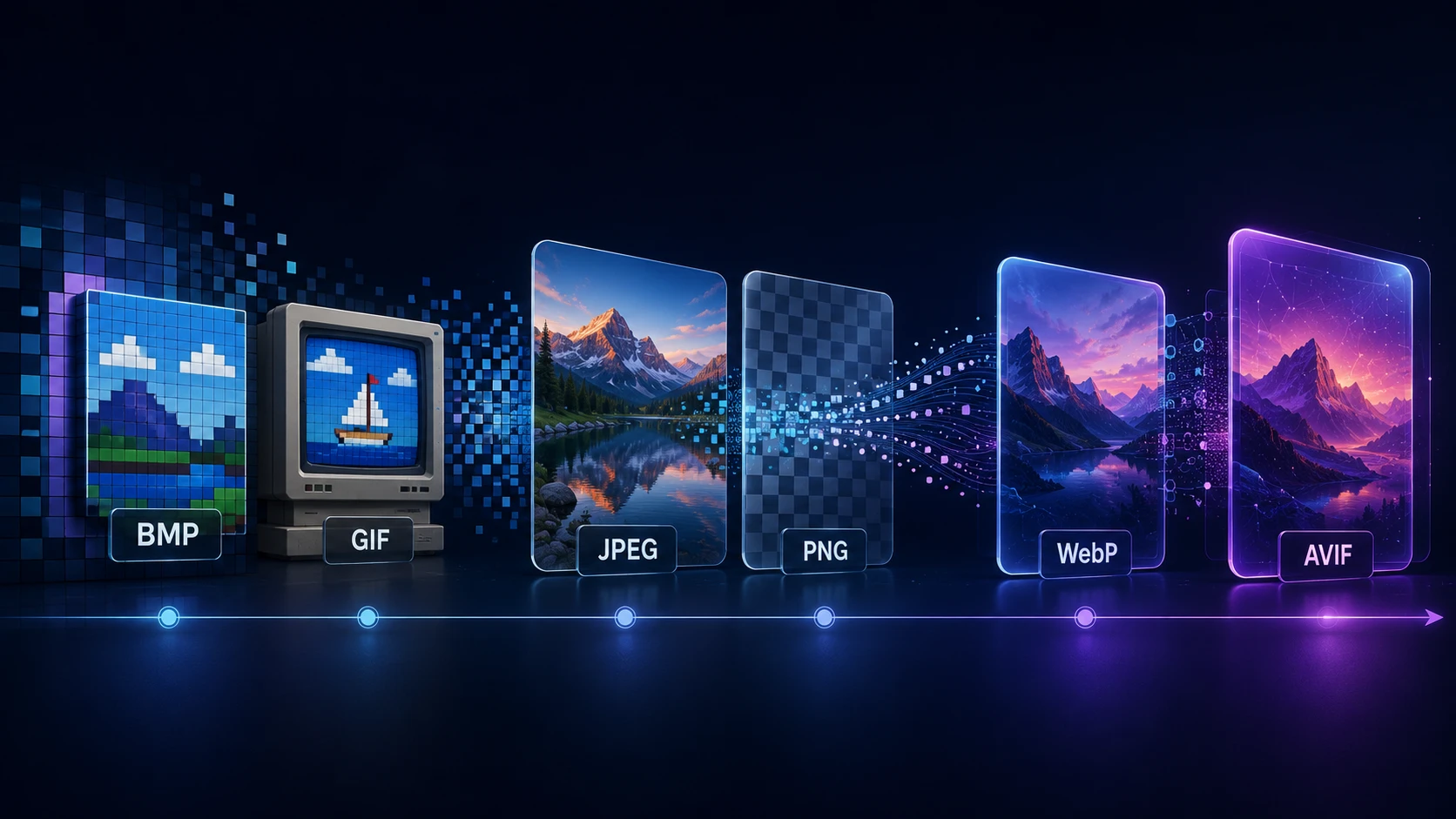
You can convert JPG, JPEG, PNG, WEBP, HEIC, HEIF, AVIF, TIFF, GIF and BMP images. JPEG and PNG are placed into the PDF directly. All other formats are decoded in the browser first and stored as PNG, so transparency in a PNG or WEBP logo shows up as white on the page.
Animated GIFs contribute their first frame. Multi-page TIFF files contribute their first page. If you only need a single format, the dedicated JPG to PDF converter does the same job for JPEG photos.
Photographing documents for a cleaner PDF
- Lay the page flat on a dark surface in daylight, with no flash, so the paper stands out and there's no glare.
- Hold the phone directly above the page rather than at an angle, so the text isn't skewed.
- Crop away the table and your fingers before converting; the crop option in Resize Image works well for this.
- Shoot every page in the same orientation, then choose portrait in the page options.
Private and free
Your pictures are read from your device and the PDF is assembled in your browser. Nothing is uploaded, stored or logged, which matters when the images are IDs, medical letters or bank documents. There's no account, no watermark and no limit on how many PDFs you create. Each image can be up to 250 MB, with up to 20 images per PDF. To add the result to other PDFs, use Merge PDF.
Altri strumenti
Tutti gratuiti e privati, e funzionano in pochi secondi.
Strumenti immagine
49 Compress Image JPEG · PNG · WEBP · GIF · BMP · TIFF · AVIF · HEIC Resize Image Exact px or % Blur Image Gaussian & motion
Converti in JPG
JPGConverti in PNG
PNGConverti in WEBP
WEBPConverti in AVIF
AVIFConverti in TIFF
TIFFConverti in GIF
GIFFavicon / ICO
Strumenti PDF
11 Compress PDF Shrink for email & web Merge PDF Combine multiple files PDF to Image Extract as PNG/JPG PDF to PowerPoint Pages → PPTX slides JPG to PDF Photos → PDF pages Word to PDF DOCX → PDF Excel to PDF XLSX → PDF table HTML to PDF Web page file → PDF PDF to JPG Pages → JPEG PDF to Word Extract text to DOCX PDF to Excel Tables → XLSX
Domande frequenti
Carica una o più immagini, scegli formato pagina e orientamento se serve, clicca Converti in PDF, poi scarica il risultato. Nessun account richiesto.
Sì. Immagine in PDF gratis senza registrazione, senza filigrana e senza software da installare. Puoi convertire fino a 20 immagini per lavoro (max 250 MB ciascuna).
Sì. Foto in PDF, immagine in PDF e simili sono la stessa operazione: trascina il file qui.
Puoi aggiungere fino a 20 immagini per conversione. Vengono inserite nel PDF nell'ordine di caricamento.
A4 è il predefinito. Puoi scegliere A4 o Letter, più orientamento verticale o orizzontale e un margine nel pannello opzioni.
La conversione avviene nel tuo browser. Le tue immagini vengono elaborate localmente e non vengono caricate sul server di ImgTask.
Ogni immagine viene adattata alla pagina con il margine impostato. Immagini molto larghe o alte possono avere bande nere per adattarsi al formato pagina e all'orientamento.
No. Il PDF contiene immagini sulle pagine. Non estrae né ricrea testo da screenshot o documenti scansionati.
Blog
Guide e consigli dal blog
Articoli brevi e pratici per ottenere di più da ImgTask e dal tuo lavoro con immagini e PDF.