


August 2026 Updated Aug 22, 2026
HEIC Explained: What It Is, Why iPhones Use It and How to Open It
HEIC is the efficient photo format commonly produced by iPhones. Learn how it relates to HEIF, why Apple uses it, how to open it, and when to convert it to JPG, PNG, WebP or AVIF.

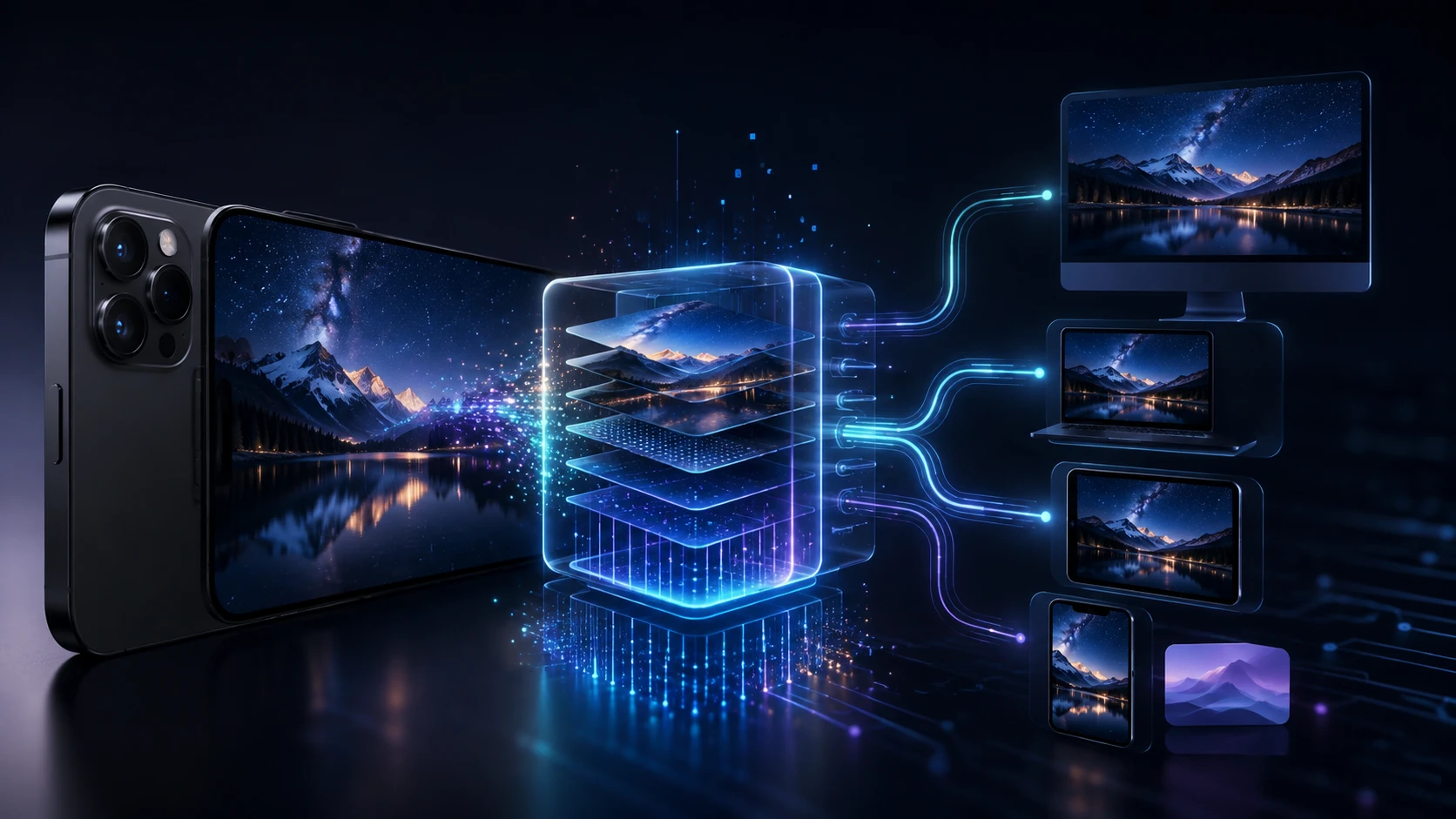
You transfer a photograph from an iPhone, expect a familiar JPG, and instead receive a file ending in .heic. The photo opens normally on the phone, but another computer, website or editing app may not recognize it.
So, what is a HEIC file? A HEIC file is a highly efficient image file commonly created by Apple devices using the HEIF container and HEVC image coding. It is designed to preserve good visual quality while using less storage than older formats such as JPEG.
Compatibility is still uneven. This guide explains HEIF vs HEIC, why the iPhone photo format exists, how to open it, and when to convert it.
What Is a HEIC File? The Quick Answer
A HEIC file normally contains one or more images stored using the High Efficiency Image File Format structure. The image data is commonly compressed with HEVC, also called H.265.
Depending on how it was created, a HEIF container may hold thumbnails, image sequences and metadata. The current ISO image-file-format standard covers single images, collections, sequences and associated metadata.
In practice:
HEIC is a common High Efficiency output from iPhones and iPads.
Apple devices generally open it without extra work.
Some Windows apps, websites and older software may reject it.
Converting to JPG is often the easiest compatibility solution.
HEIF vs HEIC: What Is the Difference?
HEIF and HEIC are related, but they are not perfect synonyms.
Term | Meaning | Practical role |
|---|---|---|
HEIF | High Efficiency Image File Format | The broader container structure for images, sequences and metadata |
HEIC | A common extension and HEIF brand associated with HEVC-coded images | The file type often produced by Apple devices |
HEVC | High Efficiency Video Coding, also called H.265 | The coding technology commonly used to compress image data in HEIC files |
HEIF can organize images encoded with different technologies. HEIC generally refers to the HEVC-coded variation. People often call any iPhone HEIF photo a HEIC file because .heic is the extension they see.
Software must understand both the container and the coding inside it.
Why Do iPhones Use HEIC?
Apple introduced support for HEIF photos with iOS 11 and macOS High Sierra. Apple’s current HEIF and HEVC support guide says these formats provide better compression than JPEG and H.264, reducing device and iCloud storage use while preserving comparable visual quality.
That efficiency matters as phones create many high-resolution photographs. Smaller files mean:
More photos fit in the same device storage.
iCloud Photos uses less space for an equivalent library.
High-resolution camera features become easier to manage.
HEIF also supports image collections or sequences, metadata, thumbnails and derived-image relationships, giving Apple flexibility for computational photography.
Is HEIC Apple’s Own Format?
No. HEIF is an industry standard, not a format owned exclusively by Apple. Apple made it familiar to consumers by adopting it across iPhone, iPad and Mac workflows. Other devices and applications can support it too.
Its Apple association comes from .heic files created when High Efficiency capture is enabled.
Advantages of HEIC Files
Efficient Storage
HEIC can store a photo more efficiently than JPEG at a similar visual target. Savings vary, so claims such as “always half the size” are not guarantees.
High Image Quality
HEVC-based coding can preserve strong visual quality at smaller sizes. Aggressive or repeated conversion can still damage an image.
Support for Richer Image Data
HEIF can carry collections, sequences and metadata. Some Apple photos also use related depth, HDR or editing data, although not every HEIC includes these elements.
Useful Inside the Apple Ecosystem
Recent Apple systems include HEIF support, so Photos, Preview and compatible editors can open and export the files.
Disadvantages of HEIC Files
Uneven Compatibility
HEIC does not open everywhere JPEG does. Older software, web forms, printers and some non-Apple devices may reject it.
Website Upload Problems
Many web workflows expect JPG, PNG, WebP or AVIF, so a valid iPhone photo may trigger an “unsupported file type” message.
Conversion Can Remove Extra Information
A basic JPG cannot reproduce every Apple-photo capability. Conversion may discard metadata, transparency, HDR information, depth data or Live Photo motion.
Less Convenient for Universal Sharing
When the recipient’s software is unknown, JPEG is safer because it opens across more systems.
How to Open a HEIC File
The best method depends on your device and whether you want to keep the original format.
Open HEIC on an iPhone or iPad
Device photos open directly in Photos. Other files can usually be previewed through Files or a HEIF-compatible app.
If it opens in Photos but fails elsewhere, the destination probably lacks format support.
Open HEIC on a Mac
On a supported Mac, open the file in Preview or import it into Photos. To export a compatible copy:
Open the HEIC file.
Choose File → Export.
Select JPEG or PNG.
Choose the available quality settings and save.
Open HEIC on Windows
Windows Photos can open HEIC when the required components are installed. If an extension is requested, Microsoft’s HEIF and HEVC instructions direct users to the relevant Microsoft Store extensions.
Restart Photos afterward. If you do not want the codec or need broader compatibility, convert a copy.
Open HEIC on Android, Linux or Other Systems
Support varies by system, viewer and codecs. Try the current photo app, then use a compatible editor or convert the file if needed.
Renaming .heic to .jpg does not convert its encoded data.
How to Convert HEIC to JPG with ImgTask
JPG is the practical default for email, office software, forms and older applications.
To use the ImgTask HEIC to JPG converter:
Drop one or more
.heicor.heiffiles into the uploader.Select an output quality. A higher value preserves more detail, while a lower value normally produces a smaller JPEG.
Choose Convert to JPEG.
Preview and download the converted file.
ImgTask processes conversion in the browser and accepts up to 200 MB per image and 20 images per batch, subject to browser limits.
The converter applies orientation but strips EXIF, GPS and other metadata. JPG output does not store Apple-specific extras such as Live Photo motion or depth information.
Should You Convert HEIC to JPG, PNG, WebP or AVIF?
Choose the output according to what you will do next.
Output | Best for | Important tradeoff |
JPG | Email, forms, documents and universal photo sharing | Lossy encoding; no transparency |
PNG | Editing, design tools and lossless decoded pixels | Often much larger for photos |
WebP | Publishing photos on modern websites | ImgTask’s output is lossy; check CMS support |
AVIF | Efficient modern web delivery | Encoding can be slower; confirm platform support |
Convert HEIC to PNG
Use the HEIC to PNG converter when an editor expects lossless PNG. It preserves decoded pixels but cannot recover absent detail, and output is usually larger than HEIC.
Convert HEIC to WebP
Use the HEIC to WebP converter for modern websites. ImgTask uses lossy WebP settings; because HEIC is already efficient, conversion improves compatibility without guaranteeing major savings.
Convert HEIC to AVIF
Use the HEIC to AVIF converter for tested AVIF website workflows. It re-encodes rather than improves the original.
For help selecting among common web formats, read JPG vs PNG vs WebP vs AVIF.
Does Converting HEIC Reduce Image Quality?
It can. JPG, lossy WebP and lossy AVIF re-encode the source. A high-quality result may look identical at normal size but is not the original encoding.
PNG avoids a new lossy stage but cannot improve the decoded HEIC and may be much larger.
Keep the original HEIC and create destination-specific copies rather than repeatedly converting an output.
How to Make an iPhone Save Photos as JPG
If compatibility matters more than maximum storage efficiency, change the camera setting:
Open Settings.
Tap Camera.
Tap Formats.
Select Most Compatible.
New photos use JPEG, while applicable videos use H.264. Choose High Efficiency to return to HEIF and HEVC.
This setting affects new captures. It does not convert HEIC photos already stored in your library.
Control What Happens During Transfer
An iPhone may automatically send a compatible version through AirDrop, Messages or email when the destination lacks support.
For USB importing, Apple documents Settings → Apps → Photos, where you can choose to keep originals instead of automatic conversion.
Common HEIC Mistakes
Renaming the Extension
Changing photo.heic to photo.jpg does not perform a conversion. Use an actual decoder and encoder.
Deleting the Original Immediately
Conversion may remove metadata or Apple-specific information. Confirm the new file before deleting anything, and keep the original when it matters.
Assuming PNG Will Be Smaller
PNG is lossless and can be much larger than HEIC for photographs. Choose it for editing or tool compatibility, not automatically for file-size reduction.
Uploading HEIC Directly to a Website
Even if your own device displays the file, visitors, browsers or the CMS may not. Convert to a supported delivery format before publishing.
Frequently Asked Questions
Is HEIC Better Than JPG?
HEIC is generally more storage-efficient and supports a richer container. JPG wins on universal compatibility. Keep HEIC for efficient originals and use JPG when easy sharing matters most.
Are HEIC and HEIF the Same?
HEIF is the broader image-file structure. HEIC is the common extension and variation associated with HEVC-coded HEIF images, particularly in Apple workflows.
Why Can’t I Open a HEIC File?
Your operating system or application may lack HEIF container or HEVC decoding support. Update the software, install the required official extension, use a compatible viewer or convert the file.
Can Windows Open HEIC Files?
Yes, when Windows Photos has the necessary HEIF and HEVC support. If your system requests an extension, install it through Microsoft Store or convert the image to JPG.
Can I Convert HEIC Without Uploading My Photo?
Yes. ImgTask’s HEIC conversion tools process supported files locally in the browser. Always check the privacy description of any converter you choose because other services may upload files to a server.
Will Converting HEIC Keep the Date and Location?
Not with ImgTask’s current converters. They strip EXIF, GPS and related metadata after applying orientation to the pixels. Keep the original if you need its capture details.
Final Recommendation
HEIC is an efficient iPhone photo format, not a broken or suspicious file. Keep it when your devices and applications support HEIF and you value compact originals. Convert a copy when compatibility becomes more important.
For most forms, email attachments and everyday sharing, use the HEIC to JPG converter. Choose PNG for a lossless editing intermediate, or WebP and AVIF for tested website workflows. The right output is the one that preserves enough quality while working reliably at its destination.
The team
Written by
Dinitha Ransidu
authorKeep reading
Related articles
A Brief History of Digital Image Formats: From BMP and GIF to WebP and AVIF
Dinitha Ransidu
August 15, 2026 12 min read
Image File Types Explained: JPEG, PNG, GIF, WebP, AVIF, TIFF and BMP
Dinitha Ransidu
August 9, 2026 12 min read

How to Create a QR Code: A Complete Guide for URLs, WiFi and More
Dinitha Ransidu
August 27, 2026 17 min read