


August 2026 Updated Aug 22, 2026
What Is Image Resolution? Pixels, Dimensions, PPI and DPI Explained
Image resolution can refer to pixel dimensions, pixel density, or print output. This guide explains pixels, megapixels, PPI, DPI, resizing, and the settings that matter for screens and print.

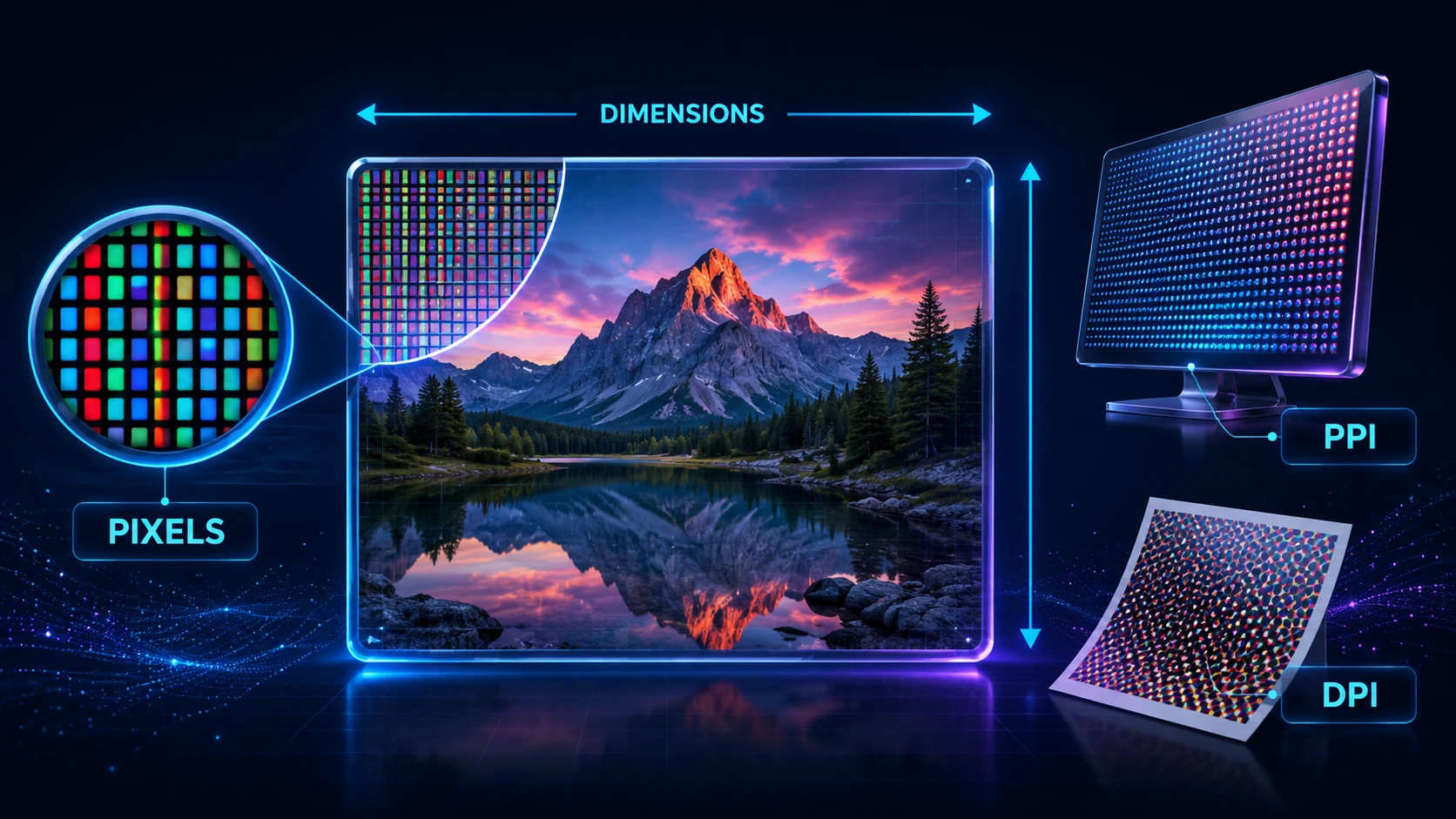
Image resolution sounds simple until a website requests exact pixels, an editor displays a PPI value, and a printer asks for DPI. These measurements are related, but they do not describe the same thing.
So, what is image resolution? In everyday use, image resolution describes the amount or density of visual information in an image. For a digital image on a screen, the clearest measurement is usually its pixel dimensions, such as 1920 × 1080 pixels. For print, resolution is often discussed as pixels per inch (PPI), while a printer’s output capability is measured in dots per inch (DPI).
Understanding these differences helps you avoid blurry enlargements and prepare files correctly for websites or print.
Image Resolution: The Quick Explanation
A raster image is a grid of colored picture elements called pixels. MDN defines a raster image as a grid of pixels with a fixed set of dimensions.
Four measurements are commonly mixed together:
Term | What it measures | Example | Most relevant for |
|---|---|---|---|
Pixel dimensions | Total width and height in pixels | 1920 × 1080 px | Screens, websites and digital files |
Megapixels | Approximate total number of pixels | 12 MP | Cameras and overall pixel count |
PPI | Image pixels assigned to each printed inch | 300 PPI | Print size and image sampling |
DPI | Physical dots produced per printed inch | 1200 DPI printer | Printer output |
For most online tasks, focus on pixel dimensions and file size. For printing, consider pixel dimensions, intended print size and PPI. DPI usually describes the printer rather than the digital photograph itself.
What Are Pixels?
A pixel is the smallest addressable element in a raster image. Each pixel stores color and brightness information. When millions of pixels are arranged in rows and columns, they form the photograph or graphic you see.
Pixels do not have one permanent physical size. A pixel may appear tiny on a high-density phone, larger on another screen, or be mapped into ink during printing. Therefore, “3000 pixels” alone does not tell you how many inches wide an image will appear.
Raster formats such as JPG, PNG, WebP and AVIF use pixels. Vector formats such as SVG describe shapes mathematically and scale differently.
What Are Image Dimensions?
Image dimensions describe the width and height of an image in pixels. A 2400 × 1600 image contains 2400 columns and 1600 rows of pixels.
To estimate its total pixel count, multiply the two dimensions:
2400 × 1600 = 3,840,000 pixels, or approximately 3.84 megapixels.
Dimensions also determine aspect ratio. Both 1920 × 1080 and 3840 × 2160 are 16:9, but the second contains four times as many pixels and may require more storage and bandwidth.
If you need to change width and height, the ImgTask image resizer lets you enter exact pixel dimensions while maintaining the aspect ratio.
Dimensions vs File Size
Pixel dimensions and file size are connected, but they are not interchangeable.
Dimensions are measured in pixels, such as 2000 × 1200.
File size is measured in bytes, KB or MB.
Two images with identical dimensions can have different file sizes because of format, compression, color complexity, transparency and metadata. A photograph and a simple graphic may compress differently even at 1920 × 1080.
If the dimensions are already correct but the file is too heavy, use the ImgTask image compressor rather than reducing the width and height unnecessarily. For the wider optimization process, read How to Reduce Image File Size Without Losing Quality.
Pixels vs Resolution: Are They the Same?
Not exactly. Pixels are the individual units that make up a raster image. Resolution describes how much image information is available or how densely that information is presented.
The word resolution can refer to several things depending on context:
A camera specification may use megapixels.
A website may treat pixel dimensions as image resolution.
A print dialog may display PPI.
A printer specification may list DPI.
A screen may be described by both dimensions and pixel density.
Instead of asking only whether an image is “high resolution,” request measurable requirements: pixels, display or print size, PPI and maximum file size.
What Is PPI?
PPI means pixels per inch. It describes how many image pixels are assigned to each inch when an image is printed or otherwise mapped to a physical size.
Suppose an image is 3000 pixels wide:
At 300 PPI, it prints 10 inches wide.
At 200 PPI, it prints 15 inches wide.
At 150 PPI, it prints 20 inches wide.
The calculation is:
Print width in inches = pixel width ÷ PPI
The same relationship applies to height. A 3000 × 2400 image can produce these approximate print sizes without resampling:
PPI | Print dimensions | Pixel dimensions |
300 PPI | 10 × 8 inches | 3000 × 2400 px |
240 PPI | 12.5 × 10 inches | 3000 × 2400 px |
150 PPI | 20 × 16 inches | 3000 × 2400 px |
The image keeps the same pixels; only the density and calculated print size change.
Is 300 PPI Always Required for Printing?
No single PPI value is correct for every print. Around 300 PPI is common for detailed prints viewed closely, but requirements depend on the printer, paper, output size and viewing distance. A distant poster can often use a lower effective PPI than a handheld photograph.
Follow your print shop’s specification. Do not invent pixels merely to make metadata say 300 PPI; upsampling cannot recreate uncaptured detail.
What Is DPI?
DPI means dots per inch. It describes the density of physical dots that a printer can place on paper or another material.
A printer may combine several tiny ink dots to represent the color and tone of one image pixel. Consequently, a printer rated at 1200 DPI does not require a 1200 PPI photograph. Adobe’s guide to PPI and DPI explains that PPI refers to image pixels, while DPI relates to printer output.
People often say “DPI” when they mean PPI. A request for a “300 DPI image” usually means enough pixels to print at the requested size near 300 PPI. Confirm the dimensions or print size when unclear.
PPI vs DPI: What Is the Difference?
The simplest distinction is:
PPI belongs to the image-to-size relationship.
DPI belongs to the printer’s physical output.
Question | Use PPI | Use DPI |
How many image pixels will be printed per inch? | Yes | No |
How large can this 3000-pixel image print? | Yes | No |
How densely can a printer place ink or toner dots? | No | Yes |
Is this digital image large enough for an 8 × 10 print? | Yes | Not by itself |
The terms may be used loosely in normal conversation, but keeping the technical distinction clear prevents incorrect calculations.
Does PPI Matter for Websites and Screens?
For web publishing, pixel dimensions and rendered size are more useful than a 72, 96 or 300 PPI metadata value. HTML or CSS can display the image at the same layout width even if its embedded PPI changes.
The advice to “save every web image at 72 DPI” is therefore misleading. Changing print-resolution metadata does not make an image smaller or faster. A 3000 × 2000 image remains 3000 × 2000 pixels at either 72 or 300 PPI.
For high-density screens, a website may supply more source pixels than the CSS display width. A 600-pixel file may fill a 300-CSS-pixel slot at 2x density. Web.dev explains 1x and 2x descriptors in its responsive images guide.
Do not serve the largest image to every device simply because some screens have high pixel density. Responsive image markup can provide multiple source widths, allowing the browser to consider the viewport and device characteristics.
What Is Resampling?
Resampling changes the actual number of pixels in an image.
Downsampling removes pixels to create smaller dimensions.
Upsampling creates new pixels to produce larger dimensions.
This differs from changing PPI metadata alone. Without resampling, changing a 3000-pixel image from 300 to 150 PPI keeps 3000 pixels but changes its calculated print width from 10 to 20 inches. With resampling enabled, software may change the pixel dimensions.
Adobe’s current image size and resolution guide separates pixel dimensions, physical document size, resolution and resampling for this reason.
Downsampling is normally safe when you keep the original. Upsampling can estimate new pixels but cannot guarantee authentic detail.
How Resolution Affects Image Quality
An image usually looks sharp when it has enough source pixels for its displayed or printed size. It can look soft, blurry or pixelated when stretched beyond the detail available in the original.
More pixels do not automatically create a better image. Focus, lighting, lens quality, motion blur, compression and editing also affect quality. A sharp 12-megapixel photo can beat a poorly focused 48-megapixel one.
Large dimensions can be wasteful. A 6000-pixel camera image in an 800-pixel blog column can increase downloads without a visible benefit.
Choosing the Right Resolution for Common Uses
Websites and Blog Images
Determine the largest layout size needed and create suitable files. Use responsive alternatives instead of one enormous source. After resizing, compress the result and choose an appropriate format.
The complete workflow is covered in How to Optimize Images for a Website.
Social Media and Online Forms
Follow the platform’s current pixel-dimension and file-size requirements. A request for 1080 × 1080 describes dimensions; a limit of 2 MB describes file size. You may need to resize the image first and compress it afterward.
Printing
Start with the intended physical dimensions and recommended PPI. Multiply inches by PPI to estimate required pixels. An 8 × 10-inch print at 300 PPI needs 2400 × 3000 pixels.
Scanning
Scanning PPI describes how densely a scanner samples the original. The useful setting depends on the source and intended reproduction. Higher settings create larger files but stop revealing detail once the original or scanner reaches its limit.
Common Image Resolution Mistakes
Treating File Size as Resolution
A 5 MB image is not automatically high resolution, and a 500 KB image is not automatically low resolution. Check its pixel dimensions and visual quality.
Changing PPI and Expecting a Smaller Web Image
Changing only PPI metadata does not remove pixels. Resize the dimensions or compress the file if your goal is a lighter website image.
Enlarging a Small Image Too Far
Upscaling changes dimensions but cannot restore genuine missing detail. Use the best original available and avoid unnecessary enlargement.
Ignoring Aspect Ratio
Entering unrelated width and height values can stretch an image. Keep the aspect ratio enabled or crop deliberately to the required shape.
Frequently Asked Questions
What Is a Good Resolution for an Image?
A good resolution provides enough pixels for the intended display or print size without unnecessary excess. No value suits every image.
Is 1920 × 1080 High Resolution?
1920 × 1080 is Full HD and contains about 2.07 megapixels. Whether it is “high resolution” depends on its display or print size.
Is 300 DPI the Same as 300 PPI?
Technically, no. PPI counts image pixels per inch; DPI counts printer dots per inch. “300 DPI image” is often informal shorthand for an image intended to print at roughly 300 PPI.
Does Higher PPI Mean Better Quality?
Only when the additional source pixels contain useful detail and the output can reveal it. Increasing a metadata number or upsampling a small image does not automatically improve quality.
How Can I Find an Image’s Resolution?
Check the file properties or an image editor for pixel width and height. For print, also check PPI and intended physical dimensions.
How Do I Change Image Dimensions?
Use the free ImgTask image resizer, enter a target width or height, maintain the aspect ratio, and download the resized copy. Keep your original file in case you need a larger version later.
Image Size Explained: What You Should Check
When someone asks for a “high-resolution” image, request measurable requirements. For digital use, check pixel dimensions, aspect ratio, format and file-size limit. For print, add physical dimensions and target PPI. Treat printer DPI as a separate output specification.
The most important rule is simple: pixels describe the image, PPI connects those pixels to physical size, and DPI describes printer dots. Once you know the destination, selecting or resizing the correct image becomes much easier.
The team
Written by
Dinitha Ransidu
authorKeep reading
Related articles
How to Create a QR Code: A Complete Guide for URLs, WiFi and More
Dinitha Ransidu
August 27, 2026 17 min read
A Brief History of Digital Image Formats: From BMP and GIF to WebP and AVIF
Dinitha Ransidu
August 15, 2026 12 min read
How to Create and Add a Favicon to Any Website
Dinitha Ransidu
August 14, 2026 10 min read