


August 2026 Updated Aug 22, 2026
Image Compression vs Image Resizing: What Is the Difference?
Compression reduces an image’s file size, while resizing changes its pixel dimensions. Learn when to compress, resize, or use both for websites, email, forms, and social media.

You have an image that is too large—but what exactly is “large” about it?
The file may exceed an upload limit, or its width and height may not fit its destination. These are different problems.
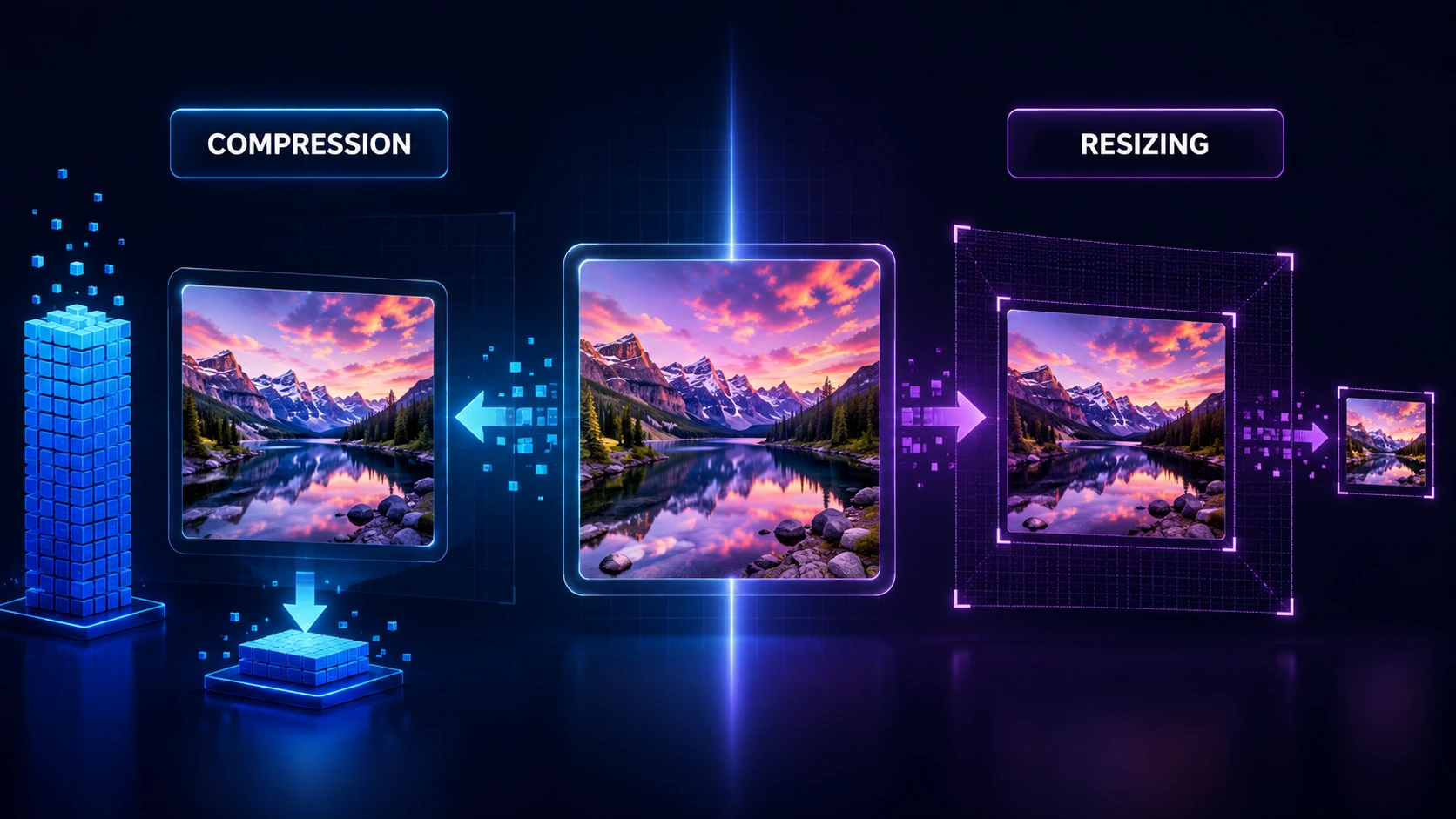
In simple terms, image compression reduces the amount of storage space an image uses, while image resizing changes its width and height in pixels. Compression primarily targets image file size. Resizing targets image dimensions and usually changes the number of pixels.
Sometimes you only need one method. For websites, however, the best result often comes from resizing first and compressing afterward.
Image Compression vs Resizing: The Quick Answer
Imagine a photograph that is 4000 × 3000 pixels and 5 MB.
Compressing it may reduce the file to 1 MB while keeping it at 4000 × 3000 pixels.
Resizing it to 1200 × 900 pixels removes much of the original pixel data and will usually reduce the file size as a side effect.
Resizing and then compressing it can produce a 1200 × 900 image that is even smaller and better suited to a website.
The exact result depends on the image content, format, dimensions, and quality settings, so these numbers are only an illustration—not a guaranteed compression ratio.
Factor | Image compression | Image resizing |
|---|---|---|
Main purpose | Reduce file size in KB or MB | Change width and height in pixels |
Pixel dimensions | Usually remain unchanged | Increase or decrease |
Number of pixels | Usually remains unchanged | Changes |
Visual quality | May change, depending on the method | Can lose detail when reduced or look soft when enlarged |
Common use | Email limits, faster uploads, lighter web pages | Thumbnails, banners, profile photos, exact-size forms |
Best control | Quality level or target file size | Width, height, aspect ratio, and fit mode |
If your problem is measured in KB or MB, start with compression. If it is measured in pixels, start with resizing.
What Is Image Compression?
Image compression reduces the data required to store an image. The goal is to create a smaller file that is faster to upload, download, transfer, and store.
Compression can usually preserve the original pixel dimensions. A 3000 × 2000 image can remain 3000 × 2000 after compression even though its file size becomes smaller.
There are two broad forms of compression:
Lossy Compression
Lossy compression discards some image information. JPEG commonly uses it, while WebP and AVIF can also use lossy settings. Aggressive compression creates a smaller file but can introduce blockiness, blur, banding, or halos.
It is often practical for photographs because small changes can be hard to notice at normal viewing sizes. Use more care with screenshots, text, logos, and detailed illustrations.
Lossless Compression
Lossless compression stores an image more efficiently without discarding the information needed to reconstruct its pixels. PNG is a familiar example. It preserves exact pixel data but may not shrink as much as lossy compression.
MDN’s explanation of lossy and lossless compression is useful if you want to explore the technical distinction further.
To reduce an image in KB or MB without changing its width and height, use the free ImgTask image compressor. You can adjust the quality or enter a target file size and compare the result with the original.
What Is Image Resizing?
Image resizing changes an image’s pixel dimensions. For example, resizing a photo from 4000 × 3000 to 1200 × 900 reduces its width and height while maintaining the same 4:3 aspect ratio.
Reducing both dimensions lowers the total number of pixels. The original contains 12 million pixels, while the resized version contains 1.08 million. Because there is less image data to store, the file will normally become smaller even before additional compression.
Use the ImgTask image resizer when you need exact dimensions for a banner, thumbnail, avatar, form, document, or social post. Keep “Maintain aspect ratio” enabled to prevent stretching.
Does Resizing Change Image Resolution?
For screen images, resolution usually refers to pixel dimensions: width × height. Reducing those dimensions reduces the available pixel detail.
DPI or PPI matters more in print workflows. Changing DPI metadata alone does not necessarily change the pixel count or file size. If a website requests 1200 × 800 pixels, focus on those dimensions.
What Happens When You Enlarge an Image?
Upscaling increases the dimensions but cannot recover detail the original never captured. The resizer creates new pixels from surrounding ones, so a small image may look soft when enlarged too far. Use it for modest enlargement, not to restore a low-resolution photo.
Compress vs Resize Image: How Do You Choose?
Identify the requirement first. The wording used by a website, client, or upload form usually reveals the right tool.
Compress the Image When:
The file must be below a limit such as 500 KB or 2 MB.
An email attachment takes too long to send.
A website image has suitable dimensions but is unnecessarily heavy.
The upload form accepts the dimensions but rejects the file size.
For a deeper look at safe file-size reduction, read How to Reduce Image File Size Without Losing Quality.
Resize the Image When:
A platform requests a specific width and height.
A large camera photo will appear in a much smaller content area.
You need a thumbnail, profile image, banner, or product-image size.
You want to reduce image dimensions before optimizing the file further.
Use Both When:
You are preparing large photographs for a website.
A form requires both exact pixel dimensions and a maximum file size.
You are building several responsive versions of the same website image.
If both are required, resize first and compress second. Resizing first prevents you from spending time compressing pixels that will be removed in the next step.
A Practical Resize-and-Compress Workflow
Here is a simple workflow that works for most web images:
1. Check the Final Display Size
Find the largest size at which the image will appear. A 5000-pixel source is usually unnecessary for an 800-pixel content column. You may need several sizes for different devices.
MDN’s guide to responsive images explains how srcset and sizes allow a browser to choose an appropriate image for the device and viewport.
2. Resize to Suitable Dimensions
Open the online image resizer and enter the required width or height. Preserve the aspect ratio unless you need a different shape. Crop first to fit a square, portrait, or wide banner without distortion.
3. Choose an Appropriate Format
Format also influences file size and quality. JPG is common for photographs, PNG is useful for lossless detail, and WebP or AVIF can be efficient for web delivery.
See JPG vs PNG vs WebP vs AVIF for a format-by-format comparison. Do not convert automatically: compare the result using a representative image from your own site.
4. Compress and Inspect the Result
Use the image compression tool, start with a moderate setting, and inspect the result at its intended display size. Check small text, faces, product edges, gradients, and transparency carefully.
There is no universal quality setting. Google’s web.dev guidance on image performance recommends testing compression levels to balance quality and file size.
5. Verify the Final Requirements
Before publishing or uploading, confirm:
Pixel dimensions
File size in KB or MB
File format
Aspect ratio
Transparency, if required
Visual quality at the intended display size
This avoids an image meeting the file-size limit but failing because its dimensions or format are wrong.
Common Compression and Resizing Mistakes
Compressing an Oversized Image Without Resizing It
A compressed 5000-pixel image may still contain far more pixels than a webpage needs and look worse than a correctly resized version with gentler compression.
Resizing Without Preserving the Aspect Ratio
Changing width and height independently can stretch subjects. Preserve the aspect ratio or crop deliberately for the required shape.
Assuming a Smaller File Always Means a Better Image
The smallest file is not automatically best. Excessive compression can make text unreadable and product photos unattractive. Aim for the smallest file that still looks suitable.
Repeatedly Editing a Compressed Copy
Repeated lossy re-encoding can damage an image. Keep an original master and create new copies from it.
Why the Difference Matters for Website Performance and SEO
Large images can slow pages, especially on mobile connections. Compression reduces downloaded bytes, while correct resizing avoids sending more pixels than the layout needs. Responsive markup can deliver suitable versions to different screens.
Neither method guarantees higher rankings. They are parts of a wider process that includes format selection, responsive delivery, descriptive filenames, alt text, and sensible loading. Google’s image SEO best practices also emphasize supported formats and useful context.
For the complete workflow, continue with How to Optimize Images for a Website.
Frequently Asked Questions
Is Compressing an Image the Same as Resizing It?
No. Compression reduces the amount of data used to store the image. Resizing changes its width and height in pixels. A compressed image can keep its original dimensions, while a resized image can still need compression.
Does Resizing an Image Reduce File Size?
Usually, especially when you reduce both width and height. Fewer pixels normally need less storage, but format, content, metadata, and encoding settings also affect the result.
Should I Resize or Compress an Image First?
If you need both, resize first and compress second. This removes unnecessary pixels before the encoder optimizes the remaining image data.
Does Compression Reduce Image Resolution?
Compression usually leaves the width and height unchanged. Lossy compression can reduce visible detail, but that is different from reducing pixel dimensions. Resizing directly changes the image’s pixel resolution.
Can I Reduce File Size Without Changing Dimensions?
Yes. Compress the image while keeping its original width and height. You can also test a more efficient format, although the best choice depends on the content and compatibility requirements.
The Final Rule: Pixels vs Kilobytes
When comparing image compression vs resizing, remember one simple rule:
Resize to change pixels.
Compress to reduce kilobytes or megabytes.
Use both for a properly sized, lightweight image.
If the image fits its destination but exceeds a file-size limit, use the ImgTask image compressor. If its dimensions are wrong, begin with the ImgTask image resizer. For web publishing, resize first and compress afterward for a practical balance of dimensions, file size, and quality.
The team
Written by
Dinitha Ransidu
authorKeep reading
Related articles

How to Create and Add a Favicon to Any Website
Dinitha Ransidu
August 14, 2026 10 min read

Image Accessibility: How to Write Useful Alt Text
Dinitha Ransidu
August 13, 2026 11 min read

Responsive Images Explained: srcset, sizes and the <picture> Element
Dinitha Ransidu
August 12, 2026 14 min read