


August 2026 Updated Aug 22, 2026
Lossy vs Lossless Image Compression: A Complete Beginner’s Guide
Lossy compression creates smaller files by discarding some image information, while lossless compression preserves all decoded pixel data. Learn how both methods work and when to use each one.

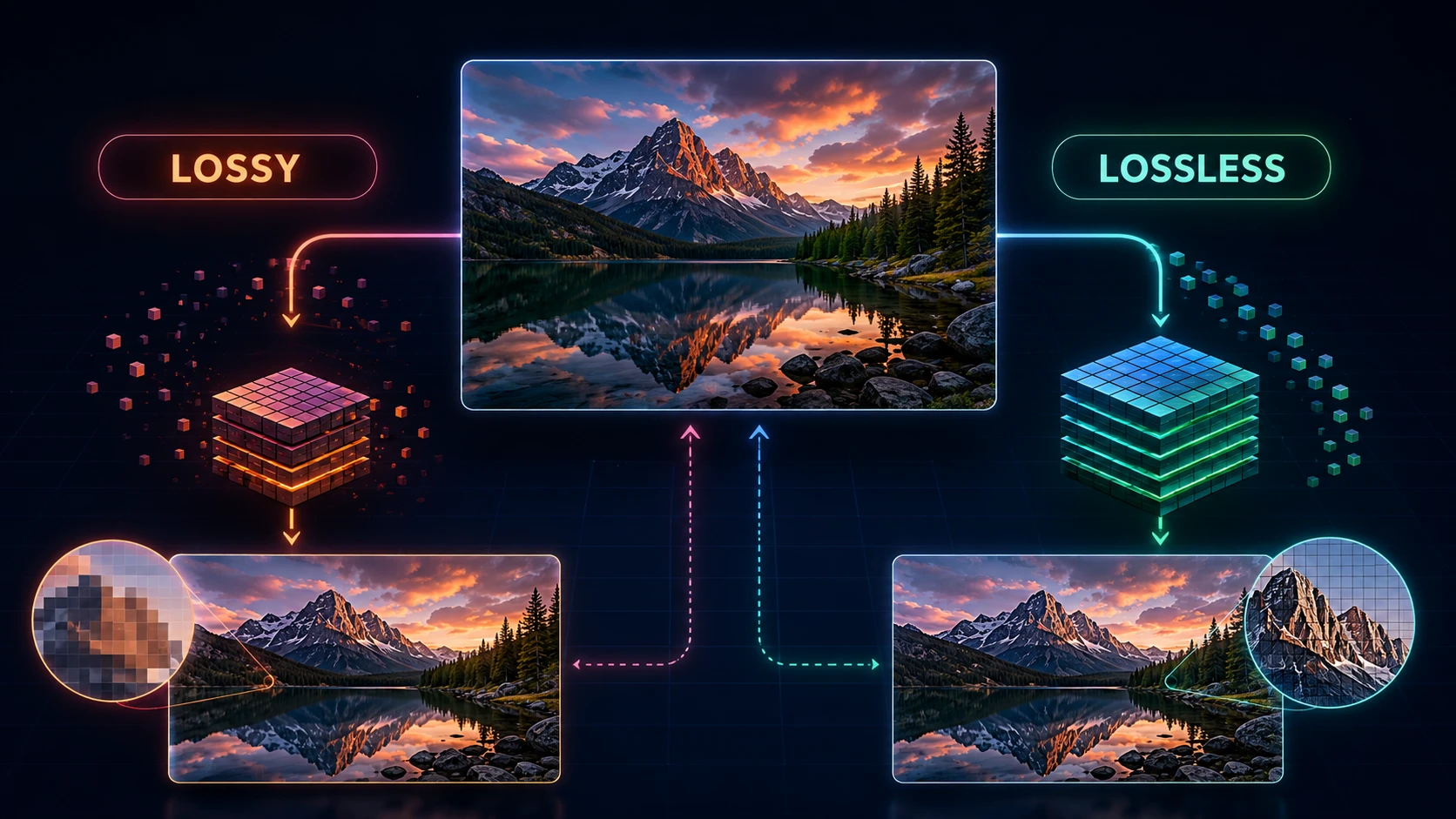
Compression reduces the data needed to store and transfer an image, but it can either remove information or preserve it all.
That is the central difference in lossy vs lossless compression. Lossy compression creates smaller files by permanently discarding or approximating selected image information. Lossless compression stores the data more efficiently while allowing the decoded pixels to be reconstructed exactly.
Neither method is automatically better. This guide explains how both types work, how JPEG compression differs from PNG compression, and how to choose without sacrificing quality unnecessarily.
Lossy vs Lossless Compression: The Quick Answer
Factor | Lossy compression | Lossless compression |
|---|---|---|
What happens to data? | Some information is discarded or approximated | Decoded pixel data can be reconstructed exactly |
Typical file size | Usually smaller | Usually larger than a comparable lossy file |
Quality control | Often includes a quality setting | Usually optimization level rather than visual quality |
Best for | Photographs, web delivery, email and social media | Logos, screenshots, graphics, editing and preservation |
Common formats | JPEG; lossy WebP and AVIF | PNG; lossless WebP and AVIF |
Can the removed detail be recovered? | No | No information is removed by that compression stage |
A simple way to remember the difference is:
Lossy compression loses some information to save more space.
Lossless compression preserves the decoded image information but normally saves less space.
Results depend on the source, format, encoder and settings. A lossy photograph can look excellent, while a lossless photograph can be unnecessarily large.
What Is Image Compression?
Image compression represents pixels using fewer bytes. An encoder describes patterns efficiently, reduces repetition or simplifies visual information. A decoder turns the data back into pixels.
Compression changes encoding; resizing changes width and height. A 4000 × 3000 photo can keep those dimensions after compression while its file size falls.
If the dimensions are excessive, use the ImgTask image resizer before compression. If the dimensions already fit, you can go directly to the ImgTask image compressor.
What Is Lossy Compression?
Lossy compression reduces file size by removing or simplifying information the encoder considers less important. After decoding, the image is an approximation of the source rather than a pixel-for-pixel match.
The loss does not always create an obvious problem. Human vision notices some differences more readily than others, so a tuned encoder can simplify subtle color or fine detail while keeping the picture convincing at normal size.
Lossy compression therefore works well for photographs, where not every tiny variation must be preserved for a webpage or email.
How JPEG Compression Works
Ordinary website JPEGs use lossy compression. In simplified terms, JPEG divides information into blocks, transforms it into frequency components and quantizes them. Quantization reduces precision so the data can be encoded compactly.
JPEG can reduce color detail through chroma subsampling because people are more sensitive to brightness detail than small color differences. Web.dev’s JPEG guide explains this relationship.
A quality slider controls the tradeoff, but “80 quality” does not mean exactly 80% of the information remains. Scales differ between encoders, so compare outputs visually.
Common Lossy Compression Artifacts
Aggressive compression may produce:
Blocky areas, particularly around details
Soft or smeared textures
Halos or ringing around sharp edges
Color bleeding near high-contrast boundaries
Banding in skies and smooth gradients
Damaged small text in screenshots
A busy photograph may hide artifacts that become obvious in a clean screenshot with sharp text.
Advantages of Lossy Compression
Produces much smaller files in many situations
Works especially well for photographs
Reduces website bandwidth and upload time
Makes email and form limits easier to meet
Allows you to choose a quality-versus-size balance
Disadvantages of Lossy Compression
Removed information cannot be recovered
Aggressive settings can create visible artifacts
Repeated editing and re-encoding can accumulate damage
Often unsuitable for pixel-exact masters or technical graphics
What Is Lossless Compression?
Lossless compression represents image data more efficiently without discarding the information required to reconstruct the decoded pixels. When the file is opened, those pixels can be reproduced exactly.
An encoder may describe repeated patterns or predict pixels from their neighbors. Google’s web.dev guide to image performance describes this as reducing size with no data loss.
Lossless does not mean uncompressed. PNG can be smaller than raw pixels while remaining lossless, but a detailed photograph may still be large because every decoded value must be preserved.
How PNG Compression Works
PNG is the familiar lossless image format for the web. It filters pixel rows and compresses the result without discarding pixel information. The W3C PNG specification defines it as lossless.
PNG compression suits repeated colors, sharp edges and predictable patterns, including:
Logos and icons
Screenshots and interface elements
Diagrams and charts
Graphics containing text
Images requiring transparent backgrounds
A detailed PNG photograph may be far larger than a similar JPEG, WebP or AVIF because lossless precision has a storage cost.
Advantages of Lossless Compression
Preserves the decoded pixel data
Avoids new lossy artifacts
Supports reliable repeated opening and saving when the workflow stays lossless
Suits sharp text, lines, diagrams and interface graphics
PNG supports full alpha transparency
Disadvantages of Lossless Compression
Often produces larger files than lossy encoding
May offer limited savings on already optimized files
Can be inefficient for large photographic images
Does not restore detail previously lost from the source
Lossy and Lossless Image Formats
Some formats support both modes, so calling every format simply “lossy” or “lossless” can be an oversimplification.
Format | Typical compression | Important note |
JPEG/JPG | Lossy | Standard web JPEGs are normally lossy and do not support transparency |
PNG | Lossless | Preserves decoded pixels and supports alpha transparency |
WebP | Lossy or lossless | Mode depends on the encoder and settings |
AVIF | Lossy or lossless | Can support either mode and transparency |
GIF | Lossless for its indexed pixels | Limited to a palette of up to 256 colors per frame |
TIFF | Varies | Can be uncompressed or use different compression methods |
The JPEG family contains specialist lossless options, but familiar .jpg files are overwhelmingly lossy. Treat normal JPEG as a lossy image format.
GIF preserves indexed pixels, but converting a full-color photo may first reduce it to a limited palette. Information can be lost before compression.
For a broader comparison, read JPG vs PNG vs WebP vs AVIF.
Does Converting a Lossy Image to PNG Restore Quality?
No. Converting a JPEG to PNG stops the new file from adding another JPEG-style lossy stage, but it cannot recover information already removed from the JPEG.
It is like protecting a photocopy: you preserve its current state but cannot recreate details missing from the original.
Use the ImgTask JPG to PNG converter when a tool requires PNG or you need a lossless editing intermediate—not to repair artifacts. The PNG may be larger without looking better.
When Should You Use Lossy Compression?
Choose lossy compression when small files and efficient delivery matter more than preserving every pixel exactly.
It is usually appropriate for:
Website photographs and hero images
Product photos where moderate compression remains visually clean
Blog and news images
Email attachments
Social media uploads
Preview files and everyday sharing
Start with moderate or high quality and inspect the result at its actual display size. Do not judge only by percentage saved.
When Should You Use Lossless Compression?
Choose lossless compression when exact decoded pixels, sharp edges or continued editing matter.
It is usually appropriate for:
Logos, icons and transparent graphics
Screenshots with small text
Diagrams, charts and technical illustrations
Pixel art
Intermediate editing files
Images where tiny changes could affect interpretation
Long-term masters may need specialized formats beyond web PNG. Keep the best original separately and create optimized delivery copies.
How to Choose: A Practical Decision Guide
Ask these questions in order:
1. Is the Image a Photograph or a Graphic?
Photographs often suit lossy JPEG, WebP or AVIF. Sharp graphics or transparency often suit PNG or a lossless modern format.
2. Must Every Decoded Pixel Be Preserved?
Choose lossless for masters, editing intermediates or pixel-exact assets. A delivery copy for normal viewing can often use tested lossy compression.
3. Is Transparency Required?
JPEG does not support transparency. PNG, WebP and AVIF can. Check whether your chosen encoding mode and publishing platform preserve the alpha channel.
4. How Small Does the File Need to Be?
Strict targets may require lossy compression, smaller dimensions or both. An unrealistic target can force unacceptable quality loss.
5. Will the File Be Edited Again?
Keep a lossless or highest-quality master. Repeated JPEG saves can add damage, so export each delivery copy from the master.
Compress Images with ImgTask
The current ImgTask image compressor processes images in your browser. Behavior depends on the input:
JPEG, WebP and AVIF: quality settings use lossy encoding; lower settings generally create smaller files with more visible change.
PNG: optimization is lossless and does not reduce colors.
Already optimized files: savings may be small, and a new output is not automatically better.
A practical workflow:
Keep the original master.
Resize only if the pixel dimensions exceed the intended use.
Select a format that suits the image content.
Compress a copy using a moderate setting.
Compare the original and result at normal viewing size.
Check fine text, faces, edges, gradients and transparency.
Use the smallest version that still meets your quality needs.
For more methods, read How to Reduce Image File Size Without Losing Quality or the complete website image optimization guide.
Common Compression Mistakes
Assuming Lossless Always Means Better
Lossless is valuable when exact pixels matter, but a multi-megabyte PNG photograph may be a poor website choice.
Compressing the Only Original
Keep an untouched master. Saving a lossy file as PNG later cannot restore removed information.
Using One Setting for Every Image
Photos, screenshots and logos respond differently. Test representative images instead of applying one setting blindly.
Confusing Compression with Resizing
If an image is much wider than its destination, resize first and then compress.
Frequently Asked Questions
Is Lossy or Lossless Compression Better?
Neither is universally better. Lossy is usually better for small photographic delivery files, while lossless is better for exact pixels, sharp graphics, transparency and editing masters.
Is JPEG Lossy or Lossless?
Normal JPEG files used on websites and cameras are lossy. Specialist JPEG-family standards and modes can support lossless coding, but they are not the typical .jpg workflow.
Is PNG Compression Lossy?
PNG compression is lossless. It can optimize how pixels are stored without discarding their decoded values.
Can Lossy Compression Look the Same?
It can look virtually identical at normal viewing size when the setting suits the image. Pixel-level differences may still exist even when you cannot easily see them.
Can I Compress an Image More Than Once?
Yes, but repeatedly re-encoding a lossy file can accumulate damage. Return to the original master and create a new compressed copy when possible.
Which Compression Is Best for Websites?
Use tested lossy compression for most photographs and lossless encoding for graphics that require exact edges or transparency. Also use correct dimensions, responsive delivery and an appropriate format.
Final Recommendation
The best choice in lossy vs lossless compression depends on what must be preserved.
Use lossy compression when a lightweight delivery file matters and small visual changes are acceptable. Use lossless compression when exact decoded pixels, sharp details, transparency or future editing matters more than achieving the smallest possible file.
Most importantly, keep the original, test the output and judge it at its real display size. You can then use the ImgTask image compressor to create a practical balance between image quality and file size instead of choosing a format by habit.
The team
Written by
Dinitha Ransidu
authorKeep reading
Related articles
How to Create and Add a Favicon to Any Website
Dinitha Ransidu
August 14, 2026 10 min read
Image Accessibility: How to Write Useful Alt Text
Dinitha Ransidu
August 13, 2026 11 min read
Responsive Images Explained: srcset, sizes and the <picture> Element
Dinitha Ransidu
August 12, 2026 14 min read