


August 2026 Updated Aug 22, 2026
How to Prepare Images for Email Without Losing Quality
Large photos can be slow to upload, difficult to send and inconvenient for recipients. This guide explains how to resize and compress email images while keeping them clear, sharp and suitable for their intended use.

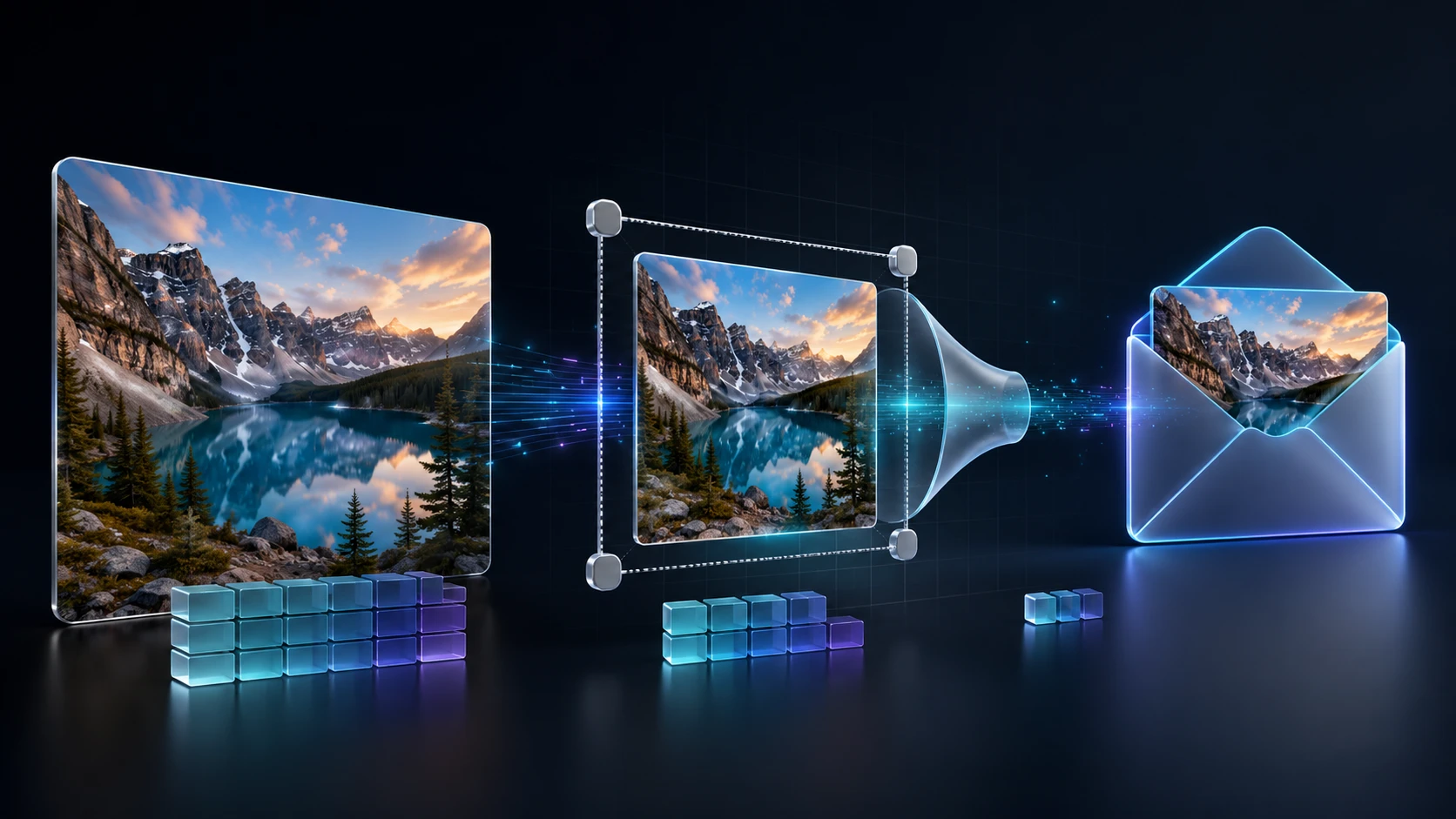
Modern phones and cameras create detailed photos, but those files can be unnecessarily large for email. A few high-resolution images may upload slowly or exceed an attachment limit.
The solution is usually to resize the image for email first, then compress it only as much as necessary. Resizing removes pixels that will not be visible at normal screen size; compression reduces the data used to store the rest.
“Without losing quality” does not always mean the exported file is mathematically identical to the original. For email, the practical goal is no noticeable loss at the size the recipient will actually view. You should still keep the original file for printing, editing or archiving.
Quick Answer: What Size Should an Image Be for Email?
There is no single perfect size for every email image. The right settings depend on what the recipient needs to do with it.
Purpose | Practical starting dimensions | Suggested format | Main priority |
|---|---|---|---|
Casual viewing on a screen | 1,200–1,600 px on the longest side | JPG | Fast delivery and good visual quality |
Detailed review or large-screen viewing | 2,000–2,560 px on the longest side | JPG | Preserve more fine detail |
Screenshot, diagram or graphic with text | 1,000–1,600 px wide | PNG or JPG | Keep text and edges readable |
Small inline preview | 800–1,200 px wide | JPG or PNG | Compact display inside the message |
Printing, professional editing or archiving | Keep the original dimensions | Original format | Preserve all available data |
These are starting points, not rules. Images with foliage, texture or fine text may need more data to stay clean.
Image Dimensions, File Size and Quality Are Different
Before changing a photo, it helps to separate three terms that are often confused.
Image dimensions
Dimensions describe the width and height in pixels—for example, 4,032 × 3,024 pixels. They determine how much pixel information the image contains. A phone photo at that size is far larger than most people need for ordinary email viewing.
Image file size
File size is the amount of storage the image uses, measured in KB or MB. It affects upload time and whether the message fits within the provider’s attachment limit. Two images with identical dimensions can have very different file sizes because of their format, content and compression settings.
Visible image quality
Quality describes sharpness, color, detail and freedom from compression artifacts. The aim is not the smallest possible file, but one small enough for reliable delivery while preserving the detail needed for its purpose.
Check the Email Attachment Size Before Editing
Attachment policies vary by email provider, account type and organization. Personal Gmail accounts currently allow a total attachment size of 25 MB; when the total is larger, Gmail replaces the attachment with a Google Drive link. Work and school limits can be set by an administrator, according to Google’s attachment guidance.
Other services and receiving servers may enforce different limits, so leave comfortable space below the published maximum. Count all attachments together: ten 3 MB photos create a 30 MB set even though no single image appears unusually large.
How to Resize an Image for Email Without Losing Quality
The following workflow works for phone photos, camera images, screenshots and most everyday graphics.
1. Keep an untouched copy of the original
Do not overwrite the only full-resolution version. Save email-ready copies separately or add -email to each filename so the originals remain available for printing or editing.
2. Decide what the recipient actually needs
Will the recipient simply view the image, or work with it? A smaller copy suits casual viewing. If they must print, retouch or inspect tiny details, send the original through a cloud link.
3. Remove unnecessary areas
Cropping can reduce size and improve composition. Remove empty borders or irrelevant background, but retain anything needed in evidence, inspection or documentation photos.
4. Reduce the pixel dimensions
Open the ImgTask image resizer, add the photo and enter the intended width or height. Keep the aspect ratio locked so faces, circles and other objects are not stretched.
For a standard phone photo, try 1,600 pixels on the longest side. If the recipient must zoom into handwriting or technical details, try 2,000–2,560 pixels.
Avoid enlarging a small image. Upscaling adds pixels but cannot recover detail that was never captured.
5. Choose the right file format
Format choice can affect both clarity and file size:
JPG is the safest general choice for photographs. It offers broad compatibility and efficient file sizes.
PNG is useful for screenshots, logos, transparent graphics and images with sharp text. It preserves edges well but can be much larger for photographs.
HEIC is efficient on modern Apple devices, but the recipient’s app or workflow may not support it. For maximum compatibility, use the HEIC to JPG converter before attaching an iPhone photo.
WebP and AVIF are compact, but JPG or PNG is safer when you do not know what software the recipient uses.
For a deeper format comparison, see JPG vs PNG vs WebP vs AVIF.
6. Compress the resized image
If the resized file is still larger than you want, use the ImgTask image compressor. Start near a high-quality setting and lower it gradually while comparing the result with the original.
Aggressive JPEG settings can create blocks, halos or smudged texture. PNG optimization can be lossless, but a photographic PNG may shrink more effectively after conversion to JPG.
ImgTask also accepts a target size in KB, useful when several files share a budget. Always inspect the result; a target number cannot guarantee visual quality. See How to Reduce Image File Size Without Losing Quality for more detail.
7. Inspect the result at its intended viewing size
Open the optimized image at roughly its intended screen size. Check faces, text, fine edges, gradients and dark areas. If important detail has disappeared, increase the dimensions or quality slightly.
8. Attach the files and verify the total
Add the optimized images to a draft and review the total attachment size. For an important delivery, send a test to yourself and check it on a phone and computer.
Should You Resize or Compress Photos for Email First?
In most cases, resize first and compress second.
Resizing delivers the largest sensible saving when the original greatly exceeds the display need. After removing excess pixels, moderate compression can reduce the remaining bytes without working as aggressively.
Compressing first may leave unnecessary dimensions and require another export later. One planned resize followed by one careful compression pass is cleaner.
Compression alone makes sense when the pixel dimensions are already appropriate, or when the recipient specifically needs those dimensions. Resizing alone may be enough when the export automatically creates a suitably small JPG.
How to Compress Photos for Email Without Making Them Look Bad
Use the least aggressive change that solves the delivery problem.
Start by reducing unused dimensions, not by dragging quality to its minimum.
Compare the optimized image with the original before processing the entire batch.
Apply similar settings to photos from the same camera or event for consistent results.
Keep graphics with small text large enough to remain readable.
Avoid repeatedly editing and resaving a JPG; return to the original for each new export.
If a smooth sky or dark gradient develops bands, raise the quality setting.
For batches, first test a difficult photo with fine texture, shadows or many colors. If it looks good, simpler images will often hold up under the same settings.
When a Cloud Link Is Better Than an Attachment
Use Google Drive, OneDrive, Dropbox, iCloud or another approved service for original camera files, print-ready images, large albums or material that will be edited. A link keeps full-resolution files out of the message and organizes them in one folder.
Apple users can also use Mail Drop for large files. Apple says Mail Drop supports attachments up to 5 GB and keeps them available to recipients for 30 days, although the recipient’s email app can still have a smaller limit. See Apple’s current Mail Drop limits.
Check link permissions in a private browser window. Prefer view-only access, and avoid public links for confidential images.
Common Mistakes to Avoid
Resizing by changing DPI alone
DPI or PPI metadata does not meaningfully reduce an email image if the pixel dimensions remain unchanged. For screen delivery, focus on width and height in pixels plus the final file size.
Forcing both width and height
Mismatched dimensions distort an image. Keep proportions locked, or crop deliberately first.
Sending screenshots as low-quality JPGs
Strong JPEG compression can blur small text. PNG is often better for screenshots; crop and resize it before changing formats.
Deleting the original after exporting
An email copy is a delivery version, not an archive. Keep the source until you are certain nobody needs the original quality.
Frequently Asked Questions
What is the best size for emailing photos?
Start at 1,200–1,600 pixels on the longest side for screen viewing, or 2,000–2,560 pixels for more detail. Use a cloud link for originals.
Does emailing a photo reduce its quality?
Email does not necessarily alter an attachment, but a phone or mail app may offer a smaller version. Check before sending, and choose “actual size” only when necessary.
How can I reduce photo size for email?
Crop unnecessary areas, choose appropriate pixel dimensions, save photographs as JPG and apply moderate compression. Review the output before attaching it.
How many photos can I send in one email?
It depends on combined file size and both providers’ limits. Add the sizes rather than counting files; use a shared folder for a large collection.
What is the best image format for email?
JPG is generally best for photos because it combines small files with wide compatibility. Use PNG for logos, transparency, screenshots and graphics with sharp text. Convert HEIC when the recipient may not have compatible software.
Can I resize an image for email without losing any quality?
Downscaling removes pixels, but a carefully resized and compressed copy can look identical at its intended screen size. Keep the original when full resolution matters.
Send Clear Images Without Sending Unnecessary Megabytes
The best email image is not the smallest file possible. It is the smallest file that still serves the recipient’s purpose.
Keep the original, choose sensible pixel dimensions, select a compatible format and compress only as much as necessary. For most photos, resizing first and compressing second creates a clear, lightweight attachment that uploads quickly and opens easily. Start with the ImgTask image resizer, then use the image compressor if the exported file still needs to be smaller.
The team
Written by
Dinitha Ransidu
authorKeep reading
Related articles
How to Create and Add a Favicon to Any Website
Dinitha Ransidu
August 14, 2026 10 min read
Image Accessibility: How to Write Useful Alt Text
Dinitha Ransidu
August 13, 2026 11 min read
Responsive Images Explained: srcset, sizes and the <picture> Element
Dinitha Ransidu
August 12, 2026 14 min read