


August 2026 Updated Aug 22, 2026
How to Choose Image Dimensions for Websites, Blogs and Online Stores
The best website image dimensions depend on the space an image occupies, its aspect ratio, screen density and purpose. This guide provides practical starting sizes and a repeatable method for choosing them.

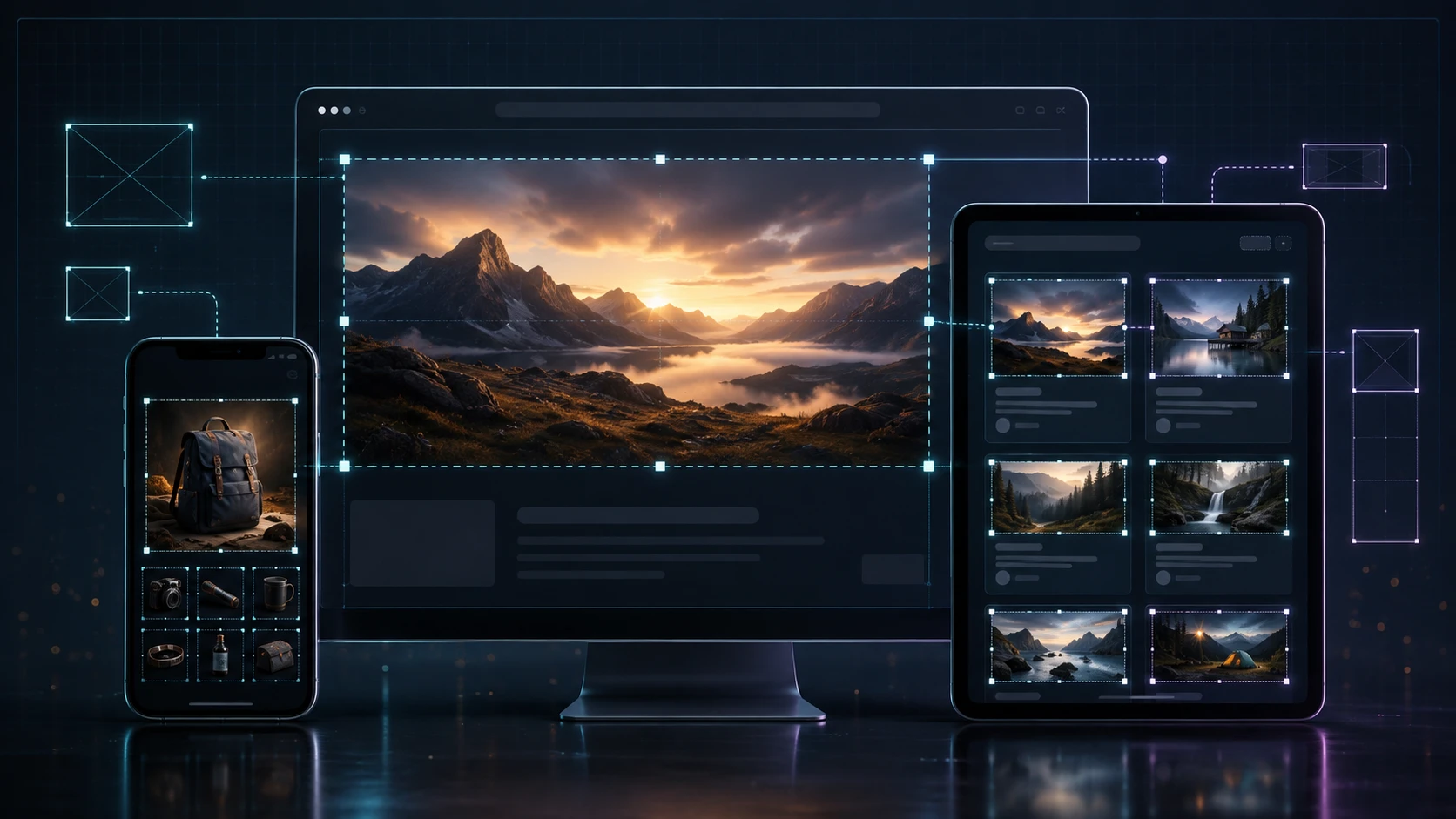
Choosing image dimensions for a website is not as simple as using one recommended width everywhere. A full-screen hero, blog illustration, product gallery, card thumbnail and logo occupy different spaces and serve different purposes.
The best dimensions come from the layout. Determine the largest display size, then provide enough pixels for clarity without forcing every visitor to download an oversized file.
This guide gives practical starting sizes for websites, blogs and online stores. More importantly, it explains how to calculate dimensions for your own design so the advice remains useful when themes, screens and layouts change.
Quick Website Image Size Guide
Use this table as a planning reference, not a list of mandatory specifications.
Image use | Practical source dimensions | Common aspect ratio | Main consideration |
|---|---|---|---|
Full-width hero or banner | 1,600–2,400 px wide | 16:9, 21:9 or custom | Test crop and text safe area on mobile |
Standard hero starting point | 1,920 × 1,080 px | 16:9 | Useful general-purpose wide canvas |
Blog featured image | 1,200 × 675 or 1,600 × 900 px | 16:9 | Keep one ratio across article cards |
Blog inline image | 1,200–1,600 px wide | Original or layout ratio | Match maximum content-column width |
Ecommerce product image | 1,600 × 1,600 to 2,400 × 2,400 px | 1:1 | Preserve detail and consistent framing |
Product or category card | 600–800 px wide | 1:1, 4:5 or theme ratio | Serve a smaller responsive variant |
Category banner | 1,600–2,000 px wide | 16:9, 3:2 or wide custom | Keep important subjects away from edges |
Team photo or portrait | 800–1,200 px wide | 4:5 or 1:1 | Plan for card cropping |
Raster logo | About 2× displayed size | Original logo ratio | Prefer SVG when appropriate |
Follow your CMS or ecommerce platform when it provides exact upload requirements.
The Most Important Rule: Start With Display Size
An image has both source dimensions and display dimensions.
Source dimensions are the pixels stored in the file, such as 1,600 × 900. Display dimensions describe how large the page renders it in CSS pixels. A 2,000-pixel source might display at 900 CSS pixels.
Find the image’s largest realistic display width. A blog image in a 760-pixel column does not need the same source as an edge-to-edge hero.
A simple calculation
Suppose an article image displays at a maximum of 800 CSS pixels wide:
A 1× source would be about 800 pixels wide.
A 2× source for a high-density display would be about 1,600 pixels wide.
Responsive delivery lets the browser choose a smaller or larger source for the layout and display density.
Understand the Four Measurements That Matter
1. Pixel dimensions
Pixel dimensions are the width and height inside the file. They determine how much raster detail is available. A 4,000 × 3,000 photo contains 12 million pixels, regardless of how small CSS makes it look.
2. Aspect ratio
Aspect ratio describes the relationship between width and height. A 1,600 × 900 image and a 1,920 × 1,080 image are both 16:9. A square product image is 1:1.
Consistent ratios keep grids organized. Mixed product shapes force cropping, uneven rows or empty space.
3. Display density
High-density screens use more physical pixels to draw each CSS pixel. A raster image displayed at 400 CSS pixels wide can look sharper when a source near 800 pixels is available for a 2× display. Web.dev’s explanation of responsive image density describes why larger sources can help these screens.
Balance high-density sharpness with transfer size and let responsive candidates do the work.
4. File size
Dimensions and file size are related but different. A 1,600 × 900 AVIF or WebP may be smaller than an aggressively saved 1,200 × 675 PNG. Image content, format, compression and metadata all influence KB or MB.
Resize excessive dimensions with the ImgTask image resizer, then use the image compressor if the result is still too heavy.
Does DPI Matter for Website Images?
For web display, focus on pixels—not a “72 DPI” or “300 DPI” label. DPI or PPI describes the relationship between pixels and physical output, while browsers use CSS dimensions and the pixel grid.
A 1,600 × 900 image gains no web detail when its metadata changes from 72 to 300 DPI. DPI matters for print, not a blog image’s on-screen width.
How to Choose a Hero Image Size
A hero is one of the page’s largest assets. Start between 1,600 and 2,400 pixels wide; its height follows the section ratio.
Common starting canvases include:
1,920 × 1,080 (16:9): versatile for wide homepage sections and article features.
2,000 × 1,000 (2:1): useful for a broad banner with moderate height.
2,400 × 1,000 (12:5): suitable for shallow cinematic sections.
1,600 × 1,200 (4:3): appropriate when the hero is not extremely wide or needs more vertical content.
Plan for responsive cropping
A desktop hero may be cropped on a phone when using object-fit: cover. Keep faces, products and other essential details near a defined focal area.
Keep text in HTML so it remains readable, accessible and responsive. Leave visual breathing room behind headings and buttons.
For important heroes, consider separate desktop and mobile crops. The HTML <picture> element can support this kind of art direction when the composition truly needs to change.
Do not treat the hero like a below-the-fold image
Keep the hero efficient and responsive. Automatically lazy-loading a prominent above-the-fold hero can delay the content users are waiting to see.
Best Blog Image Dimensions
Blog image dimensions should reflect both the article layout and the cards that promote the article elsewhere.
Blog featured images
A 16:9 featured-image system is practical because it works well for article headers, cards and social previews. Common choices are 1,200 × 675 and 1,600 × 900 pixels. ImgTask feature images can consistently use 16:9 so the blog archive does not mix incompatible shapes.
Check the widest placement. A feature may be 380 pixels wide in a card but 1,200 on the article. Let the CMS generate smaller variants for thumbnails.
Inline article images
For a content column around 700–900 CSS pixels, sources between 1,200 and 1,600 pixels wide usually provide a useful balance for high-density screens. Diagrams or screenshots with tiny labels may need more careful testing than photographs.
Do not upscale a small screenshot to reach a target number. Export it at sufficient size from the source application.
Blog card thumbnails
Cards often display at 280–450 CSS pixels wide. A 600–900-pixel candidate may be enough for many card layouts. Preserve the same aspect ratio as the featured image so the CMS can scale rather than crop unpredictably.
Ecommerce Product Image Sizes
Online stores need sharp, consistent product photos. Start around 1,600 × 1,600 pixels for square galleries, or 2,000–2,400 per side for useful zoom detail. Serve smaller variants to cards and phones.
These figures are starting points. Jewelry, fabric and electronics may require stronger zoom detail than packaged groceries or simple accessories.
Use one ratio across the catalogue
Square 1:1 images are common because they fit product grids predictably, but 4:5 can work well for clothing and portraits. Choose the ratio that suits the products and theme, then keep it consistent.
Also keep these elements consistent:
Similar product scale within the frame
Matching background and margin treatment
Consistent camera angle for the main image
Adequate room around tall or wide items
The same crop behavior across variants
Product gallery versus thumbnail
A 2,000-pixel gallery source may display at 320 CSS pixels in a card. Send a smaller candidate instead of making visitors download zoom-size images throughout the grid.
Check platform limits
Platforms restrict file size, megapixels, formats and ratios. Shopify’s current image upload requirements, for example, cover both bytes and megapixels. Confirm your own system.
Category Banners, Logos and Smaller Assets
Category and promotional banners
Start around 1,600–2,000 pixels wide using the theme’s ratio. Protect the focal point from overlays and mobile cropping.
Logos
Use SVG for suitable logos, icons and simple vector artwork because it can scale cleanly. When a raster logo is required, export roughly twice its largest displayed dimensions and preserve transparency with PNG, WebP or another supported alpha format.
Avatars and profile images
If a profile photo displays at 200 × 200 CSS pixels, a 400 × 400 source can support a 2× display. Crop it square and confirm that the face remains clear when shown as a small circle.
Use Responsive Images Instead of One Giant File
Responsive images allow a browser to select from multiple sources. MDN’s current responsive images guide explains how srcset and sizes support different viewport widths and display densities.
A simplified example is:
<img
  src="blog-image-800.webp"
  srcset="
    blog-image-480.webp 480w,
    blog-image-800.webp 800w,
    blog-image-1200.webp 1200w,
    blog-image-1600.webp 1600w
  "
  sizes="(max-width: 700px) 100vw, 800px"
  width="1600"
  height="900"
  alt="Description of the image"
>
The sizes value should describe the actual CSS layout, not an arbitrary set of device names. Google also recommends keeping a fallback src when using responsive images for search.
Your CMS, framework or image CDN may generate these candidates automatically. Check the rendered HTML and network requests instead of assuming the feature is active.
Always Declare Width and Height
Intrinsic width and height let the browser reserve space before loading, reducing layout movement. Web.dev’s responsive image guidance recommends them even with responsive CSS.
They do not force a fixed display size when responsive CSS is used:
img {
  max-width: 100%;
  height: auto;
}
The file keeps its proportions while shrinking inside narrower containers.
A Repeatable Image-Dimension Workflow
1. Find the largest rendered size
Inspect the desktop, tablet and mobile layouts. Record the maximum CSS width for the image slot.
2. Select the aspect ratio
Use the component’s designed ratio. Do not force unrelated photos into new width and height values without cropping.
3. Prepare a sufficiently large master
For raster content, allow enough pixels for the largest display and useful high-density output. Keep the untouched original separately.
4. Crop before resizing
Choose the composition first. Then open the ImgTask image resizer, crop if necessary and enter the target dimensions with aspect ratio preserved.
5. Create responsive variants
Generate sensible candidates around the widths the layout actually uses. Avoid dozens of near-identical sizes, but do not serve one enormous source everywhere.
6. Choose format and compression
Photographs often work well as JPEG, WebP or AVIF; transparent graphics may use PNG, WebP or AVIF. Read JPG vs PNG vs WebP vs AVIF for format selection, then compress while checking details.
7. Test the real pages
Review the hero, article, product grid and gallery on actual screen sizes. Check sharpness, crop, loading behavior and downloaded bytes. The full website image optimization guide covers the wider publishing process.
Common Website Image-Size Mistakes
Uploading the camera original
A 6,000-pixel photo may be unnecessary in an 800-pixel content column. CSS shrinking does not automatically save download bandwidth.
Making every source 2× the largest desktop size
High-density support is useful, but a single oversized source penalizes smaller screens. Provide responsive candidates.
Mixing aspect ratios in one grid
Inconsistent product or article cards create awkward rows and unpredictable cropping. Standardize each component.
Stretching instead of cropping
Changing width and height independently distorts faces, circles and products. Preserve proportions, then crop intentionally.
Confusing pixels with KB
Correct dimensions do not guarantee a small file. Resize first when dimensions are excessive, then compress the result.
Ignoring the mobile focal point
A desktop banner can lose its subject when covered or cropped on a phone. Test narrow containers and create alternate art direction when necessary.
Frequently Asked Questions
What is the best image size for a website?
There is no universal size. Base the source on the image’s largest rendered width, aspect ratio and required display density. A 1,600-pixel-wide source is a useful starting point for many content images, but cards need smaller variants and heroes may need more.
What is a good hero image size?
1,920 × 1,080 pixels is a common 16:9 starting point. A site with a shallow banner may use a wider ratio, while mobile may need a separate crop. Optimize and deliver responsive versions rather than one desktop file everywhere.
What dimensions should a blog featured image use?
1,200 × 675 or 1,600 × 900 pixels works well for a consistent 16:9 blog system. Confirm the theme’s article and card ratio before creating the final asset.
What is a good ecommerce product image size?
Start around 1,600 × 1,600 pixels for a square product gallery. Use 2,000–2,400 pixels when meaningful zoom detail is required, and serve smaller versions in product grids.
Should website images be 72 DPI?
The DPI label is not the main measurement for browser display. Use appropriate pixel dimensions, responsive sources, format and compression. Reserve DPI planning for physical print output.
Should I resize an image before uploading it?
Yes, when its dimensions substantially exceed the largest source your website will deliver. Keep the original separately and avoid upscaling an image that is already too small.
Choose Dimensions From the Layout, Not a Generic List
Recommended website image sizes are useful starting points, but the layout is the real specification. Measure the rendered space, choose a consistent aspect ratio, provide enough pixels for sharp display and create responsive variants so smaller devices do not download unnecessary data.
For most workflows: crop deliberately, resize excessive dimensions, choose an efficient format and compress the result. Start with the ImgTask image resizer, then use the image compressor if the file still needs to be lighter.
The team
Written by
Dinitha Ransidu
authorKeep reading
Related articles

How to Create and Add a Favicon to Any Website
Dinitha Ransidu
August 14, 2026 10 min read

Image Accessibility: How to Write Useful Alt Text
Dinitha Ransidu
August 13, 2026 11 min read

Responsive Images Explained: srcset, sizes and the <picture> Element
Dinitha Ransidu
August 12, 2026 14 min read