


August 2026 Updated Aug 22, 2026
How to Create and Add a Favicon to Any Website
A practical guide to designing, generating and installing favicon files for browser tabs, bookmarks, mobile home screens and Google Search.

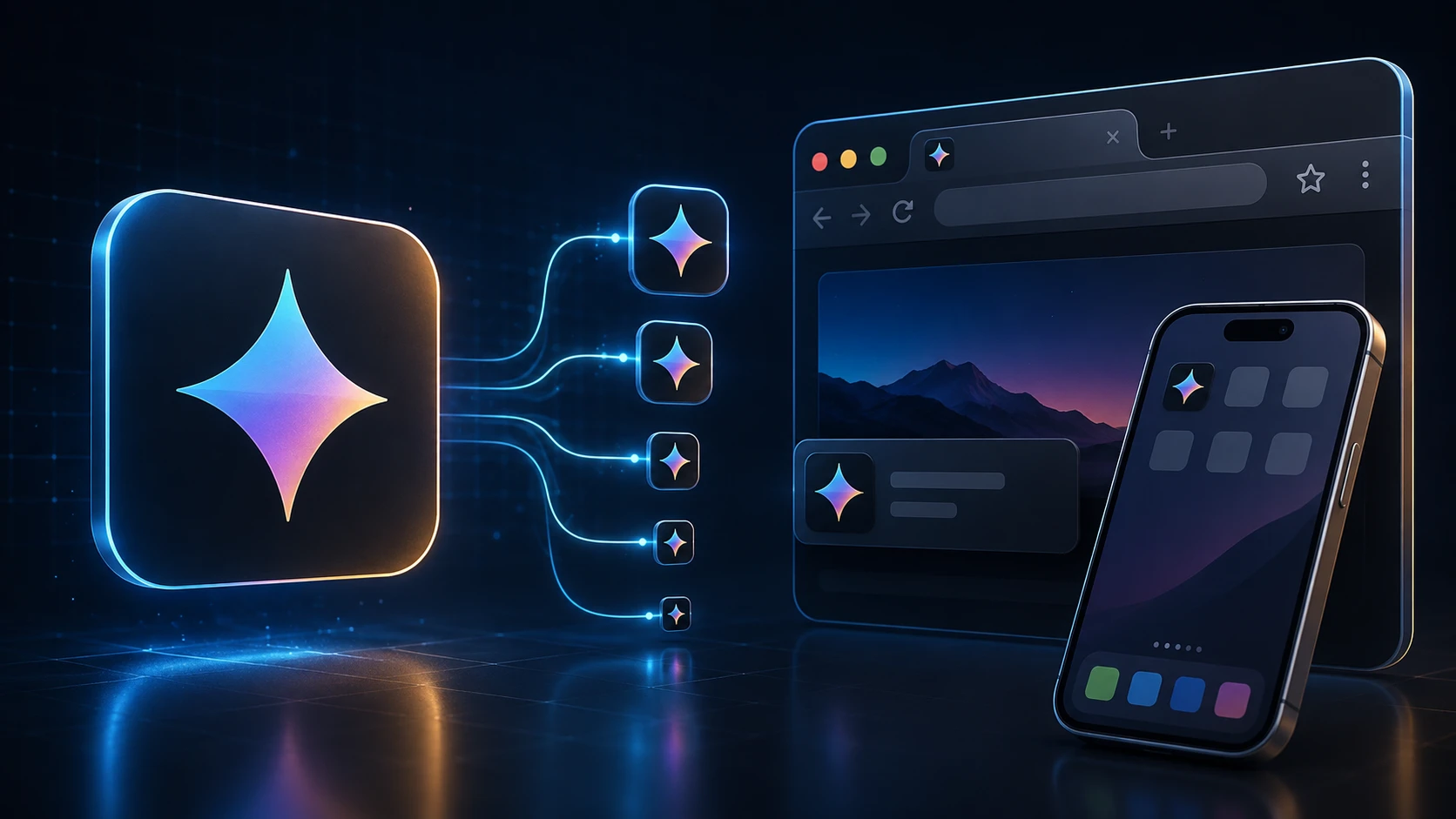
A favicon is the small graphic people see beside a page title in a browser tab. It can also appear in bookmarks, browser history, shortcuts, mobile home screens and eligible Google Search results. Although it occupies only a few pixels, it helps visitors recognize a website quickly when several tabs are open.
Creating one is not just a matter of shrinking a full logo to 16 pixels. Fine text and thin details often disappear at that scale. You need a simple square design, several favicon sizes, appropriate file formats and the correct <link> elements in the page's HTML.
This guide explains how to create a favicon, generate the necessary files and add them to almost any website.
The Quickest Way to Create a Favicon
If you want the short version, use this workflow:
Prepare a square, high-contrast logo or symbol at least 180 × 180 pixels.
Upload it to the ImgTask Favicon Generator.
Generate and download the favicon ZIP.
Extract the files into your website's public root directory.
Add the favicon HTML links inside the
<head>of your pages.Deploy the changes, clear relevant caches and test the live URLs.
The generated pack contains a multi-size favicon.ico, 16×16 and 32×32 PNG favicons, and a 180×180 Apple touch icon. That is a practical set for browser tabs, bookmarks and iOS home-screen shortcuts.
What Is a Favicon?
“Favicon” originally meant “favorite icon,” referring to the small icon saved with a browser favorite or bookmark. Today, the term usually covers the website icon used across several browser and device surfaces.
A favicon is not necessarily the full company logo. A horizontal mark with a long name can become unreadable in a tab, so use its strongest element: an initial, monogram, simplified symbol or distinctive shape. Its job is recognition at a very small size.
How to Design a Favicon That Stays Clear
Start with a square canvas
Use a 1:1 aspect ratio. Do not stretch a rectangular logo into a square; crop it or isolate the most recognizable element instead. A source of at least 180 × 180 pixels gives the generator enough detail for the Apple touch icon and smaller outputs.
Simplify the artwork
Remove taglines, tiny lettering, delicate outlines and complicated backgrounds. At 16 × 16 pixels, gaps close and shapes merge. One bold symbol is usually clearer than a miniature full logo.
Use strong contrast
Test the symbol against light and dark browser interfaces. A transparent background can work well, but a controlled background shape or outline may provide more reliable contrast.
Leave breathing room
Do not push important details against the square's edges. A little internal padding prevents the symbol from looking cramped and accommodates platforms that apply masks or rounded presentation.
Preview at the real size
A design that looks clear at 512 pixels can fail completely at 16. Zoom out or export a small test before finalizing it. Check whether the main silhouette is still recognizable rather than judging only the large source.
Favicon Sizes Explained
There is no single favicon size for every browser and device. Different sizes serve different presentation contexts.
Size | Typical purpose | Recommendation |
|---|---|---|
16 × 16 | Standard browser tabs and compact UI | Keep details extremely simple |
32 × 32 | High-density tabs, shortcuts and task UI | Include in PNG and ICO packs |
48 × 48 | Larger browser surfaces and a useful search-oriented size | Include inside |
180 × 180 | Apple touch icon for iPhone and iPad home screens | Use a PNG with safe padding |
Google's current favicon guidelines for Search require a square icon of at least 8 × 8 pixels and recommend a higher-resolution favicon larger than 48 × 48 for display quality. The file must be crawlable and visually representative of the site.
You can create additional 96, 192 or 512-pixel icons for special platforms or a progressive web app, but a standard website does not need every possible size merely to display an icon in a browser tab.
Which Favicon Format Should You Use?
ICO: the classic compatibility file
favicon.ico remains useful because one ICO container can hold several resolutions. Placing it at /favicon.ico also supports software that checks the conventional root location. The ImgTask pack includes 16, 32 and 48-pixel versions in one ICO file.
PNG: a clean modern choice
PNG supports transparency and is simple to inspect or edit. Separate 16×16 and 32×32 PNG files can be linked with accurate sizes and type attributes. PNG is an excellent source format when your icon has sharp edges or transparency.
SVG: scalable but not universal for every surface
SVG stays sharp at different sizes, but some platforms still expect PNG or ICO. Keep raster and touch-icon fallbacks where compatibility matters.
JPG and WebP
JPG lacks transparency and may show compression around sharp shapes. WebP works in browsers but is less conventional for favicon packs than ICO, PNG and SVG.
For a broad website setup, use favicon.ico plus PNG favicons and an Apple touch icon.
How to Create a Favicon with ImgTask
1. Prepare the source image
Export a square PNG when possible. Transparency is useful if the mark does not need a fixed background. Make the source at least 180 × 180 pixels and confirm the symbol is centered.
2. Generate the favicon pack
Open the free favicon generator, upload the image, select Generate Favicon Pack, and download the ZIP. Processing runs locally in the browser, and the pack includes:
favicon.icowith 16×16, 32×32 and 48×48 framesfavicon-16x16.pngfavicon-32x32.pngapple-touch-icon.pngat 180×180
If you only need an ICO file, use the PNG to ICO converter. A transparent PNG is normally the best source. The JPG to ICO converter is available for JPEG artwork, but its background will remain opaque.
If an old site has only favicon.ico, use ICO to PNG to extract its largest embedded frame, edit the PNG and generate a fresh pack.
3. Copy the files into the public directory
The browser must be able to request each icon by URL. Static sites can place the files beside index.html; frameworks commonly use a publicly served directory. In a CMS, prefer its site-icon setting or use public theme assets.
After deployment, opening https://example.com/favicon.ico should return the icon—not a 404 page, login form or HTML error document.
Favicon HTML: Add the Icons to <head>
The simplest valid implementation is:
<link rel="icon" href="/favicon.ico">For the complete ImgTask pack, add these elements inside the <head> of the site's shared layout:
<link rel="icon" href="/favicon.ico">
<link rel="icon" type="image/png" sizes="32x32"
      href="/favicon-32x32.png">
<link rel="icon" type="image/png" sizes="16x16"
      href="/favicon-16x16.png">
<link rel="apple-touch-icon" sizes="180x180"
      href="/apple-touch-icon.png">
Use root-relative paths beginning with / when the files are available from the domain root. If they live in /assets/icons/, update every href accordingly.
The rel="icon" value tells the browser that the resource represents the site. type identifies the MIME type, while sizes describes the icon's intrinsic dimensions. When several icons are linked, browsers can use these hints to choose an appropriate file. MDN's rel reference explains this selection behavior.
You may encounter rel="shortcut icon" in older templates. Modern HTML uses rel="icon"; Google still recognizes the historical form, but new markup does not need the word shortcut.
Adding a Favicon to Different Website Types
Static HTML sites
Upload the files to the public directory and add the links to the shared page header.
Laravel, React and similar projects
Place the files in the publicly served directory and add the links to the main document layout. Confirm the production build preserves those URLs.
WordPress and other CMS platforms
First look for a built-in Site Icon, Favicon or branding setting. It may generate several sizes automatically. Otherwise, add the files through the theme or global head configuration without editing an update-sensitive parent theme.
Website builders and hosted stores
Use the browser-icon field in the branding settings. Hosted platforms often generate the HTML automatically, so manual tags may create duplicates.
Favicons and Google Search
A browser may show the new icon while Google Search still shows an older one. Google processes it after recrawling the home page, which may take days or weeks.
To make the favicon eligible:
Add a valid icon link to the home page's
<head>.Use a square, recognizable icon and provide a high-resolution version.
Keep the favicon URL stable instead of renaming it repeatedly.
Allow Googlebot to crawl the home page and Googlebot-Image to crawl the icon.
Use one favicon per hostname; subdirectories do not receive independent Search favicons.
A favicon is not guaranteed to appear in results, even when the implementation meets Google's guidelines. It improves recognition and presentation, but it is not a direct shortcut to higher rankings.
Why a New Favicon May Not Appear
Browser caching
Favicons are cached aggressively. Try a private window, hard refresh, another browser or cleared site data. A temporary /favicon.ico?v=2 can help during testing, but use a stable final URL.
Incorrect path or deployment
Open every href directly. A local file may exist in the project but be absent from the deployed public build. Paths without a leading slash can also resolve differently on nested pages.
Wrong response or MIME type
The favicon URL should return an image with a successful response. If the server returns an HTML 404 page with a 200 status, the browser still cannot decode it as an icon.
Duplicate or conflicting tags
A plugin, theme and manual layout may each add icon links. Inspect the live <head> and remove outdated duplicates so the browser is not offered several unintended versions.
A design that fails at 16 pixels
The file may load correctly but appear blank or muddy. Preview the 16×16 output and simplify thin strokes, low-contrast colors or tiny lettering.
Common Favicon Mistakes
Uploading a wide logo without converting it to a square composition
Using only a detailed photograph that becomes unrecognizable in a tab
Relying on
/favicon.icodiscovery without adding explicit HTMLForgetting the Apple touch icon for home-screen shortcuts
Linking to a local development URL or protected asset
Blocking the favicon in crawling rules while expecting it in Search
Changing the favicon URL frequently
Testing only the large source instead of the actual 16-pixel result
Frequently Asked Questions
What is the best favicon size?
There is no single best size. Include 16×16 and 32×32 for tabs, 48×48 in a multi-size ICO, and 180×180 for an Apple touch icon. Add larger app icons only when the platform needs them.
Is favicon.ico still necessary?
It is not the only supported option, but it remains a valuable compatibility fallback. Using it alongside PNG icons is a simple and reliable setup.
Can a favicon have a transparent background?
Yes. PNG and properly generated ICO files can preserve transparency. Test the mark on both light and dark browser themes.
Where should favicon.ico be placed?
The conventional location is the website root: /favicon.ico. You can store it elsewhere if the HTML href points to the correct public URL.
Does a favicon improve SEO rankings?
A favicon is mainly a branding and recognition element. Google may show it with search results, but adding one does not guarantee better rankings or even guarantee that the icon will appear.
How do I change an existing favicon?
Replace or regenerate the icon files, verify the HTML links, deploy, and clear caches. Keep a stable production URL when possible and allow time for external services to recrawl it.
Give Every Tab a Recognizable Identity
A dependable favicon setup does not need to be complicated. Start with a simple square symbol, generate the small sizes carefully, provide ICO and PNG options, add an Apple touch icon, and link everything from the document head.
The ImgTask Favicon Generator creates the core pack in one step. Once the files are public, test the smallest version, inspect the live HTML and verify each URL. The result is a clear website tab icon that remains recognizable across browsers, bookmarks, devices and search surfaces.
The team
Written by
Dinitha Ransidu
authorKeep reading
Related articles
Image Accessibility: How to Write Useful Alt Text
Dinitha Ransidu
August 13, 2026 11 min read

Responsive Images Explained: srcset, sizes and the <picture> Element
Dinitha Ransidu
August 12, 2026 14 min read

How to Choose Image Dimensions for Websites, Blogs and Online Stores
Dinitha Ransidu
August 11, 2026 11 min read